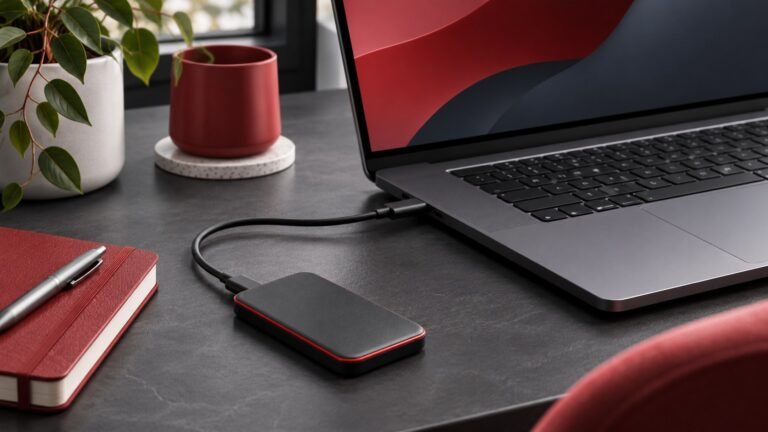
Rotating two backup drives gives you a recent copy you can update and a second copy you can keep disconnected. Label the drives, run the backup to one at a time, and test recovery from both before depending on them. Decide how much recent work you could afford to lose if your computer and the newest backup were unavailable together.
Choose the files and a rotation interval
List the folders you would need after a computer failure. Include documents, original photos and videos, exported application data, and any projects stored outside your normal folders. Check whether important files are local or only visible as placeholders from a cloud service. If an application has its own export process, open a sample export and check what it actually contains. Use our home backup testing guide to establish a restore baseline.
Choose an interval based on how often the files change. If you back up to drive A this week and drive B next week, the disconnected drive may be a week older when the next job starts. If that gap would leave too much work unprotected, shorten the interval or add a separate backup for the files that change most often. You can keep a simpler schedule for a static archive than for an active business or creative project.
Decide where to store the disconnected copy. A second drive in the same bag can still be affected by the same loss. If practical, keep one copy in a separate secure location and write down how you would retrieve it. If the data needs encryption, use the backup tool’s supported method and keep the recovery details somewhere you can reach independently of both the computer and drive.
Label the drives and configure each destination
Give the two drives different volume names and physical labels. Mark one A and the other B so you can match the label in the file manager to the label on the enclosure. Make sure each drive has enough capacity for the files and the versions you want to retain. Our external drive comparison covers how to weigh capacity, speed, and portability.
Configure each destination using the backup program’s documentation. Some applications support alternating targets directly, while others require separate jobs. Check the source list for both. Do not assume the second job inherited settings from the first. A small folder omitted by one job can matter during a recovery even when both destinations show a successful run.
If a utility offers to erase or initialize a drive, stop and check the device name and its existing files. Move any only copies to a separate verified location before proceeding. Use an empty drive for the setup when possible. After the first run, inspect the completion record and confirm that the software wrote to the drive you expected. Then safely eject the drive and disconnect it.
Run the rotation without leaving both drives connected
Bring the next drive to the computer and connect only that drive for the backup. Check the destination name before starting the job. After it completes, confirm that the latest run succeeded and that the software did not skip an important folder. Eject the drive and return it to its planned storage location. If you need to move copies between locations, decide which drive stays offline while the current job runs.
Keep a short log with the date, drive label, job result, and last verified restore. Write down any exceptional activity, such as adding a new project or changing a folder path. A log can tell you which drive to recover from without connecting both to a computer that may be experiencing problems. If a scheduled backup fails, fix the cause and rerun it before treating the rotation as complete.
An offline copy matters because a connected drive may be reachable by the same system that can alter the original files. A joint advisory published by CISA recommends keeping offline backups and testing restores in its organizational ransomware guidance. At home, keeping one drive physically disconnected makes it easier to preserve a copy outside the computer’s ordinary reach.
Restore files from both drives
Test each drive separately. Restore a document, an image, and a nested folder to a temporary location and open the recovered copies. If you keep versions, recover an earlier version of a file you deliberately edited between backups. Record the date of the backup you restored and how long it took. If you only test the newest drive, you may discover too late that the other destination was incomplete.
If you also use a NAS, decide which NAS folders need to be copied and how to restore them without the original enclosure. See our home NAS guide for the difference between mirrored disks and an independent copy. A removable drive can protect files held on the NAS only if your backup job covers those folders and you can read them after a failure.
Run a small recovery exercise after a change to the computer, backup tool, or encryption setup. Try locating the backup instructions from a second device. Check that you can find the required software and that the backup destination is supported on the recovery computer. Avoid using the exercise to overwrite working files. Use a separate folder and compare its contents with the expected result before deleting the test copy.
For example, if you update family photos weekly and work files daily, a weekly drive rotation may be adequate for the photos while leaving too large a gap for work. Set a more frequent job for the active folder, then include that folder in both rotating copies as well. Review the arrangement after the first month. If you keep missing the drive swap, pick a regular day and time tied to something you already do. The schedule only protects the files when someone actually connects the intended drive, checks the result, and disconnects it afterward.
When retiring one of the drives, first create and test the replacement while you still have a usable verified copy. Update the job destination and check that any retained older versions you need are still available. Put the new drive into the rotation only after restoring a sample from it. If you keep the retired drive temporarily, label it with its last backup date so it cannot be mistaken for the current destination.
Frequently asked questions
Can I alternate drives once a month?
Yes if the potential loss between copies fits your needs. Use a shorter interval or an additional backup for rapidly changing files.
Can I keep both drives connected all the time?
You can run backups that way, but a copy left connected loses the isolation that offline rotation provides.
Should I rotate two different drive models?
They can differ as long as each has enough space, works with your backup tool, and passes a restore test.
What if one backup job fails?
Keep the last verified copy and fix the failed job before counting the new run as complete. Check the destination and restore a sample afterward.