When an external SSD copies files slowly, test it directly on your computer with a known compatible cable. Then compare the same transfer through your usual dock. A drive can be limited by the USB link, the source disk, the type of files, or the drive’s sustained write speed. Measuring one change at a time can tell you which part needs attention.
Measure a repeatable transfer
Choose one large file you can safely copy, such as a video export you have already backed up. Copy it from the internal disk to the external SSD and time the whole operation. Use the same source file and destination folder for the next run, but write to a new filename if the file manager would otherwise skip the copy. Note the total size and elapsed time. The number you see in the first few seconds is useful context, but it can differ from the speed you get across the full transfer.
Test a read too. Copy a similarly sized file back from the external drive to an internal destination with adequate free space. If the internal disk is busy with another task, wait for it to finish or record the activity. Transfers depend on both devices, so a slow destination can make a fast source look bad. If you are working with a network folder, use a local test file first. This removes the network path from the first comparison and gives you a baseline for the hardware on the desk.
Follow the large-file test with a folder full of smaller files. Use a directory that resembles the work you actually do, such as a project with assets in nested folders. The same total capacity can take longer to copy as thousands of files because the system opens, creates, and tracks each item. Keep the two measurements separate. A drive that performs well with a single video export can still feel slower during a backup of a complicated directory tree.
Check the port, cable, and dock
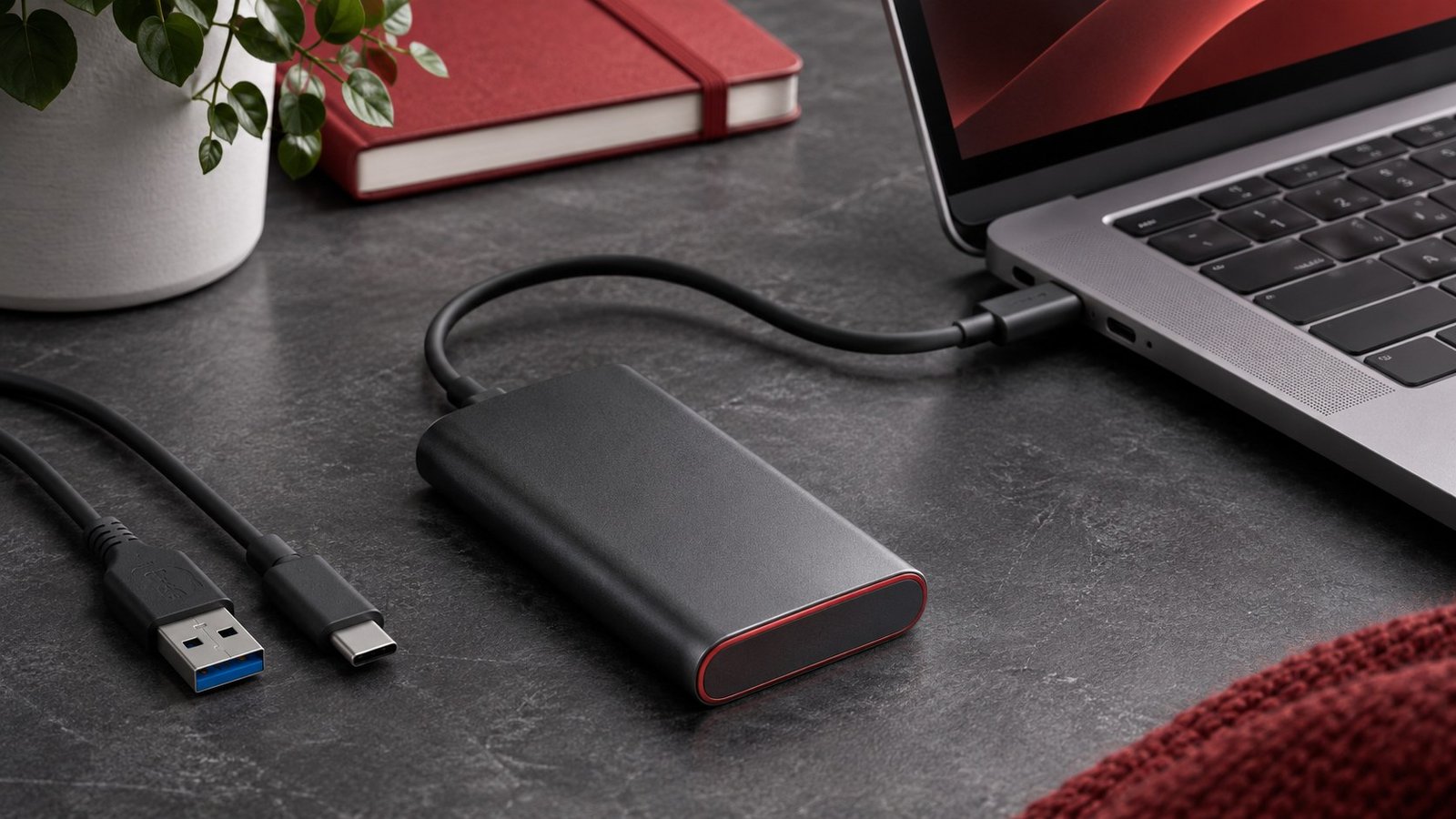
Write down the exact drive model and the port you are using. USB-C describes a connector, and ports that look alike can support different link modes. The computer, drive, cable, and dock all have to support the mode you are trying to reach. Start with the cable supplied with the SSD if you have it. Check the drive and computer specifications for the supported rate, then see our USB-C cable guide for how to separate data, charging, and video capabilities.
Connect the drive directly to the fastest suitable port you can identify from the computer’s documentation. Run the same test again. If your normal setup uses a dock, put it back after you have a direct result. Run a second comparison with the usual displays and peripherals connected. A dock can expose several ports that share an upstream connection. A different result with a second transfer or monitor active gives you a reason to investigate that specific configuration.
Compare the documented units before deciding that performance is wrong. USB data rates are commonly expressed in gigabits per second, while file copy utilities often show megabytes per second. Ten gigabits per second is 1.25 gigabytes per second before overhead, and a file transfer will also depend on the host and storage devices. Use the advertised link rate as an upper boundary. Use the timed copy to decide whether a change makes the workload faster.
Interpret the speed pattern
A copy that runs at a similar slow speed from start to finish may be limited by the connection, source drive, or the nature of the files. Compare a direct connection and a known compatible cable first. If the same cable works better on a different port, look up the two ports individually. If the drive is slow only when used on one particular computer, compare its behavior there with another external drive if one is available.
A fast initial burst followed by a lower sustained speed can reflect caching in the system or drive, or changes in the workload as the copy progresses. Try a larger file and note approximately where the speed changes. Repeat after the drive has returned to its normal operating state. If the slowdown appears only after a long sustained write, review the manufacturer’s documented performance and operating conditions for that model. A short benchmark might never reach the point you care about.
If a drive disconnects or reports an error, focus on stability before comparing speed. Use a direct port, inspect the connection, and try a known-good cable. Do not keep testing with the only copy of valuable data. Move readable files to a separate destination before making changes that might affect access, and use our backup restore checklist to confirm you can open the files you need. Persistent errors across cables and computers are a reason to check the drive maker’s support guidance.
Verify the fix with your own files
After finding a better connection, repeat the full workload. If you edit video from the drive, open a representative project and play through a section with several clips. If you use it for backups, run a normal backup and restore a sample file to a separate folder. Compare the resulting time and stability against what you measured before. A faster synthetic number is less useful if your actual project still pauses or disconnects.
Keep a note of the port, cable, and result. If you carry the drive between computers, repeat a short test on the second machine because it may support a different mode. For a permanent desk, label the cable that worked and record which dock socket you used. If you are deciding between a fast working drive and a larger backup drive, see our external SSD and hard drive comparison. Test each device against its intended workload rather than expecting both to have the same result.
Retest after a major change such as a new dock, computer, or operating system update. Use the original file sizes and record any other devices attached at the time. That makes the old result useful as a baseline and helps you avoid replacing an SSD when the new setup changed the connection around it.
When comparing results with another person, include the drive capacity and the length of the test. Two variants of a product family may behave differently, and a short copy can make differences in sustained performance hard to see. Save the actual timings and the hardware configuration alongside your notes.
The USB-IF labeling guidance provides examples of how manufacturers can identify data rates separately from the shape of the connector.
Frequently asked questions
Why is my SSD slower through a dock?
The dock, its upstream link, or other attached devices can change the available transfer path. Compare the same file with the drive connected directly.
Does a USB-C cable guarantee a fast transfer?
No. Check the data rate supported by the cable, host port, and drive. A charging cable can fit and still offer a slower data mode.
Why are many small files slower than one large file?
Each file requires additional work to open, create, and track. Compare like-for-like workloads when measuring storage performance.
Should I format the drive to make it faster?
First isolate the connection and test a representative transfer. Formatting can erase files and should only follow a deliberate decision with a verified backup.