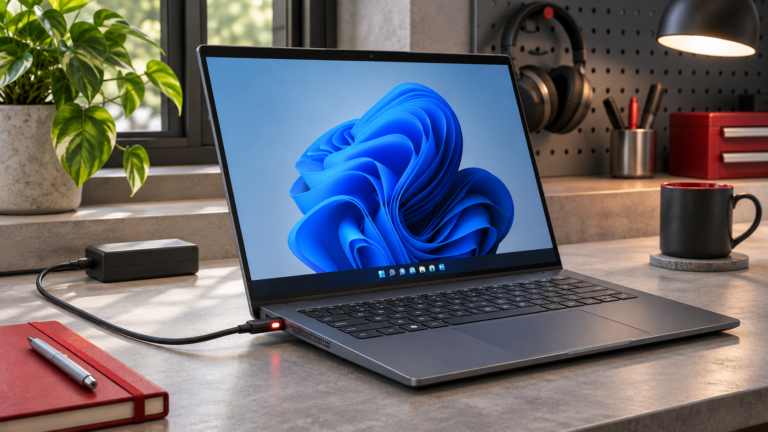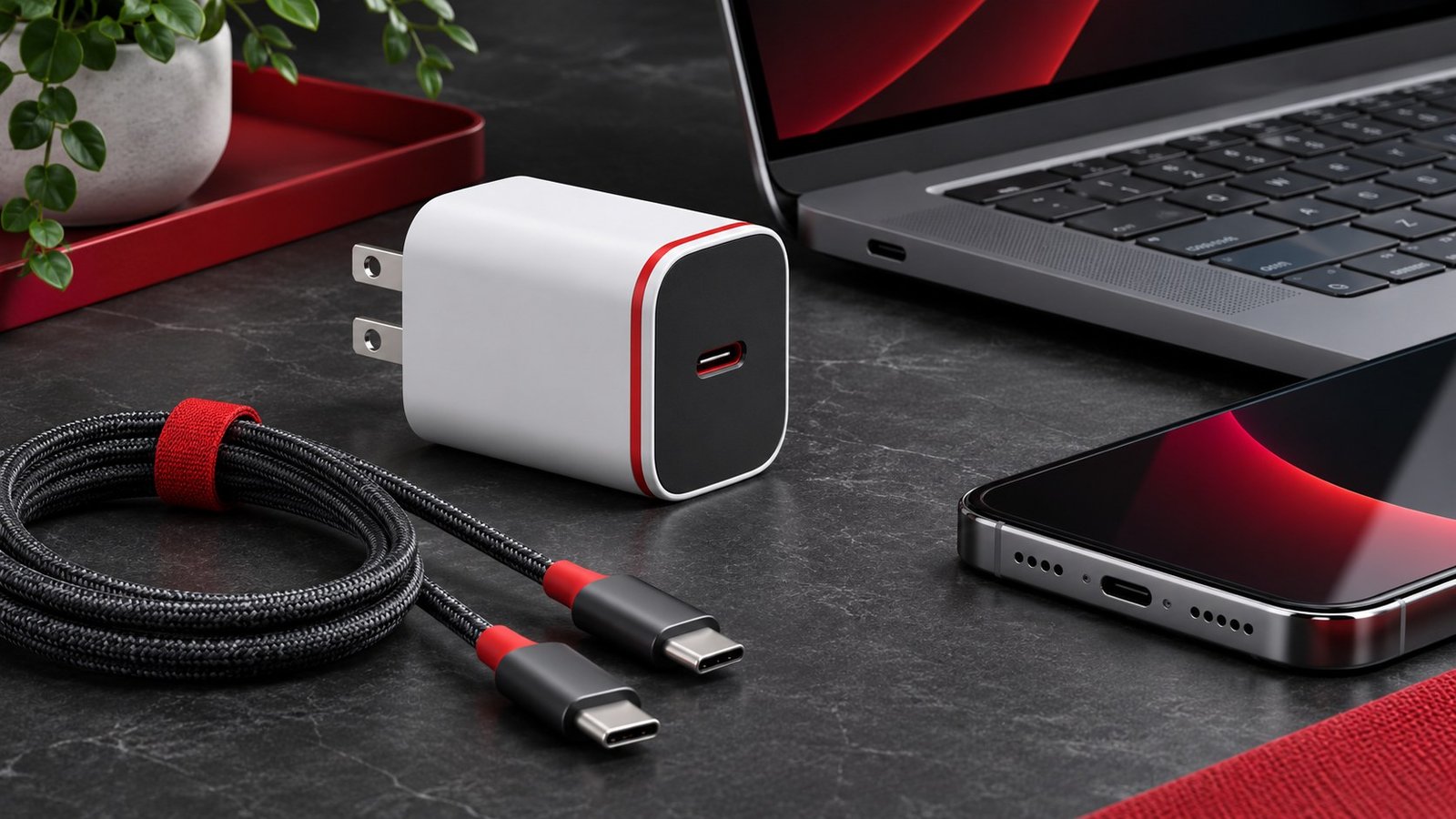
If a laptop charges slowly over USB-C, compare the replacement charger with the one the laptop manufacturer recommends. Check the charger’s output for the particular socket, the cable’s power rating, and any dock between the two. Then test with one device connected, under the same workload, before deciding whether the charger needs replacing.
Read the laptop and charger specifications
Start with the model number of the laptop and the recommended adapter listed by the manufacturer. Check which laptop ports accept power. Two ports with the same connector can do different jobs. A USB-C socket used for data or displays may not accept charging, and some laptops use a separate power connector for their full operating power. If the manual lists different configurations, match yours before comparing accessories.
Read the charger’s output table. A figure printed on the front can refer to its total power across several ports or to its highest output on one port. Check the output available from the socket you plan to use, both alone and alongside a second device. If the label lists several voltage and current combinations, use the manufacturer’s compatibility information rather than assuming every device will select the highest figure.
A charger and a device agree on a supported power level. A higher-rated compatible charger does not force its maximum power into the laptop. The actual result depends on the combinations supported by both devices and by the cable. Keep the original charger for a comparison if possible, especially when a laptop warns that the connected adapter is slow or insufficient.
Check the USB-C cable and the dock
A USB-C cable can have one rating for power and another for data. The USB-IF cable power rating guide describes certified power labels, including 60 W and 240 W. Check the exact cable’s specification if it has no clear label. A cable you use successfully to charge a phone may not support the power required by a laptop under load. Our USB-C cable guide also covers how to check file transfer and video capabilities separately.
When charging through a dock, distinguish input power from power delivered to the host. A dock can use part of the input for its own electronics or attached devices. Check the host output in the dock’s manual and whether its advertised figure assumes a particular adapter. Compare the same charger directly to the laptop, then through the dock, before buying a replacement.
If the laptop charges but a monitor goes blank when connected through the same dock, investigate the video path separately. Power passing through a cable tells you little about the modes a display can use. Follow the external monitor dock checklist for a one-display test, then combine it with your charging test once both work independently.
Run a controlled charging comparison
Start while the battery is below any configured charge limit. Record the initial percentage and the charger status shown by the operating system. Connect the original adapter directly and leave the laptop idle for a short period. Repeat with the replacement under similar conditions and at a similar charge level. A comparison at very different percentages is less useful because the laptop may change its charging rate as the battery fills.
Next, repeat the comparison during your normal workload. Open the applications you use and run a representative task. Check whether the battery gains charge, stays steady, or drains. A small charger can maintain or charge a laptop during light use while falling behind when the machine draws more power. You may accept slower charging for travel if it works during the tasks you actually do away from the desk.
Test any second device you normally charge at the same time. Connect the phone to the charger after the laptop has started charging and observe both. Some chargers redistribute available power when another device is connected, and the laptop’s charging status may change. Compare that with the port combination documented on the charger. Try the combination you expect to use rather than the one that looks most favorable on the package.
Choose equipment for the actual setup
List the devices you want to charge, which ones you need to use while charging, and whether you plan to route power through a dock. For a desk, prioritize stable power during the heaviest ordinary workload. For travel, decide whether a lighter charger can meet your needs when the laptop is idle or asleep. Test before relying on the travel combination away from home.
If the original adapter behaves well and another one does not, compare the stated profiles, cable rating, and port combination. If both behave the same way, look for a configured charge limit or check the laptop’s support documentation. For a phone that loses charge quickly once disconnected, use our Android battery drain guide to investigate usage independently of charging speed.
Keep the cable and charger that passed your test together. If you move between a direct charger and a dock, label the cable or record the model. If the cable or connector is damaged, use a suitable replacement and follow the device maker’s guidance. Compare products using the rated capabilities you need, with clear documentation for the port and cable rather than just the largest wattage printed on the charger.
For example, a charger advertised at 100 W might provide its highest figure with one port in use. If the laptop charges as expected alone and the warning appears only after a second device is attached, check the shared output table before changing cables. If a dock is also involved, remove it and test the same two-device arrangement again. The result helps distinguish a charger allocation issue from a limit in the dock.
A good travel test includes a full ordinary session. If you expect to use the charger during a train ride, start at the battery level you typically have when you board, use the same browser tabs and applications, and check whether the battery level is higher when you finish. If you need only to recharge overnight, test that use case separately. Record which port the laptop used and whether the phone was connected. Compare the result against the original charger before deciding what to pack. If you borrow a cable for the comparison, write down its rating so you can reproduce the setup later.
Frequently asked questions
Can I charge a laptop with my phone charger?
It depends on the laptop, charger, and cable. Check the supported power levels and test under a representative workload.
Does a 100 W charger provide 100 W to every port?
Check the output table. On multiport chargers, available power can differ by socket and by how many devices are connected.
Why does my laptop lose charge while plugged in?
The system may draw more power than the connection supplies, or the charging path may be limited by the cable, dock, or port. Compare with the recommended adapter.
Does a higher-wattage cable make charging faster?
It can remove a cable limit if the other components support a higher level. A capable cable cannot increase the charger’s or device’s own limits.