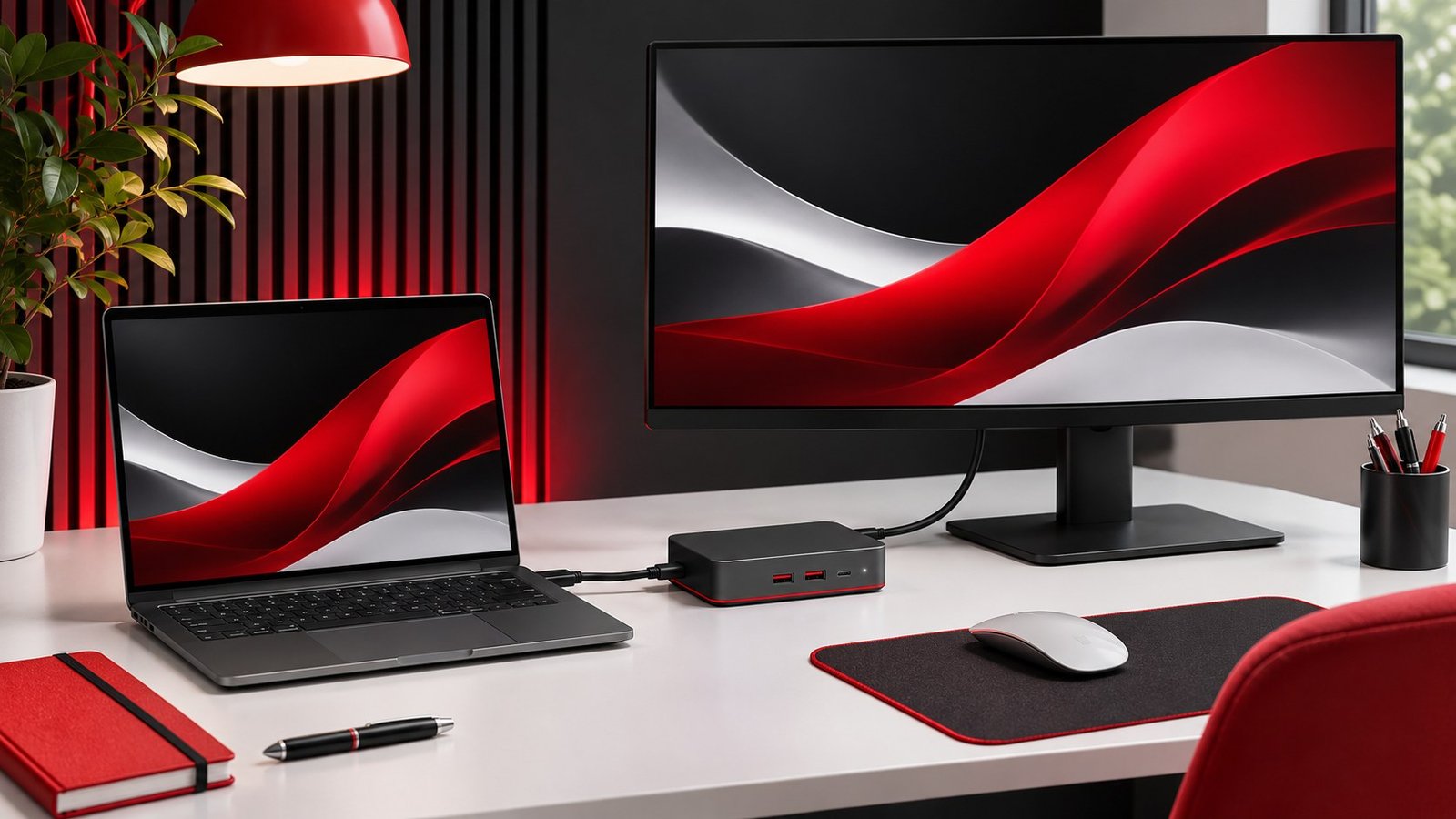
When a monitor works through a direct cable but stays black through a dock, simplify the setup to one screen, one dock, and the recommended power supply and host cable. Confirm that your laptop port can drive video and that the dock supports the resolution and number of screens you want. Then reconnect the rest of your setup one part at a time.
Separate a no-signal message from a blank desktop
Check the display’s power indicator and open its built-in menu. A working menu with a no-signal message tells you that the display can show its interface and is waiting for a usable input. Select the port the cable actually uses. Many monitors have more than one HDMI or DisplayPort input, and automatic selection can stay on another device when that device is still connected.
On Windows, press Windows key plus P to see the display modes. Choose Extend for a separate desktop or Duplicate if you want both screens to show the same content. Open Settings, then System and Display, and check whether the monitor is listed. A monitor that appears in settings but has no picture gives you a different clue from one that Windows cannot detect at all. See Microsoft’s external monitor troubleshooting guide for basic detection and cable tests.
If the monitor only goes blank after sleep, distinguish that case from a cold start. Start with the computer awake and connect the dock. Record whether a picture appears, then run one sleep and wake cycle. Write down which displays, power adapters, and peripherals are connected. A setup that fails on wake can behave differently from one that never establishes a picture.
Establish a working direct connection
Connect the same monitor directly to the laptop with a known compatible cable where possible. Leave other screens unplugged. Test a conservative resolution and refresh rate first. If the direct connection also fails, check the selected input, try a known-good cable, and test the monitor with another source. That helps separate the monitor and cable from the laptop before you spend time on the dock.
Look up the exact laptop model and find which ports support video. A USB-C shape does not tell you what a port can send. Check the dock’s required host connection and use the original host cable if available. Our USB-C cable guide explains how to distinguish charging, data, and video. A dock can charge the laptop or show a connected keyboard even if its video path cannot establish a usable mode.
If the laptop has no direct cable path to that monitor, test a simpler configuration you can build. Try a known working monitor on the dock, or test the original monitor with a different laptop. Keep track of what you swapped. Changing the monitor and cable simultaneously narrows the problem only to that pair. Once you have a picture, change one part at a time.
Reconnect the dock with one screen
Use the recommended power adapter for a powered dock and connect the cable to its documented host port. Attach the display to one supported output and leave external drives and other screens disconnected. Some docks have multiple output combinations with different limits. Check the manual for the exact combination you want to use, including any requirements for the host computer.
Check the dock model’s software requirements. Some display docks use USB graphics software, while others rely on a native video path. The manufacturer should say whether a driver is required. For a managed computer, check with the administrator before installing software or firmware. If the problem began after changing laptops, compare the new host’s supported modes with the dock’s documented requirements.
Once you have a picture, check the active mode in Advanced display. If the preferred refresh rate is missing, use our refresh-rate guide to compare direct and docked modes. Try a lower refresh rate or resolution briefly to see whether a demanding mode triggers the failure. A stable picture in a simpler mode gives you something concrete to compare with cable and dock specifications.
Add the rest of your desk setup and retest
Connect the second monitor only after the first works. If the second screen makes the first go black, check the dock’s multi-display support for your host and operating system. Try each screen by itself using its intended cable. Then connect both at conservative modes. If both work alone, you have a stronger reason to look for a combined display limit or an unsupported output combination.
Reconnect your usual devices one at a time. Run a test with charging, a file transfer, and the display configuration active. Then disconnect and reconnect as you would when returning to the desk. If the problem comes back only after a particular peripheral is attached, record the sequence. A repeatable sequence is easier to troubleshoot than a report that the dock occasionally fails.
Write down the laptop port, dock output, cable, monitor input, and settings that work. Save the reference for future changes, especially if the laptop has similar-looking ports. If you replace one part, check its documented capabilities against that working configuration. For a desk shared by two computers, test each laptop with the same dock before assuming it supports the same display combination.
If a dock works on another laptop, record exactly how that laptop is connected. Its port may support a different mode or its operating system may have a required driver. Repeat the comparison using the same monitor and cable. If the results still differ, check both laptop specifications against the dock’s compatibility list. If you open a support request, include the exact dock, computer, monitor and software versions, plus the simplest configuration that reproduces the issue.
If the failure happens only after waking, try a documented dock or monitor power cycle after you save your work and safely eject attached drives. Then compare waking with the laptop lid open against your usual setup. A closed lid can change display behavior depending on the computer’s power settings and supported operating modes. Keep that variable consistent during cable tests. When a firmware update specifically addresses your symptom, follow the dock maker’s update instructions and test the exact same sleep and wake sequence afterwards. If the same display goes blank on several known compatible sources, inspect the monitor’s own input settings and support guidance before changing more laptop settings.
Frequently asked questions
Why does my dock charge but show no picture?
Power and video are separate capabilities. Check the laptop port, host cable, dock requirements, and selected monitor input.
What if Windows detects the monitor but it stays black?
Verify the monitor input and try a conservative resolution and refresh rate. Compare a direct connection with the docked setup.
Why does one screen work but two fail?
Check the dock’s output combinations and the host’s display limits. Test each screen by itself, then connect both at conservative settings.
Should I replace the dock first?
Test one display directly and then through the dock with known compatible cables. Replace a component after a comparison points to it.