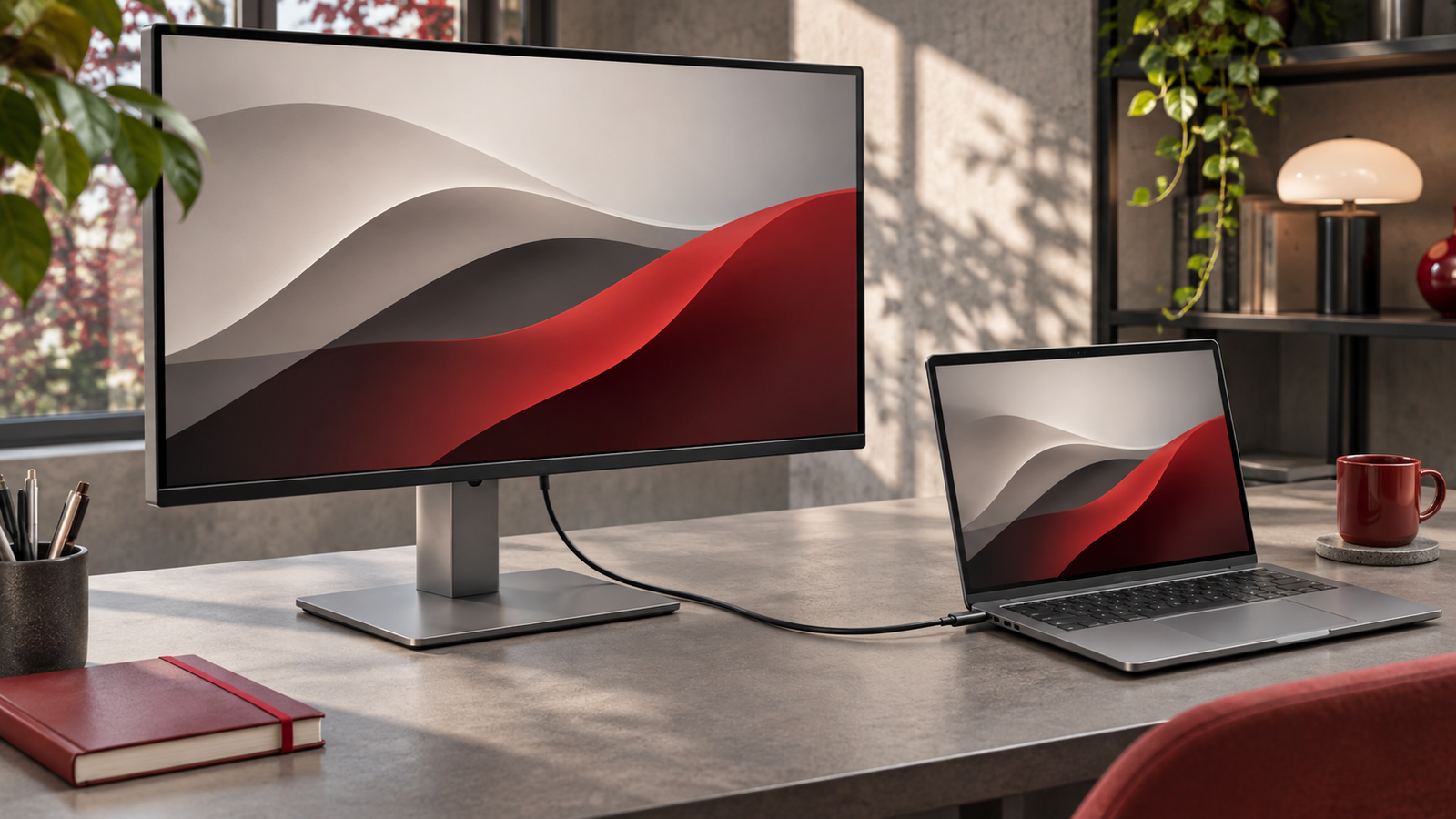
A USB-C monitor can charge a laptop if its upstream port supplies USB Power Delivery and the laptop accepts charging on the connected port. Compare the monitor’s output with the laptop’s requirements, then test with a cable rated for both power and video. A picture on screen only confirms that the display connection works.
Check which monitor port supplies power
Look up the exact monitor model and read the port diagram. Some monitors have more than one USB-C socket. One may be the upstream connection intended for a laptop, while another is for accessories and supplies less power. Look for specifications that describe the upstream port’s maximum Power Delivery output. A statement that the monitor has USB-C does not tell you the charging wattage or whether the port accepts video. Read any footnotes about settings or additional attached devices that can affect output.
Confirm the monitor is connected to its own power source. A portable display may draw power from the laptop instead of charging it, or it may pass through power from a separate adapter under specific conditions. Check its manual before assuming it behaves like a desktop monitor. If you cannot find the wattage in the printed guide, search the model number on the manufacturer’s support site. Closely related monitor models can have different ports even when the enclosure looks the same.
Check the laptop’s charging port and power needs
Find which laptop ports accept charging and which support video output. A laptop can have several USB-C ports with different capabilities. Check the original adapter rating and the manufacturer’s guidance for USB-C charging. The original charger provides a useful comparison, though some laptops can accept a lower input with reduced charging speed or performance. Others use a higher-power adapter for demanding workloads or expect a specific charging arrangement.
Manufacturer documentation can distinguish power flowing into a port from power that the port supplies to accessories. Dell’s USB-C power documentation for selected laptops is an example of why the exact model matters. Use your own model’s instructions before relying on another system’s limits. If the laptop displays a charger warning, record its wording and which port you used. The warning can help you compare behavior between a monitor and the original adapter.
Choose a cable for both jobs
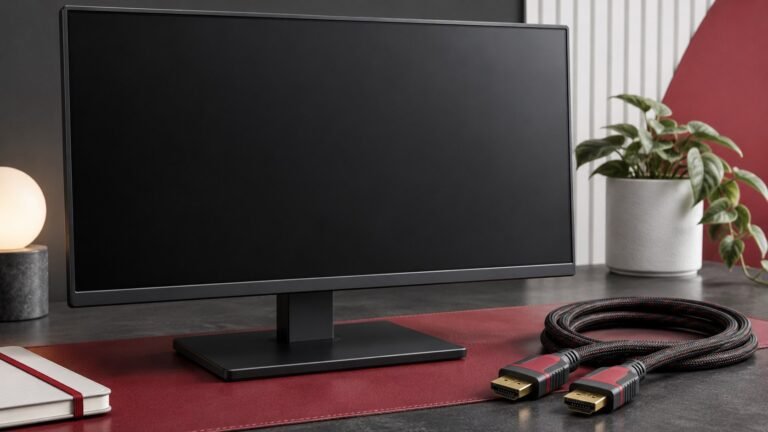
A single cable must carry the required power and the kind of video connection your devices use. Some USB-C cables are intended for charging or basic data and cannot carry the display signal you expect. Other cables can carry video yet limit the power available. Start with the cable supplied with the monitor if the manufacturer specifies it for the laptop connection. Otherwise choose a cable whose published power and data or video capabilities match the monitor and laptop. Our USB-C cable guide explains how to read those ratings.
Avoid a chain of extensions or adapters for the first test. Connect the laptop directly to the monitor’s upstream port. If a cable works for a phone charger, that does not prove it supports a high-resolution display. If it produces a picture, the picture alone does not show which power level was negotiated. Write down the cable model or keep the original packaging so you can repeat the same test later.
Test with a representative workload
Start with the battery below any configured charge limit. Check whether Windows or macOS indicates external power after you connect the display. Confirm that the monitor works at your normal resolution and refresh rate. Record the initial battery percentage, then use the laptop for a typical period of work. A useful comparison includes the apps you normally run, the same display brightness and the same external accessories. Repeat with the manufacturer’s adapter if the result is unclear.
Observe the direction of the battery percentage. It may rise during light work and fall during a game, render or other demanding task. That can indicate the monitor supplies useful power but cannot cover that workload on its own. If the computer stops charging at a consistent level, check charge limit settings before assuming the monitor is at fault. If charging is slow on several power sources, use our USB-C laptop charging guide to isolate the port, cable and charger.
Troubleshoot video and charging separately
If the laptop charges but the display stays blank, check the monitor input and test a cable documented for video. A port that accepts charging may not provide the required display output. If the display works but Windows reports a low-power charger, check whether the cable, monitor output or laptop limits are the bottleneck. Test the known-good cable and one supported laptop port before changing several things at once.
If you normally connect through a dock, remove it for the baseline. Reintroduce it only after the direct setup works. The dock may route video or power differently from the monitor’s upstream connection. Check our monitor and dock troubleshooting guide for a sequence to isolate the connection. Add peripherals one at a time if the problem appears only after attaching several devices. Write down which change reproduces the symptom.
Decide whether a one-cable setup fits
Use the monitor alone if it reliably keeps up with the work you do at that desk. If it only sustains lighter tasks, use the laptop’s supported adapter for heavier sessions as directed by its manufacturer. Check the laptop manual for how it handles multiple power sources before connecting them together. Do not assume that the machine adds their wattages. If you are choosing a new monitor, evaluate charging, supported resolution and refresh rate, and any hub features against the workflow you plan to use.
Keep a spare compatible cable if the setup is important for work. Label the one you have tested. After a laptop or monitor replacement, run the same short workload test again before treating the old arrangement as equivalent. A repeatable result is more helpful than a charger icon alone. It tells you whether the laptop continues to gain or maintain charge while actually driving the display and running your applications.
For a practical buying comparison, list each monitor’s upstream power rating beside the laptop’s recommended input. Add a column for the resolution and refresh rate you use, then note whether a suitable cable comes in the box. If your laptop also powers an external drive, include that drive in the final test. These details can make two similar displays behave differently at the same desk. Keep the original adapter available until the complete setup has passed a normal work session.
Frequently asked questions
Does every USB-C monitor charge a laptop?
Check the exact upstream port specifications. The monitor needs to supply USB Power Delivery and the laptop needs to accept it on the selected port.
Can a lower-wattage monitor still be useful?
It may sustain lighter work or charge slowly. Compare the battery trend under your normal workload and follow the laptop vendor’s guidance.
Why does video work while the battery goes down?
The display connection can work even if the laptop draws more power than it receives. Check cable ratings and compare with the original adapter.