
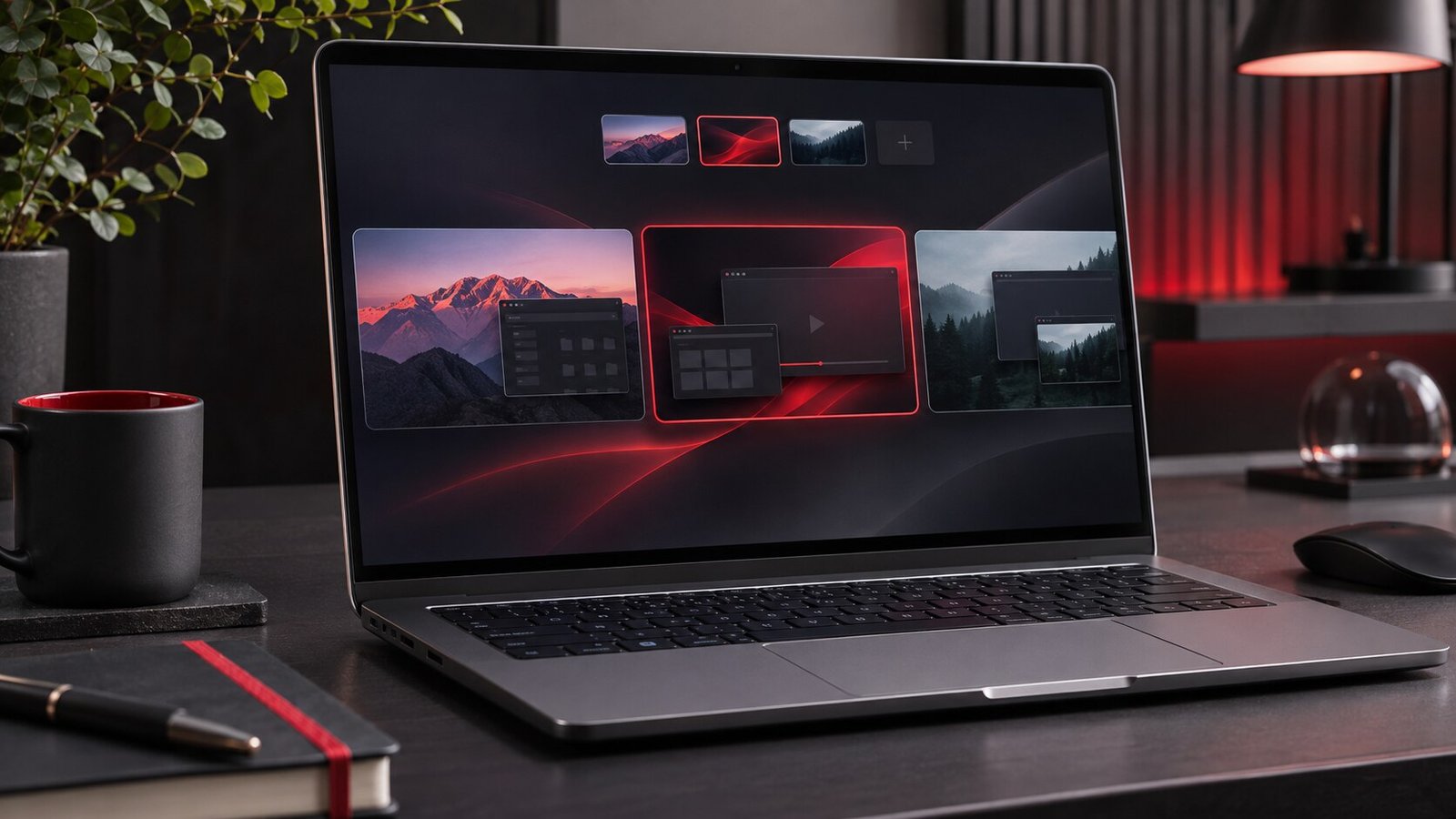
Press Windows + Tab to open Task View and choose New desktop. Open the apps for one activity there, then switch with Windows + Ctrl + Left or Right Arrow. Use Task View to move windows between desktops and to check exactly what will remain open when you close one.
Set up two desktops you will actually use
Start with two activities that regularly compete for the same screen. For example, keep a browser and document editor on a desktop named Writing, and put email and chat on another desktop named Messages. Open Task View from the taskbar or use Windows + Tab. Choose New desktop and select it. Rename each desktop from Task View so the name describes what you were working on. Microsoft explains the relevant controls in its Windows multitasking guide.
Keep the first experiment small. Put a single unmistakable window on each desktop, such as a blank document titled Draft on one and a settings window on the other. Switch back and forth and confirm that both remain open. This is a better first test than scattering a dozen existing windows and then trying to remember where they went. A virtual desktop gives you another arrangement of windows within the same signed-in session. An app can still receive messages, sync files or play sound while its window is on another desktop.
Switch without interrupting a task
Use Windows + Ctrl + Left Arrow or Right Arrow to switch between neighboring desktops. With three or more, Task View lets you select the one you want directly. If switching unexpectedly does nothing, confirm that another desktop exists in the direction you tried. Check the shortcut outside a game or remote desktop session too. Those programs may handle keyboard combinations differently. The Task View button gives you another way to verify which workspace is active.
Try using the two desktops during one ordinary work session. When you need to reply to a message, move to Messages, complete the reply, and return to your original desktop. Check whether the document is still at the same scroll position. For a task that involves copying several snippets between desktops, our Clipboard History guide explains how to retrieve an earlier copy. The clipboard is part of the same session, so switching workspaces does not give you a separate set of clipboard contents.
Move an existing window instead of reopening everything
Open Task View while the window is visible on its current desktop. Right-click its thumbnail and look for Move to, then select the destination desktop. You can also try dragging the thumbnail onto a desktop when Task View supports it. Switch to the destination and check that the correct window arrived. If one application has several documents open, match the thumbnail and title so you move only the document you intended.
A window that you want everywhere, such as a timer, can use the available show-on-all-desktops action. Apply it to one test window and switch twice to see what changes. Task View can distinguish showing one window everywhere from showing all windows belonging to an app. That distinction matters when you have separate browser windows for unrelated projects. Keep the application-wide behavior off unless you want every relevant window to follow you.
Choose what the taskbar and Alt + Tab show
In Settings, open System → Multitasking and look for Desktops. Review the options for which open windows appear in the taskbar and in Alt + Tab. If you want to focus on the current workspace, keep the view restricted to that desktop where appropriate. If you need to reach any open window quickly, choose the broader view and test how that behaves with your apps. Start with one option at a time so you can tell what changed.
For example, keep a document editor open on one desktop and a browser on another. Compare what Alt + Tab shows before and after changing its setting. Then do the same for the taskbar. The settings control what you can see and select. They do not close programs in the other workspace. If a click brings you to another workspace, check which window that app had already opened rather than creating multiple copies just to reach the app.
Use virtual desktops with an external monitor
With two physical monitors, first arrange the displays correctly using our dual-monitor setup guide. Confirm how the pointer crosses between screens. Then make one virtual desktop for a full activity, such as editing on one monitor and viewing reference material on the other. Switch desktops and see where both monitors end up before you rely on that arrangement during a meeting.
If you share your screen, open the sharing preview and identify the exact window or display. A virtual desktop helps organize open windows, but it does not establish a privacy boundary. Use a clean sample workspace and check what the audience will see. Our screen recording guide covers checking a capture before distributing it. If you need to switch workspaces while sharing, rehearse with harmless content so you know how the meeting or recording app handles the change.
Close a desktop and verify your windows
Save any important work before reorganizing. In Task View, use the close control on a desktop you no longer need. Windows moves its open windows to another desktop. Find an example window afterward and check its content. Closing the workspace is useful when a project ends, while closing applications is a separate action. If an app still triggers notifications or makes sound, inspect its own settings or close it yourself.
Review the arrangement after a normal day of work. Keep desktops for activities you actually switch between and merge the ones you rarely use. If your computer is slow after sign-in, many open workspaces can make the problem easier to notice without identifying its cause. Our startup apps guide shows how to test sign-in delays separately. Use workspaces to make your tasks easier to find and use the system’s own measurements when investigating performance.
For a quick reset at the end of the day, open Task View and scan the thumbnails from left to right. Save what is still open, move any window you need tomorrow to its intended workspace, and close the desks that belonged to finished tasks.
Start with a layout you can describe in a sentence. If you keep forgetting which desk holds a window, use clearer names and reduce the number of workspaces until switching is predictable.
Frequently asked questions
Will a virtual desktop run a separate copy of Windows?
It organizes windows in your existing session. Use a virtual machine or separate account when you need actual isolation.
Can I rename a desktop later?
Yes. Open Task View and change the name so it describes the current activity.
Will closing a desktop close my documents?
Its open windows normally move to another desktop. Save important work and check the destination afterward.


