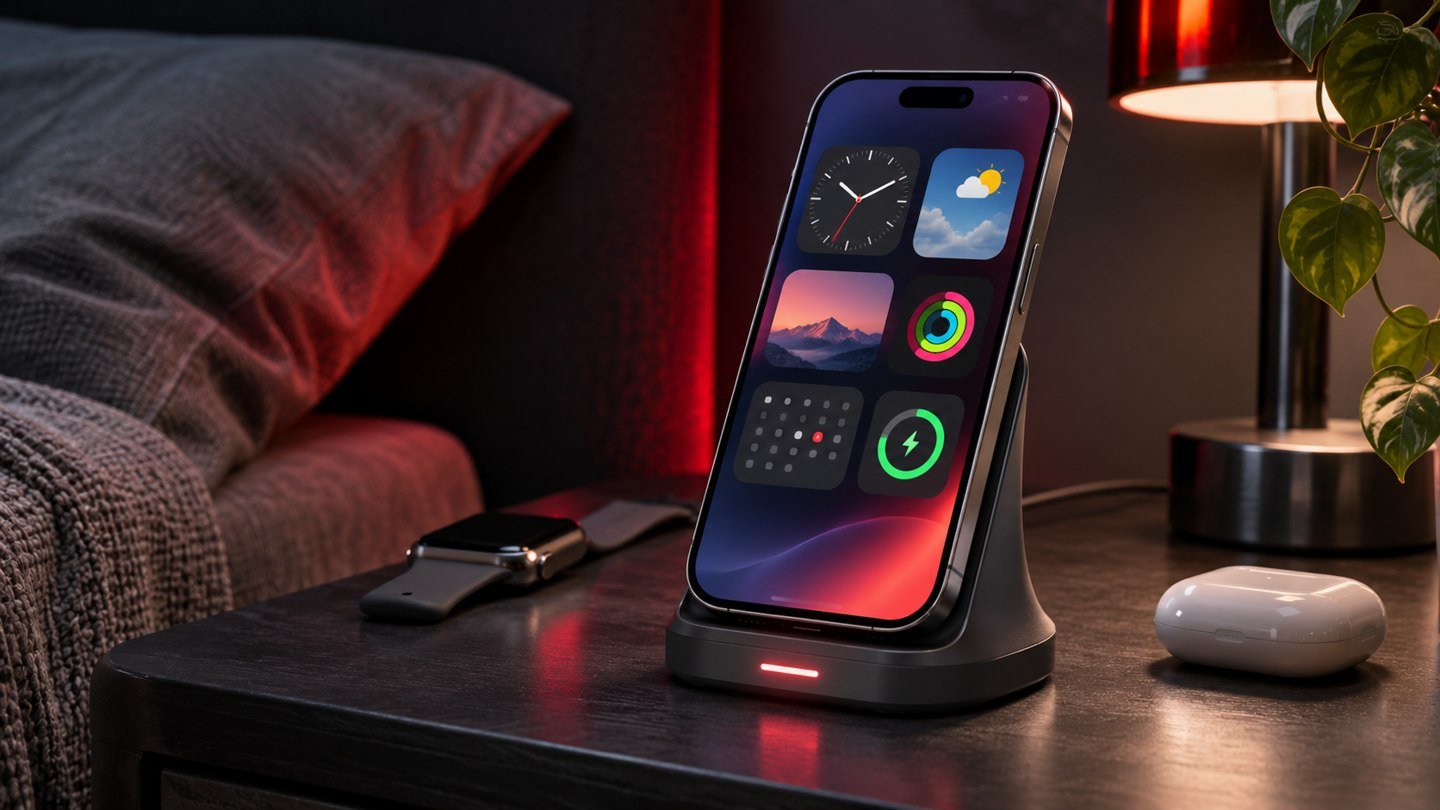
StandBy turns a charging iPhone resting on its side into a display you can read from across a desk or bedside table. To try it, enable StandBy in Settings, connect the iPhone to a charger and place it in landscape orientation. Start with the clock view and check how the display behaves in the room where you plan to use it. Your iPhone model and display settings affect whether the clock stays visible or needs a tap, so check that behavior before replacing a dedicated clock.
Position the iPhone for a reliable first test
Open Settings > StandBy and check that the feature is enabled. Plug in a charging cable or use a compatible charging stand. Set the phone on its side in a stable position where you can see the screen. Leave it still while it changes into the StandBy view. If the screen is off, tap it. A horizontal phone resting upright on an edge or supported by a stand is easier to see than a phone placed flat on the table. Apple describes the charging and positioning conditions in its StandBy user guide.
For a first test, pick a charger you already know works with the phone. Confirm that the battery indicator shows charging before troubleshooting the display. If a case keeps your phone from sitting properly on a wireless stand, try a known working wired charger and a separate support. Orient the port so the cable can rest without pulling on the device. Once the feature works, decide whether you want a permanent stand or a setup you can repeat with your existing charger.
Choose a clock, widgets or photos
Swipe horizontally to switch among the available StandBy views. Depending on the view, swipe vertically to cycle through the faces or items available, or touch and hold to make changes. A dedicated clock view is a simple start for a bedroom. Try reading it from where you will actually be sleeping. Clock faces with very fine text can look elegant close up and be harder to read from a few feet away in a dark room.
In the widget view, configure a small number of cards you genuinely need while the iPhone is charging. For example, put time on one side and the next calendar item or weather on the other where supported. Consider what the widget could show when somebody else can see the screen. If you use the same arrangement on a shared desk and at home, check how visible calendar entries and notifications are from a distance. The photo view may ask you to unlock the device before you can customize or view certain content.
If your setup is primarily for travel, try a clock layout with an obvious time display. Set the phone where you can see it from your pillow and confirm that the charger is supplying power, especially with an unfamiliar outlet or adapter. For a separate travel workflow, our iPhone offline maps guide explains how to prepare for a trip with intermittent data service. An offline map and a charging clock solve different problems but are both worth testing before departure.
Check Night Mode and screen duration
StandBy can adapt to a dark room with Night Mode. Look for the options available under Settings > StandBy on your iPhone. Check the display once the room lights are in their usual nighttime state. Small light sources such as a lamp pointing at the stand can change how you perceive contrast, so test the location you actually plan to use. Try a large clock face if the red-tinted nighttime view is difficult to read.
On models with Always-On display support, StandBy can remain visible under supported conditions. Apple documents display duration options where available. On other models, or when the display goes to sleep, you may need to tap the screen or otherwise wake it as described in Apple’s guide. If you require a clock you can see without interacting with the phone, check your model and test the behavior over more than a minute. Observe it once in daylight and once when the room is dark.
For bedtime, review your normal notification and Focus settings separately from the look of the clock. A StandBy face can be helpful even when you prefer very few visible interruptions. Make a test call or set a regular alarm for a few minutes ahead if you need to know how your existing settings behave with the phone charging on its side. If you plan to use a schedule to change other phone settings at bedtime, see our guide to personal automations in Shortcuts.
Troubleshoot a clock that never appears
If StandBy does not appear, confirm that charging continues when you rotate the phone and that the device is resting steadily on its side. If it works only with the cable held in one position, change the cable or positioning before investigating software. Try locking the phone and tapping the screen once while the charger is connected. Use a known working charger and repeat the test somewhere convenient, so you can determine whether the problem follows the phone or stays with the stand.
If the display appears briefly and then darkens, check the display duration and model behavior first. That points to a different issue from a phone that never entered StandBy. If the clock appears but the wrong face returns in a particular location, switch to your preferred face while connected there and test again after disconnecting. Apple notes that StandBy can remember your preferred view for different MagSafe charging locations. Compare the same stand and power source when you want repeatable results.
Keep a little space around the stand so you can reach the screen without pulling the cable or knocking the phone over. Try dismissing an alarm and changing the clock face from the position you normally use in bed. If a stand puts the phone at the wrong viewing angle, reposition it and verify that charging still works. Those small adjustments can make the difference between a readable bedside display and one that looks good only when you are standing over it.
Frequently asked questions
Does StandBy require a wireless charger?
You can use a wired charger with the iPhone set steadily on its side. A compatible stand can make positioning easier, and Apple documents some location-specific behavior with MagSafe. For a simple first test, use your regular charging cable and a secure support.
Does StandBy replace my alarm?
Set your alarm in Clock or with your usual sleep schedule, then test it with the phone in StandBy. The display view is useful for checking the time. Your alarm and its settings are a separate part of the bedtime routine.
Can I leave the screen on all night?
Check your model and available StandBy display options. Always-On display and other conditions affect how long the view remains visible. Test the actual room, including your normal Focus and charging setup, to see whether the display meets your needs.
What is the easiest layout to read from bed?
Start with a clock face that uses large numbers and read it from your normal sleeping position. Test it again in the dark. If widgets or photo details are too small, choose the clock view or move the stand to a more comfortable distance.