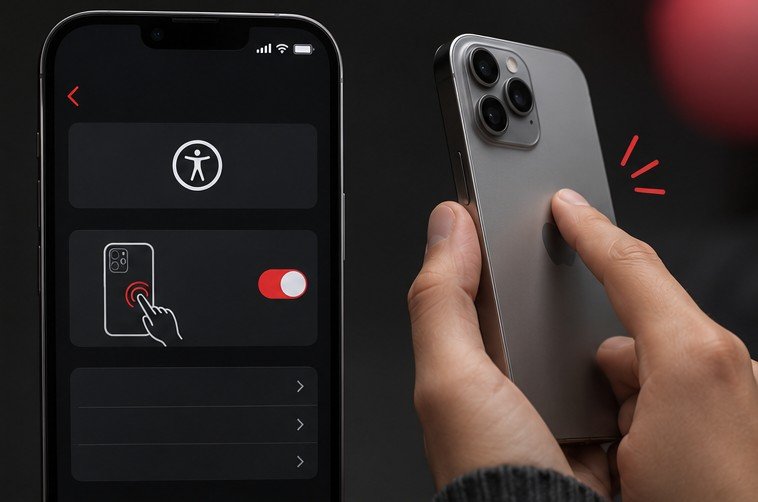
Back Tap lets you double-tap or triple-tap the back of a compatible iPhone to perform an action or run a shortcut. Start with one gesture and one action you can see immediately. Test it while holding the phone normally, then check how it behaves with your case, on a stand and during ordinary one-handed use. If it triggers when you did not intend it to, choose a different gesture or reserve Back Tap for an action that is easy to undo.
Turn on one gesture first
Open Settings > Accessibility > Touch > Back Tap. Select Double Tap or Triple Tap and look through the available actions. Pick a visible action for your first test, such as Screenshot where available. Return to the Home Screen, hold the device at a comfortable angle and tap the back twice or three times to match the gesture you set. Check for the expected result. Apple documents the controls in its Back Tap user guide.
Leave the other gesture unassigned until the first one works consistently. If both gestures launch visible actions, a partial attempt at a triple tap can make it harder to understand what happened. Use the same hand and similar grip on several attempts. Observe whether the response varies when you are holding the phone securely or when it is resting against a surface. Check the action directly as well. If the action itself depends on an app or permission, a recognized gesture may still lead to an incomplete result.
Choose a useful action for your routine
Start with something you regularly need while the phone is in your hand. For example, if you take several screenshots for troubleshooting, a gesture can be handy when reaching the hardware buttons is awkward. If you need a control occasionally, consider whether its normal button or Control Center placement is easy enough. A gesture is most helpful when it saves a specific repeated movement or makes a feature easier to reach.
Consider the cost of an unexpected activation. Opening an accessibility control is generally easier to reverse than running a shortcut with multiple effects. If the action changes a setting you rely on, practice finding the regular control and reversing it. Double tap is quicker to attempt, while you may find triple tap easier to distinguish from incidental handling. Determine which response you prefer by trying them separately over the same routine. Avoid concluding that a gesture is reliable after one successful attempt at a desk.
If several people use the phone, tell them what the gesture does before depending on it. Somebody else may hold the device differently or put it down more firmly on a desk. Choose an action that makes sense for the people who use the phone. If Back Tap is more difficult when the phone is mounted, use an accessible alternative during that task. A reliable gesture with the phone in your hand does not need to be your only way to reach the action.
Assign a shortcut after testing it manually
Create or identify a shortcut in the Shortcuts app, then run it manually. Make sure it produces the result you expect, including any prompts or permissions. Return to the Back Tap selection screen and choose the shortcut if it appears in the available list. Leave the settings screen and test it in the actual app or situation where you plan to use the gesture. A shortcut that works from inside its editor can depend on inputs that are unavailable when launched by a gesture.
For example, start with a shortcut that shows a harmless notification or opens a particular app. If you later add actions that use text or files, check what happens when no text is selected and when the phone is in a state where the action needs to ask for assistance. If you need the same workflow to run on a schedule, our guide to personal automations on iPhone explains how to test a separate trigger. Both can point to a shortcut you maintain in one place.
A shortcut can be renamed or changed later. If you make a significant change, run the gesture again and confirm that it still launches the intended workflow. Pay attention to sensitive material that might appear on screen when you are with other people. Choose a simple confirmation step inside a shortcut if you need time to decide whether it should proceed. During initial testing, use sample input and choose an outcome you can check without affecting another person or device.
Troubleshoot missed taps and false triggers
If nothing happens, verify the assigned gesture in Settings and try a visible built-in action again. Hold the phone in your normal grip and tap at a regular pace. Test another holding position and check whether the result changes. If the phone is in a thick case, compare a few attempts with and without it where practical. Put the case back before deciding whether the feature is convenient enough for ordinary use. A gesture that works only in a configuration you rarely use may add more effort than the original control.
If it fires when setting the phone down or shifting it in your hand, unassign the gesture for a short comparison. Then test the other gesture with an equivalent action. If unexpected activation happens in only one situation, such as a stand or a particular grip, you can decide whether an alternate control is better there. For other accessibility workflows, our iPhone Sound Recognition guide covers a different way to get an observable system response from an event.
Write down whether a problem occurred while holding the phone, walking or reaching for a button. That small detail helps you tell random variation from a pattern. If a named shortcut seems to be failing, assign Screenshot temporarily and repeat the same gesture. If screenshots appear reliably, focus your troubleshooting on the shortcut’s inputs and permissions before changing your case or grip again.
Try at least three ordinary uses after configuring the final gesture. Include the situations where a missed action would be most frustrating. Compare your results with the original control so you can decide whether the gesture earns a permanent spot in your routine.
Frequently asked questions
Can the two gestures run different actions?
Yes, choose the action available under Double Tap and Triple Tap independently. Test one first so you know what successful activation looks like. Then add the second and try them separately.
Can I use Back Tap to run a shortcut I already use?
Choose it in the Back Tap options if it is listed. Run it manually first and check for dependencies, such as selected text or an app that requires a permission. Try the gesture in the real context you plan to use.
What should I do if a case interferes?
Try the same action and grip briefly with a different case setup to isolate the effect. Retest with the case you normally use. If the result is unreliable, choose another way to launch the action or try the other gesture.
How can I turn a gesture off?
Return to the Back Tap settings and choose None for the gesture. Check both entries if you want to disable the feature completely. Then try the action from its normal control if you still need it regularly.