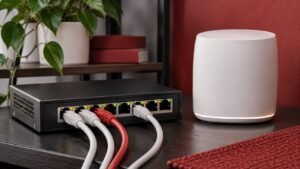
To fix a Wi-Fi dead zone, test the same device next to your router and in the problem room. If the connection is stable near the router, start by moving the router or improving the path between the rooms. If the connection also fails near the router, check the internet connection and the device before spending money on mesh equipment.
Measure the problem in three locations
Pick three places where you can repeat the same test. Start within a few metres of the router, stop near the doorway of the affected room, then sit where you normally work or play. Use the same laptop or phone, the same network, and the same test each time. On a phone, make sure cellular data cannot silently take over while you are checking the Wi-Fi connection. Keep the laptop at roughly the same height in each spot.
In each location, note whether the device can join the network, whether pages open promptly, and whether the connection stays usable for a few minutes. If video calls are the problem, make a short test call when convenient. If gaming is the problem, use the game’s connection statistics where available. Write down timeouts or abrupt changes in delay. A high download number can coexist with brief interruptions that make conversation or play frustrating.
Repeat your test with another device in the same room. If two devices both work near the router and struggle at the desk, investigate coverage. If only one device fails in the same place, test that device on a different known-good network and check the manufacturer’s driver or software guidance. A single laptop can have a weaker antenna, a driver issue, or different band support from a phone.
Separate Wi-Fi problems from internet problems
The router is the first destination to check because the connection between your computer and that device stays inside your home network. On Windows, open Command Prompt and run ipconfig. Find the Default Gateway for the active Wi-Fi adapter. If the address is 192.168.1.1, for example, run the command below. Use the gateway from your own output.
ping -n 30 192.168.1.1Run it first near the router and again in the room where the problem occurs. Timeouts or larger swings in response time that occur mainly in the problem room point toward the local wireless connection. Some routers ignore or deprioritize ping, so use a known-good run as your comparison and treat the result as one piece of evidence. See Microsoft’s gateway testing guide for the command and what it checks.
If you can connect a computer to a LAN port using Ethernet, run your normal internet test there too. A wired computer that sees the same slowdowns as a nearby Wi-Fi device gives you a reason to check the modem, router, or internet provider. If the wired connection works while the wireless device fails in one room, focus on Wi-Fi coverage and the device’s connection to the access point.
Change router placement before replacing equipment
Move the router to an open shelf, above floor level and away from large metal objects. Start with a spot closer to the middle of the rooms that need coverage. If the connection enters your home at one edge, an Ethernet cable between a separate modem and router may let you move the router while keeping the modem where it is. If you have a combined gateway, check whether its input cable and power socket allow a temporary test position.
Test the new position before routing cables or mounting anything. One shelf higher or a move from behind a television to the side of the room can change the path through a wall. Where possible, move the router far enough from the old position to change that path. Keep the first location in your notes so you can compare the same tests. Google’s Wi-Fi placement guide offers examples for open shelves and mesh points.
If the router offers 2.4 GHz and 5 GHz, leave both available while you diagnose. In many homes, 2.4 GHz reaches farther through obstacles, while 5 GHz can offer greater throughput at shorter distances. Nearby networks, router settings, and client hardware all affect that tradeoff. If your router offers 6 GHz and your device supports it, test it in the rooms where you want to use it. For configuration defaults such as enabled bands and channel selection, see Apple’s Wi-Fi router recommendations.
Choose Ethernet, mesh, or an extender
For one fixed computer or games console, see if you can run Ethernet from a LAN port. That removes the Wi-Fi hop for the device and gives you a useful reference for future troubleshooting. If a whole room needs Wi-Fi and cable can reach it, a wired access point can serve multiple devices. Use the product’s access-point mode or follow the existing router’s documentation so the household keeps one device managing its normal routing and address assignment.
If running cable is impractical, try a mesh point in a room or hallway between the router and the dead zone. A wireless mesh point still needs a usable connection back to another point. The position where your laptop has already lost its connection is a poor place to start. Place the point closer to the router, run the system’s mesh test if it has one, then check the affected room again. If you can wire the point later, verify whether your system supports Ethernet backhaul.
An extender can be enough for one modest requirement, such as sending messages on a porch. Place it where the original signal is usable. Check what network name it uses and confirm that your device is connected to the intended access point. If the requirement is a reliable office video call or low-latency gaming, compare an extender or mesh installation with an Ethernet test before making the final choice.
Verify the fix during normal use
Change one thing at a time and record the result in the same three locations. Run one test when the house is quiet and another when the network normally has problems. Keep the improvement if calls stay connected, streams stop buffering, or the game stops reporting spikes. If the new gear only raises a speed-test score, give it a longer trial with the application that originally failed.
Use the Networking section for more home-network guides. If your work specifically needs to continue through an internet outage, our guide to running an AI model offline shows how to test an application without relying on the internet connection.
If you already have a mesh system, our Ethernet backhaul guide shows how to wire one compatible point and check whether it solves the problem.
Frequently asked questions
Should I put a mesh node in the dead zone?
Start between the router and the dead zone, where the mesh node can still get a good upstream signal. Try the system’s mesh test before settling on its position.
Will a faster internet plan improve Wi-Fi coverage?
A faster plan increases the capacity of the provider connection. A weak wireless link inside the home can still limit speed and reliability.
Can full Wi-Fi bars still mean a bad connection?
Yes. The signal indicator mainly describes the link to the access point. Congestion, an unstable mesh backhaul, or a provider outage can still interrupt the connection.
How do I know the fix worked?
Repeat the same tests at the same desk and under normal household use. Look for fewer interruptions in the application that exposed the problem.