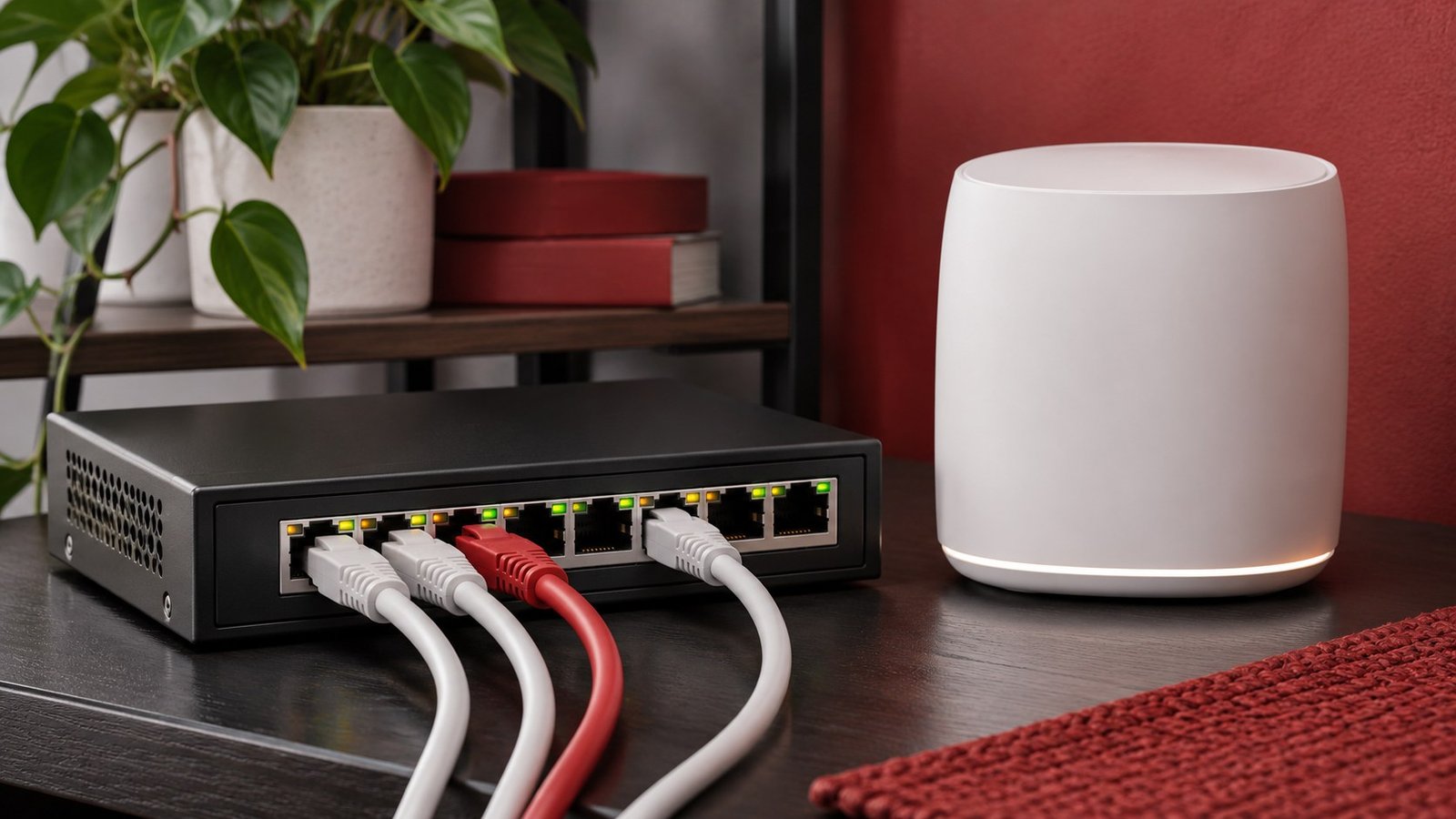
Ethernet backhaul connects a mesh Wi-Fi point to the rest of the network by cable. Phones and laptops can still connect to the point wirelessly. The cable replaces the wireless link between mesh units, which can help when a room has good signal from its nearest point but that point has a weak connection to the router. Check compatibility and test one cable run before committing to permanent wiring.
Find the weak link first
A mesh point handles two jobs. It talks to nearby client devices, and it sends their traffic toward the main router. The first job is what you usually see in your phone’s Wi-Fi indicator. The second can be weak even when the indicator shows a strong signal. Stand beside the mesh point, run the manufacturer’s mesh test if available, and note which point the phone has actually joined. A phone that hangs on to a distant point can make the nearest one look ineffective.
Try the same task next to the main router and near the satellite. An internet speed test gives you a quick baseline, but include a task that shows the original problem. Use a video call, stream, or game connection check for several minutes. If the same problem occurs on a wired computer connected directly to the router, start with the router or provider instead. Our Wi-Fi dead zone troubleshooting guide explains how to isolate the wireless part of the connection.
Keep a record of the locations and the time. A point in a busy apartment building may perform differently at night than in the morning. If a wireless connection between nodes already handles the work smoothly, a cable may improve your measurements while making little difference in daily use. Decide what improvement you want to see before buying equipment.
Check what your mesh hardware supports
Look up the full model number for the router and every point you plan to wire. Ethernet sockets can have different roles, and some mesh points omit them entirely. Google, for example, distinguishes Ethernet-capable devices from the Nest Wifi point in its guide to adding Ethernet ports. Check your manufacturer’s wiring diagram for the specific product family, including mixed generations if you use them.
Identify which device handles routing. A typical home has a provider modem or gateway upstream of the primary mesh router. The satellite cable goes to the LAN side of the device that manages the mesh, either directly or through a supported switch. Connecting the satellite on the provider side of the primary router can put it on a different network. In bridge or access-point configurations, follow the vendor’s diagram for that mode because the expected connections may differ.
If the system supports gigabit Ethernet, a working Cat 5e or better cable is a sensible starting point for a normal home run. A multigigabit design needs compatible ports on every device in the path as well as suitable cabling. Check what the existing run negotiates before buying a faster switch. If you only need one extra connection, a free router LAN port may already do the job.
Connect one mesh point and confirm the path
Start with a temporary cable. Connect one end to the supported Ethernet port on the mesh point and the other to a LAN port on the primary mesh router or a switch connected downstream of it. Leave the other points alone so any change is easy to diagnose. Some systems ask you to set up the point wirelessly first, while others support adding it while connected. Follow the sequence in your own hardware documentation.
Open the system’s management app and check the point status. Look for an explicit Ethernet, wired, or equivalent uplink label if the app shows one. A cable plugged into the port only proves the connector is physically seated. A wall jack can be unpatched at the other end, and a damaged cable can negotiate a slower connection or fail to link. If the app still says wireless, try a short known-good cable directly between the primary router and the point.
If the direct connection works, add one part at a time. Try the switch next, then the wall run. Label both ends of a permanent run and keep the original wireless setup available until you finish testing. Avoid adding a second parallel cable between the same switches or nodes unless the equipment explicitly supports that topology. For a simple home setup, one known path is easier to verify and troubleshoot.
If a permanent run must cross floors, check whether the home already has Ethernet wall jacks that terminate in a central cabinet. A wall plate alone does not show whether the jack is connected to a switch. Find both ends, test the path with a laptop or a cable tester, and label them after confirming the result. For a rented property, a temporary cable laid safely along the edge of a room can establish whether the change is worthwhile before you discuss permanent installation.
Repeat the tests and choose the next step
Retest the same device in the same chair with the same application. Compare the original symptom first. A remote worker should look for fewer call freezes. A gamer should look for fewer spikes and disconnects. A large file transfer between two wired computers can tell you about the cable or switch path, but it does not test the Wi-Fi hop to a phone. Separate the measurements so you know which part improved.
If performance is still poor beside the wired point, confirm the client joined it and inspect nearby interference or device-specific issues. An Ethernet uplink does not improve the radio in the client device. Try moving the point into the open, then repeat the original test. If the new point placement changes coverage in the hallway or adjoining room, check those locations as well before deciding that the new position is better overall.
If the wired point helps, decide whether other rooms need the same treatment. A hybrid setup can be practical if your product supports it. Wire the point serving the room that needs the most reliable connection and leave other points wireless where their link is stable. Keep a note of the final port layout and the before-and-after results. That gives you a baseline when you next replace a router, move a switch, or troubleshoot a slow room. Browse our Networking guides for more home network troubleshooting.
Frequently asked questions
Does Ethernet backhaul turn off Wi-Fi?
No. The mesh point can continue serving wireless devices. Ethernet carries traffic between compatible points or between a point and the main router.
Can I use a switch between the router and the point?
Often, yes. Verify that the manufacturer supports the switch and topology, and put it on the correct side of the router.
Can I mix wired and wireless mesh points?
Many systems allow this. Check the exact models and confirm each point’s uplink status in the management app.
Will wired backhaul raise my internet plan speed?
It can remove a local wireless bottleneck. Your internet connection still has the limits of the service and equipment upstream.