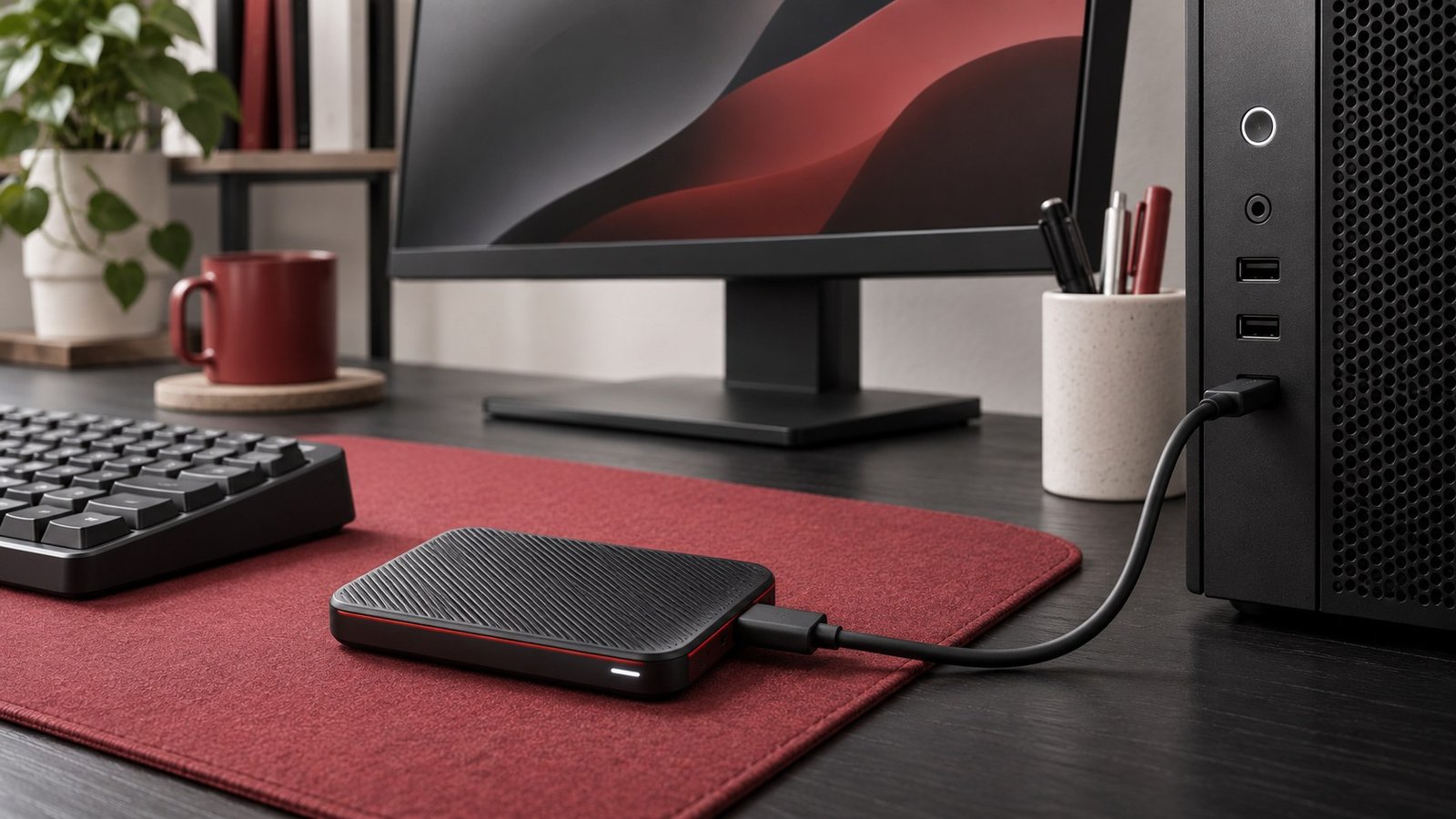
A home backup is useful when you can recover an earlier version of a file or get it back after the original drive fails. Start with an external drive and a versioned backup, then restore a small file to prove it works. Add a separate copy of your most important files so a lost laptop, stolen bag, or damaged backup drive does not take every copy at once.
List what you need to recover
Start with things you cannot replace by reinstalling an app. Think family photos, tax files, client documents, schoolwork, password-manager recovery information, and ongoing creative projects. For each one, write down which computer or account actually holds the current version. A document visible in a file browser can be stored locally or downloaded on demand from a cloud account. Check that distinction before assuming your backup sees the underlying file.
Include data that applications save outside the obvious folders. A photo catalog can reference images in several locations. A music application may keep its library database in one folder and recorded material on another drive. A programmer may have local files or branches that were never pushed to a remote repository. Use each app’s export or backup instructions where necessary and open the export once to make sure it contains what you expect.
Decide how much recent work you could afford to recreate. Someone editing a file every day may want a backup that runs while they work. Someone archiving a monthly statement may only need to confirm it reached a backed-up location. Write down the recovery priority for each group. This gives you a sensible first test and avoids spending the whole afternoon backing up easy-to-replace installers.
Choose a destination and leave room for versions
Use a physically separate drive for your first local backup. An external hard drive can offer a large amount of storage for a stationary desk. A portable SSD can be a better fit when you move between rooms or need short connection times. Consider the space used by the files you actually need, plus room for older versions and future growth. The backup software’s retention settings and the size of frequently edited files determine how quickly that space fills.
Check the drive contents before letting any backup utility prepare it. If it holds your only copy of anything, move that data somewhere you have verified first. Preparing a disk can erase data. Connect a new or empty drive directly to the computer for the first run. If it disconnects or the backup repeatedly fails, test another port and a known compatible cable before assuming that the software is at fault.
Label the drive with its purpose and the computer it serves. If the files are sensitive, use encryption supported by your backup tool and store its recovery information separately from both the computer and the drive. Verify you can unlock it before depending on it. A recovery key locked inside the only backup it can unlock is especially hard to use in an emergency.
Configure a versioned backup
On a Mac, Time Machine is a built-in option for backups to a suitable external drive. Open System Settings and find Time Machine under General. Add the backup disk and check that the intended files and volumes are included. Apple’s Time Machine guide explains backup intervals and what local snapshots can recover. Local snapshots share the computer’s internal drive, so keep the separate backup disk in the plan.
On Windows, use a versioned backup utility that covers your actual folders. If you use File History, verify its scope and the destination before relying on it. Applications with their own databases may require a separate export. Keep notes on the utility and version you selected, where you can obtain it after a drive failure, and any passwords needed to read the backup. That information should be accessible from another device.
A synchronized cloud folder can be helpful because a current copy is available elsewhere. Review how the service handles file deletion and earlier versions. A mistaken deletion can be synchronized, and a service may retain older versions for a limited time. Choose a second copy that gives you a recovery path if you lose access to the sync account or need an older version outside its retention window.
Perform a real restore and check it periodically
Make a folder with a text document, a photo, and a file from an application you use often. Run the backup and check its reported completion time. Change the text document and run a second backup. Then restore the older version to a separate location so you can compare both files without overwriting your work. Open the restored photo and application file as well. A success notification shows that a job ran. Opening a restored file shows that a piece of your data survived it.
Now run a slightly harder test. Choose a small folder you actually care about, restore it to a temporary directory, and confirm that filenames and subfolders are present. If your backup includes a library that references files in a different location, check both the catalog and a sample of its contents. Note the date and how long the restore took. That gives you a realistic idea of what recovery looks like under pressure.
Keep another independent copy of the irreplaceable group. It can be a drive stored elsewhere or a service whose retention and recovery you have checked. If you rotate drives, reconnect them on a schedule you will actually follow. A disk in a drawer is useful only through the date of its last good backup. Browse our Storage & Backup guides for storage choices, or see our RAM versus VRAM guide if you are checking which parts of a computer upgrade affect memory rather than file capacity.
Keep a short recovery note next to your backup plan. Include the backup destination, the name of the software, where to find the encryption recovery information, and which files to restore first. Store the note somewhere you can reach from another device without putting passwords in plain text. If other people in the household rely on the same files, have one of them follow the note to restore a test document. Fix any step that assumes they know where the drive is or which account to use.
If you still need a backup drive, compare the capacity, speed, and restore tradeoffs of an external SSD and hard drive.
Frequently asked questions
Is copying my files to a second folder enough?
A second folder on the same drive can help with an accidental edit. A separate drive or remote destination protects against the original drive failing.
Should I leave my external backup drive attached?
An attached drive makes automatic backups convenient. Keep another independent copy that is stored separately so one incident cannot affect both copies.
How often should I test a restore?
Test when you first configure the backup, after changing software or drives, and periodically afterwards. Use actual files and open the restored copies.
How do I know which copy is newest?
Check the backup job’s completion time and restore a sample from that run. File timestamps alone may reflect when a document was edited rather than when the backup completed.