
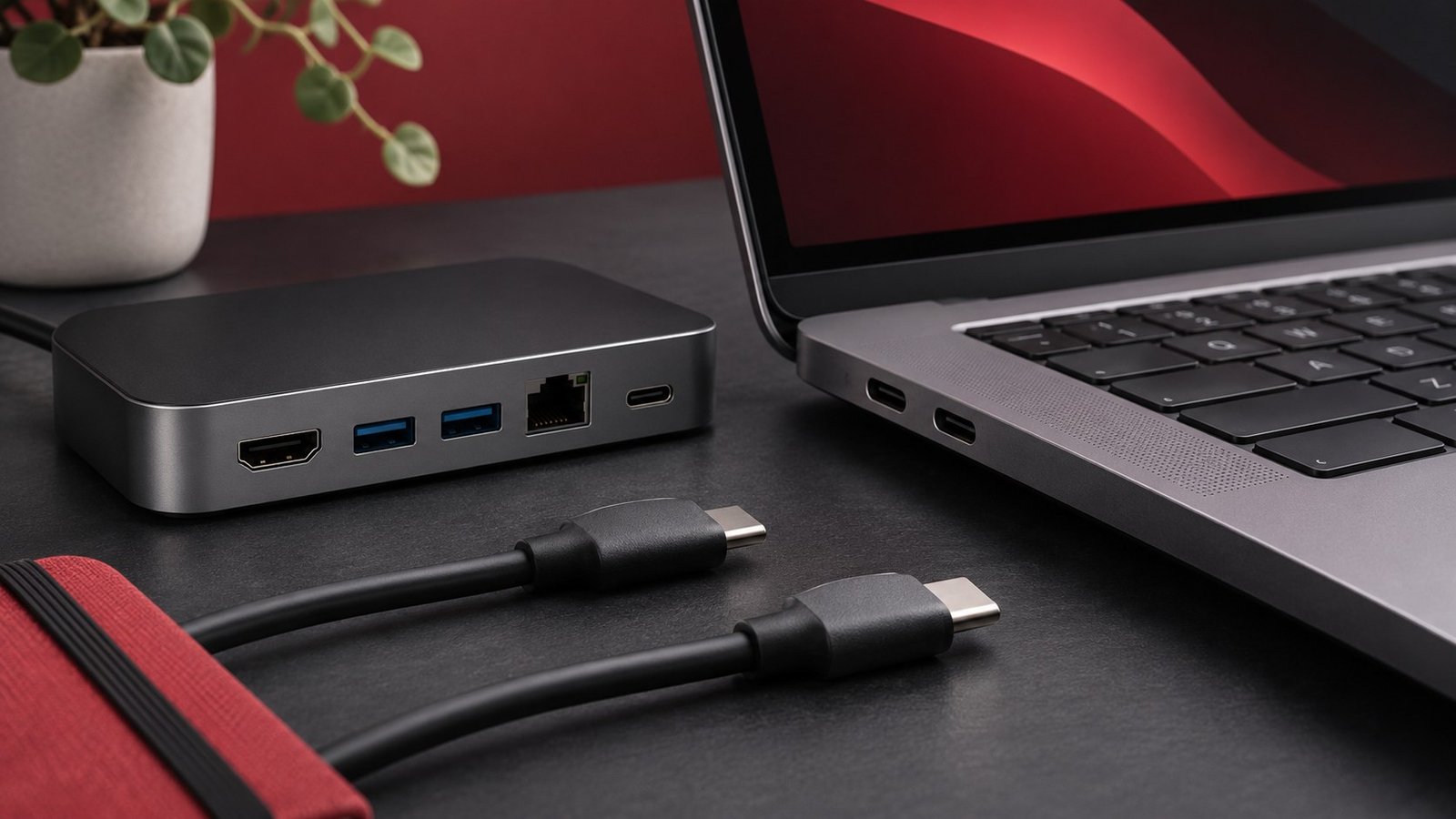
A USB-C connector tells you what fits in the port. The supported data rate, charging power, and video modes depend on the cable and the devices at both ends. Before buying a cable or dock, write down the one job it needs to do and check each component against that job. That makes it easier to diagnose a monitor with no picture or a laptop that charges slowly through a dock.
Read the specifications for the whole connection
Start with the device manual and identify the exact port. Two ports on the same computer can have different functions. One might support power input and video while the other offers data only. Look at the port diagram and technical specifications for your exact model. A family name can describe multiple machines with different ports. If the manufacturer supplies a configuration or serial-number lookup, use it to identify the equipment you have.
The cable is a separate component. A cable bundled with a charger may charge a phone well and still transfer files at a modest rate. A cable meant for a high-speed dock may have its own supported length, data, and power figures. The USB-IF’s USB Type-C labeling guidance distinguishes the connector from product performance. Look for a clearly stated rate and power rating rather than relying on a picture of the plug.
The accessory sets another limit. An external drive, hub, or monitor can support fewer modes than the computer. If a product listing names a feature for the family, verify that it applies to the particular input or cable you plan to use. Write the chain down in order, from the computer port to the cable to the accessory. Insert the hub or dock as an extra component if you use one.
Check charging separately from data
Find the wattage and charging standard recommended by your device maker. Check what the power adapter can provide on the particular port you use. On some multiport adapters, the power available to a laptop changes when a phone starts charging from another port. Read the output table, then test both devices together if that is how you plan to use them.
A compatible cable has its own power capability. A capable cable does not increase the wattage delivered by the adapter. A dock may reserve some of the input power for its own electronics and connected peripherals, so check the figure for power delivered to the host computer. A box that mentions the adapter’s input rating may also list a lower laptop charging figure in the technical table.
Test the computer with its original adapter and cable as a baseline. Then use the dock and compare the status indicator while running a representative workload. Some laptops can slowly lose charge under load when the available input power is lower than their demand. Compare the same task, at a similar battery level, and note whether charging status changes when other accessories are connected.
Measure file transfers with a known setup
Connect an external SSD directly to a known high-speed port and use a cable rated for the drive’s supported mode. Copy a large file you can safely duplicate. Time the full transfer rather than using only the first displayed speed. Repeat through the dock or another cable while leaving the rest of the setup alone. Lots of small files can take longer than one large file of the same total size, so use the same source and destination for the comparison.
Remember that link speed and file-copy speed use different units and measure different things. Link ratings often use bits per second, while file managers often report bytes per second. Storage performance, caching, and protocol overhead affect the actual copy. A quick burst followed by a sustained slowdown can come from the drive itself. Compare sustained behavior using a similar amount of data and let the device return to its normal operating state between runs.
If a drive disconnects through a hub, try the direct connection first and inspect whether other devices on the hub disconnect at the same time. Then reintroduce peripherals one by one. Keep a separate copy of important files while diagnosing unreliable storage, and see our home backup guide to verify you can recover those files.
Verify resolution and refresh rate on a display
For a USB-C monitor, confirm that the source port supports a video mode compatible with the display or dock. A port designed only for data and charging can physically accept the cable without producing an image. If the monitor has multiple USB-C sockets, check which one accepts a host video signal. Select the appropriate monitor input and test with the manufacturer’s recommended cable if available.
Connect one monitor directly before adding a second through a dock. Check the current resolution and refresh rate using the method in our monitor refresh-rate guide. If the intended mode works directly and disappears through the dock, check the dock’s supported display combinations and the host port’s capabilities. Also test with the other display disconnected to see whether the problem is related to a multi-monitor limit.
For a one-cable desk, test video, data, and charging together. A dock can work in each individual test and still behave differently when the laptop is charging and moving data to a drive while two screens are active. Reconnect from sleep, then run the workload you actually use. Note which ports and cable worked. Label that cable if you keep several visually identical ones in the same drawer.
When buying for travel, make two short lists. Put the charging requirements for each device on one and the data or video tasks on the other. If the travel cable only powers a phone and laptop, a fast data rating may be irrelevant. If you also want to offload footage from an SSD, compare the cable’s data specification with both devices. Check length and whether an active cable has any directional instructions. Keep the original laptop charger available for a controlled test when something goes wrong. A spare cable you already tested is more useful than three unknown ones. If the connection is for work, save the model numbers and the supported port combination alongside your desk notes so you can rebuild the setup after changing computers. Repeat a sleep-and-wake cycle before you trust it on a trip.
If a screen works when connected directly but fails through the hub, use our dock troubleshooting checklist to isolate the video path.
Frequently asked questions
Can a USB-C cable charge and still lack video support?
Yes. Verify the cable and both ports for the specific video setup. Charging confirms the power path works.
Will a faster cable make a slow port faster?
The connection is limited by the supported modes across the computer, cable, and accessory. Upgrade the part that limits the setup.
Can my dock charge a laptop at the adapter’s full wattage?
Check the dock’s host output specification. The input rating and power sent to the computer can differ.
What should I test first if a monitor stays black?
Connect the monitor directly to a compatible video-capable port with a known compatible cable, then add the dock back to the working setup.