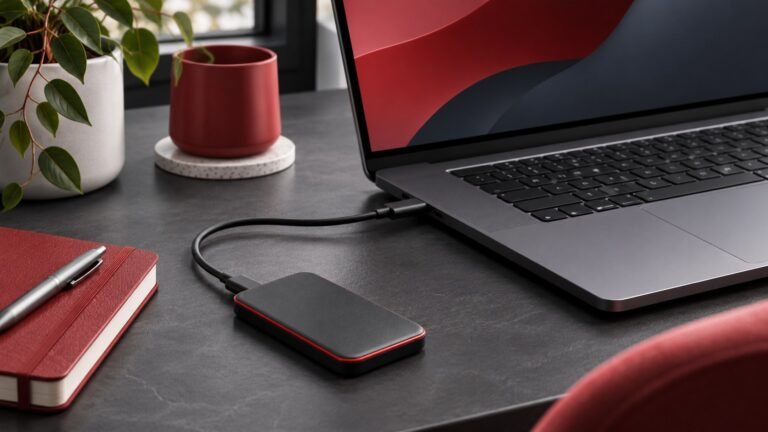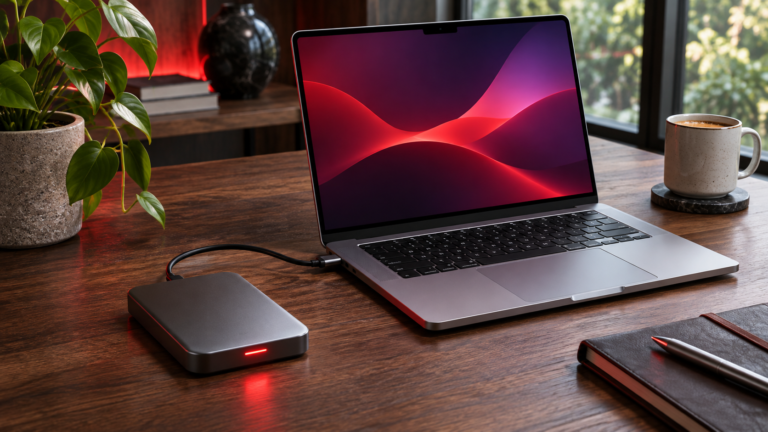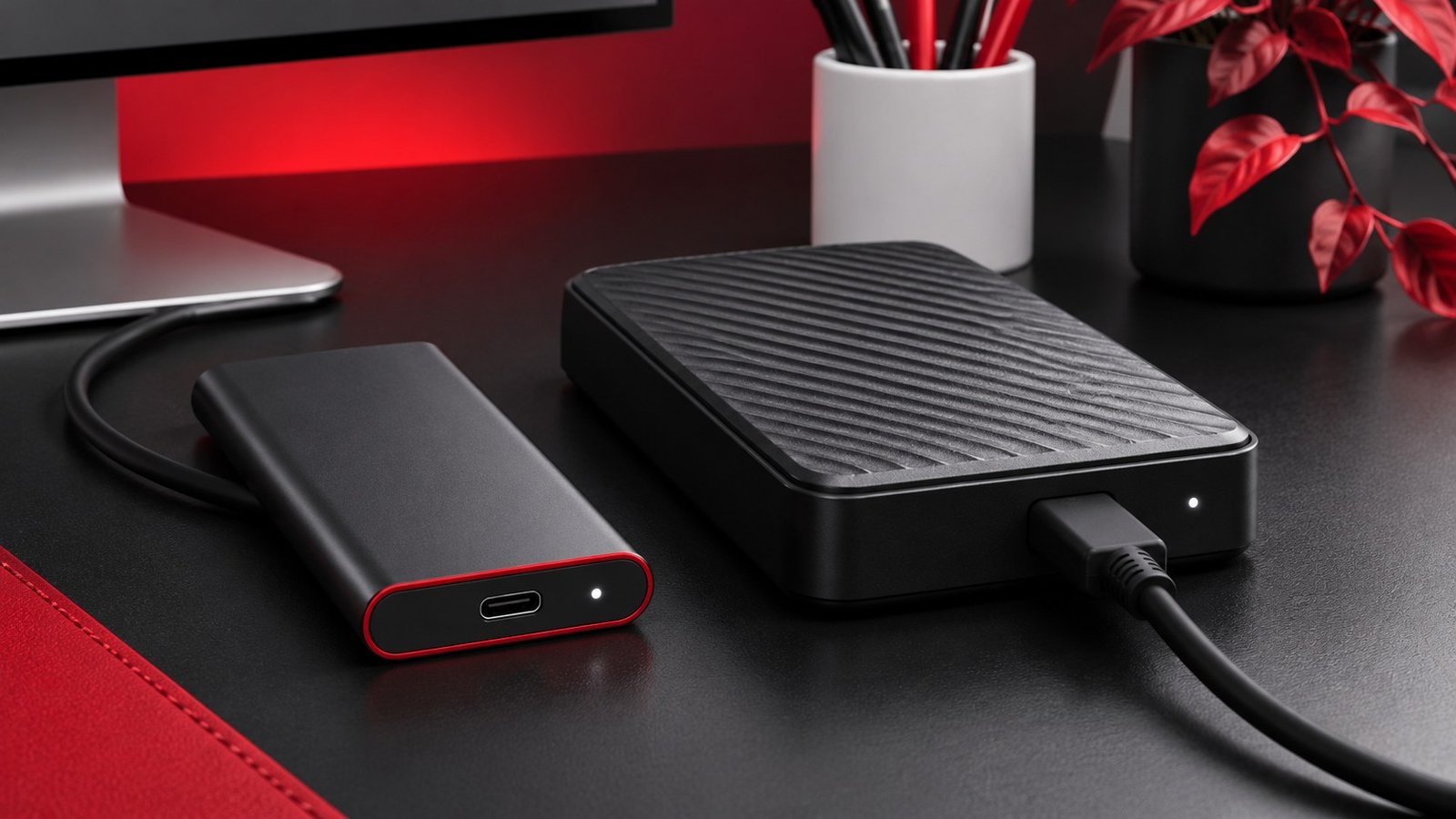
Choose an external SSD if you frequently carry the drive, edit from it, or regularly wait for large transfers. Consider an external hard drive if the main job is keeping a large backup at a stationary desk. Compare actual capacity, transfer time, and restore time for your workload before paying for a higher advertised speed.
Decide what the drive will do
Write down whether the drive will hold active projects, a backup, or both. An active video project can need repeated reads, writes, and quick access to small files while you work. A nightly backup can run in the background and may only copy changed files after the first run. An archive may stay disconnected for long periods. These are distinct workloads even if they involve the same amount of data.
A mechanical hard drive reads rotating platters and moves its heads to access different areas. An SSD stores data in flash and has no moving disk mechanism. That difference helps explain why an SSD can be convenient for frequent random access and for a drive you carry around. Seagate’s storage technology overview describes the underlying construction and capacity tradeoffs. Use current model specifications when comparing individual products.
Estimate the time you can afford for a backup or restore. If your computer will remain at the desk overnight, a backup taking several hours may be acceptable. If you need to leave with a large media copy in twenty minutes, the same speed can be inconvenient. Think through your worst ordinary recovery case too. Restoring one document and moving an entire photo library can put different demands on the same drive.
Size the drive for versions and growth
Start by checking how much space the folders you want to protect use. Add expected growth and room for retained versions. A video project may generate temporary renders that you can recreate, while the original footage and project files need to survive. Decide which data belongs in the backup before choosing the drive. If your backup utility can exclude generated caches, check the application’s requirements before excluding anything.
Compare price at the capacity you actually need. A small SSD can be a good choice for current projects and a larger hard drive for versioned backups. Buying two differently sized drives can make sense if each has a clear job. A large fast SSD may be convenient, but if it becomes the only home for important files, the extra speed has done nothing to create a separate recovery copy.
Leave room for growth and check the backup software’s retention behavior. When space runs out, some tools prune old versions and others stop until you intervene. If you need to recover a file as it existed several months ago, verify that the tool and drive can retain that history. Check the destination after the first few weeks so you can see how quickly it fills during your actual work.
Measure transfer speed on your own computer
Use the port and cable you expect to use every day. A USB-C connector does not identify the connection’s speed. Your computer, drive, cable, and any dock all affect what mode the link can negotiate. See our USB-C cable guide for how to isolate those parts. Try a direct connection first if a new drive performs much more slowly than you expect.
Copy a large file and a folder containing many smaller files. Use data you can safely duplicate and time each full transfer. The first speed shown can reflect caching and may differ from the sustained result. Keep the source and destination consistent when comparing drives. If you plan to copy through a dock, repeat the test with other devices connected, since that is the setup you will actually use.
Test a read as well as a write. A drive that fills quickly during a backup may still take longer than expected to restore a complex folder structure. If you need to edit directly from it, open a real project and work for a few minutes. Watch for interruptions when the computer sleeps or when you reconnect the cable. A stable connection can matter more than a higher transfer number on a short test.
Set up the drive so you can recover files
Before formatting a drive, check what it contains and keep a verified copy of anything important. Pick a file system or backup utility compatible with the computers that need to read it. A drive shared between systems may require a different setup from a drive reserved for one operating system’s backup tool. If you use encryption, make sure you can find the recovery information independently of the drive and computer.
Restore a small sample after the first backup. Include a nested folder and a file you can open in its original application. Follow our home backup restore guide to test an older version and keep an independent copy of the irreplaceable files. Label the drive so you know which computer and task it serves, and write down the last verified restore date.
If you carry an SSD between locations, make sure the original or an independent backup stays elsewhere. If a hard drive sits on your desk, place it where its cable will not be pulled during use. Safely eject either drive before unplugging it, and wait for a backup job to finish. Periodically check that the recovery procedure still works after a new computer, operating system update, or change to the backup software.
If the drive will travel, check the whole kit you need to carry. A desktop hard drive can require a separate adapter and wall power. A portable model may draw power from the computer, but check the requirements for your exact drive and dock. Pack the cable you used in the transfer test and identify where you can reconnect the drive without disturbing it. For shared home use, agree on who will reconnect the backup drive and where it should go afterward. A good storage plan needs to be easy enough to repeat. If you use two drives that look alike, label one as a working drive and the other as a backup, and give their volumes different names. This helps when a backup utility asks for a destination or when you prepare a drive for another computer. Use a copy of a small representative project to test access on a second computer before you move the only working copy. Record the result alongside the backup settings and the date you last restored a file.
Frequently asked questions
Is an SSD always the better backup drive?
Choose for the capacity, restore time, and portability you need. A hard drive can be suitable for a large stationary backup.
Is a hard drive enough for editing video?
Test the format and project you actually edit. Stream count, bitrate, and file access patterns matter.
Can one external drive be my only copy?
If the files exist only there, the drive holds the original. Keep another independent copy of files you need to recover.
How can I check that I bought enough capacity?
Measure the included folders, track growth after several backups, and inspect how much space older versions consume.