If an Android phone charges when you plug it into a Windows computer but its files do not appear, unlock the phone and select File Transfer in its USB notification. Use a cable you know carries data, connect directly for the first test, and copy one small file before moving a large photo library.
Start with a small, known file
Create a temporary folder on the computer for the transfer. Choose a photo or document you can identify by name and open on the phone. Copy that one file first rather than selecting your entire camera roll. A small test makes it clear whether the phone is detected and whether the folder is readable. It also avoids waiting through a large transfer before discovering that the wrong folder or connection was selected.
Decide which direction you want to copy. Photos taken on the phone often appear in a camera folder, while files you downloaded may be elsewhere. Some applications store files in their own areas or only make them available through an export feature. If you can see an item inside an app but not in the computer’s file browser, check that app’s export and storage options rather than assuming the USB connection has failed.
If this copy is part of a backup before changing phones, check which data needs a separate process. Files you can browse over USB do not cover every application’s settings, messages, or account recovery information. Use the phone and application documentation for those items. After copying, follow our backup restore checklist to verify the files from their new location.
Unlock the phone and select File Transfer
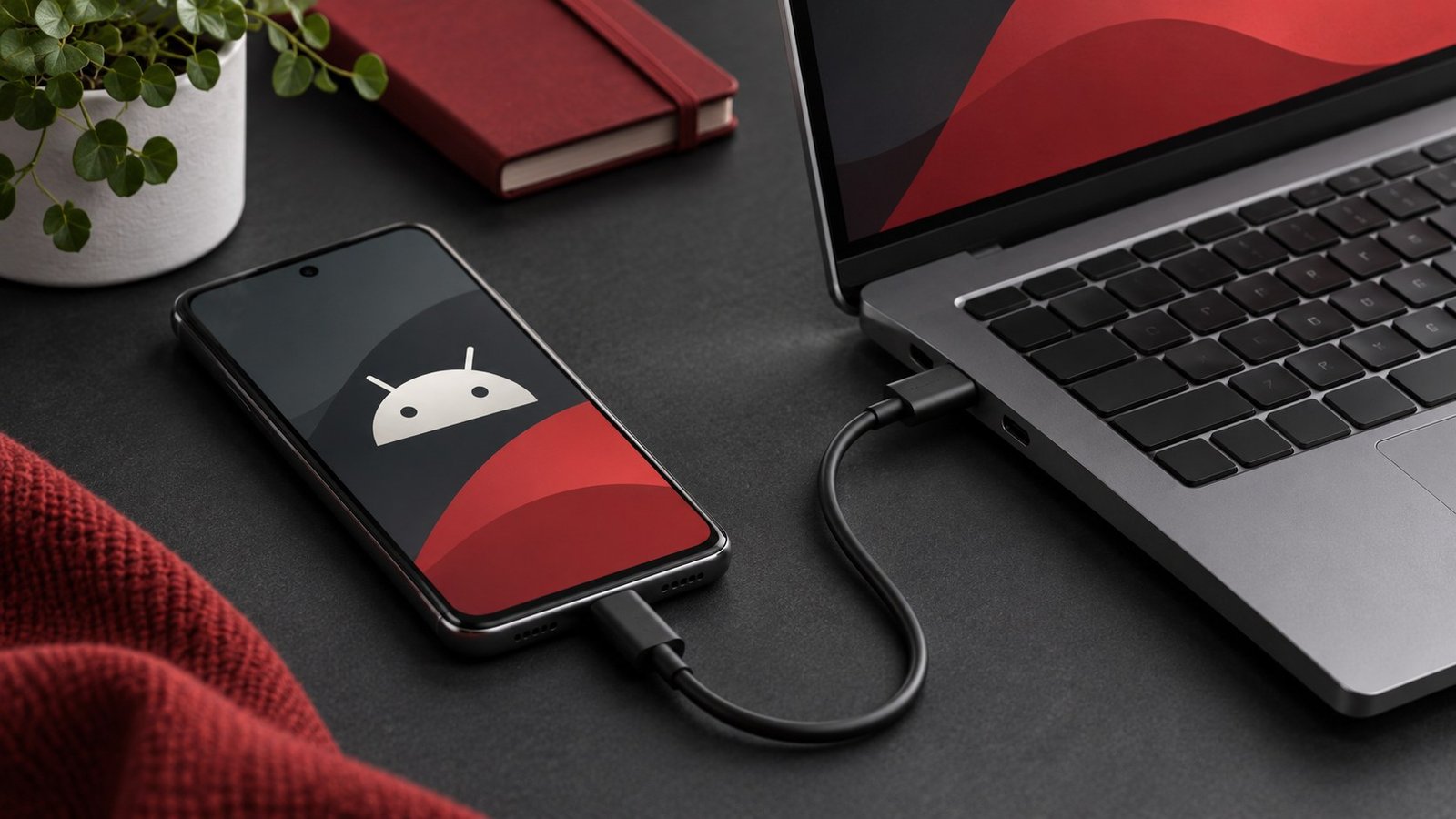
Connect the phone directly to a USB port on the computer. Unlock it and look for the USB notification. Tap it and select File Transfer under the options for using USB. Menu labels vary by manufacturer and Android version. See Google’s Android file transfer guide for the basic sequence. Keep the phone unlocked while you confirm the first connection.
On Windows, open File Explorer and look for the phone in the device list. Open its internal storage, browse to the folder with the sample file, and copy it into the temporary folder. Open the copy from the computer rather than from the phone’s device window. If Windows asks how you want to handle the phone, choose the file browsing or import option appropriate to the task.
If you only need photos, a photo import mode may work on supported devices. File Transfer is useful when you also need documents or other folders. Avoid changing debugging settings for an ordinary copy. If the phone is supplied by an employer and the option is restricted, ask the administrator what transfer methods are supported. Changing unrelated settings will not remove an organizational restriction.
Isolate the cable and the computer port
A phone that charges confirms that power is reaching it. The same cable may have limited or no useful data support. Try a cable that has already transferred files with another device, and connect it directly to a known working port. Our USB-C cable guide explains why connector shape alone does not tell you whether a cable is suitable for data.
If you usually connect through a monitor or dock, leave it out until the first transfer works. Then reconnect through it and repeat with the same file. If the phone appears directly but disappears through the dock, check the dock’s port and host connection. If the USB mode reverts after reconnecting, unlock the phone and select File Transfer again. Many phones require a fresh selection as part of their normal behavior.
If it still fails, test one other supported port, then try another computer if possible. Keep the cable constant for that comparison. If the phone works on a second computer, check Windows updates or the phone maker’s support guidance for the first computer. If it fails across known-good data cables and computers, document what the phone shows when connected and consult the manufacturer’s support steps.
Copy a larger batch and verify the result
Once the sample works, copy the larger folder in manageable batches. Compare approximate file counts and open a few photos or videos after copying. Include something from the beginning, middle, and end of the group if the files were copied in date order. Keep the source files on the phone until you have verified the copies and any independent backup you plan to rely on.
If a large transfer repeatedly stops, copy a smaller group to determine whether the failure is tied to a particular file or to the connection. Watch whether the device disappears from File Explorer and whether the phone still shows File Transfer. Check free space on the computer before retrying. Save the failure point and avoid restarting the same large transfer several times without changing a test condition.
For a trip or outage, a wired copy can be useful when you do not want to use mobile data for files. If you need the laptop online as well, see our Android hotspot guide for how to check tethering separately. File Transfer and tethering serve different tasks. Confirm that you selected the correct USB mode for what you want to do, then disconnect when finished.
For example, if you are moving three years of photos, start with one recent image and one older video. Open both on the computer. Copy a year or month at a time into clearly named folders, and check for duplicate names before merging them. If you intend to delete originals from the phone to free space, first make a second independent copy and open a sample from that destination. Record the last date or folder copied so you can resume without guessing.
If several people use the same computer, choose a destination you can identify and access later. A default import folder may belong to the Windows account used for the transfer. After importing, sign into the account that will manage the library and confirm the files are available there. Keep sensitive files in a suitable private location.
When a phone contains both internal storage and removable storage, check which location holds the files you want. Camera settings can change where new photos are saved. Compare the folder name and a file date on the phone before copying. If you cannot find a file by browsing, use the phone’s Files app to check its details or export it into a folder you can identify.
Frequently asked questions
Why does my phone charge but not appear in File Explorer?
Unlock the phone, choose File Transfer, and test a known data-capable cable on a direct port.
Do I need USB debugging to copy photos?
No. Use the phone’s normal file transfer or photo import mode.
Why can I see photos in an app but not over USB?
The app may use private storage or show an item stored in the cloud. Check the application’s export options.
Can I delete the originals after copying?
Open the copies from the computer and verify an independent backup first, especially for files you cannot replace.