Sound Recognition can notify you when your iPhone detects a sound you selected, such as a doorbell. Open Settings → Accessibility → Sound Recognition, turn it on, and select the sounds you want. Try a harmless test in the room where you will use it. Apple advises against relying on the feature in emergencies or situations where you could be harmed.
Decide which sounds would make useful alerts
Think about a normal day. Perhaps you want to notice your doorbell while working at a desk, or you want a visual prompt for an appliance that signals from the next room. Begin with one recognizable event and decide what you want to happen when it occurs. A notification is useful only if you can notice it and act on it. If the sound is already easy to hear, use it as a known starting point for checking the setup before testing a more difficult sound.
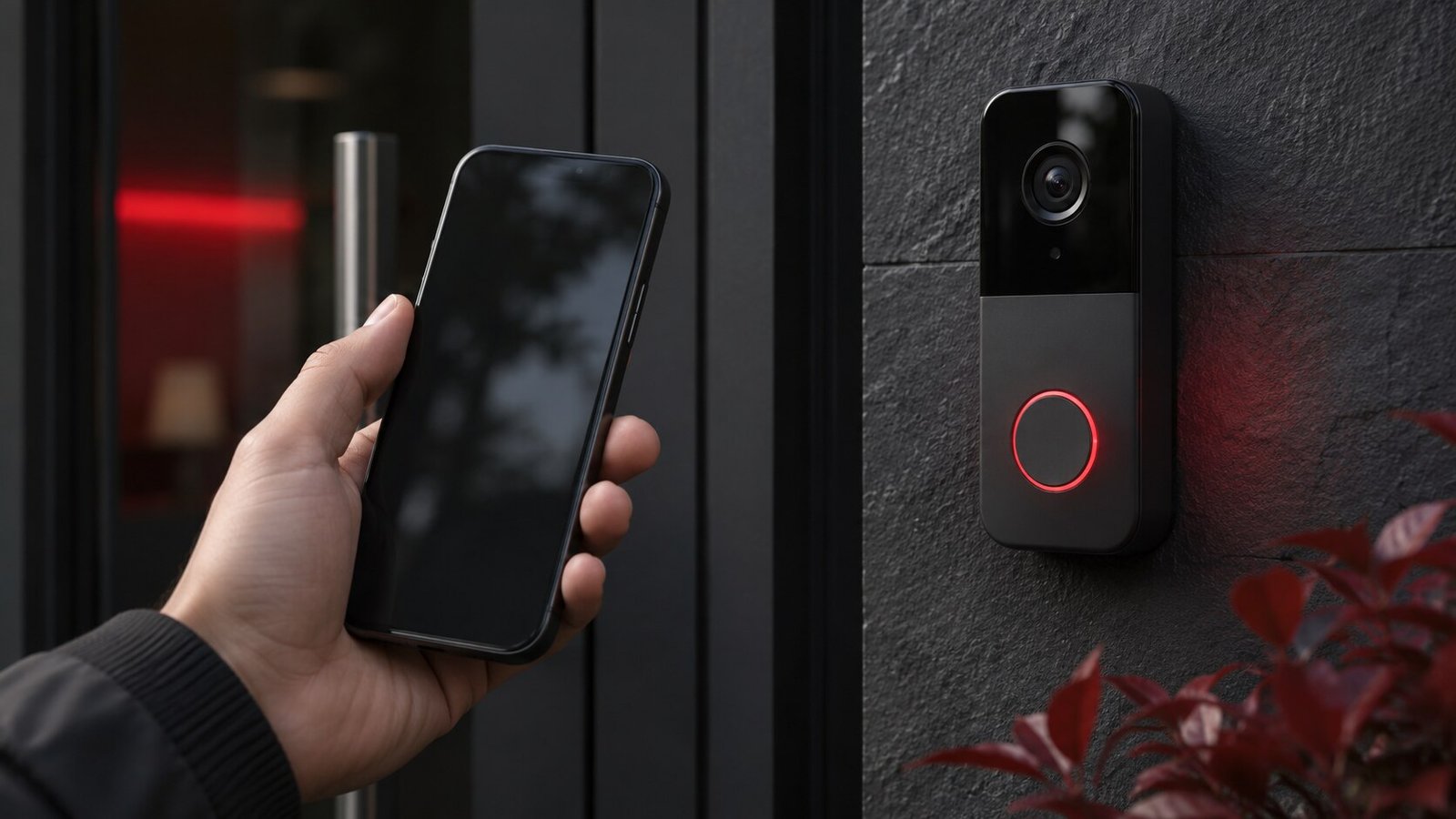
Check whether there is already a direct notification available. A connected doorbell, for example, may have its own application with a separate event alert. If you use both, record which system generated each notification during a trial. Their timing and wording may differ. A phone listening for a sound and a doorbell reporting that somebody pressed it are independent mechanisms. Understanding which one actually worked is important when you change the position of the phone or the settings of the doorbell.
Enable Sound Recognition on the iPhone
Open Settings and search for Sound Recognition if you do not see it immediately under Accessibility. Turn it on and open the list of sound choices. Apple’s Sound Recognition guide shows the current settings and documents the options for supported sounds. Download any resources the phone requires while you have a reliable connection. Select one sound for the initial test so you know which event the notification is supposed to represent.
Review the phone’s notification settings and how you normally keep it. If it spends time face down, in a pocket, or charging in a distant room, test that situation separately. A notification may be recorded without being noticed immediately. Keep the intended display or alert behavior in mind. If you are also using iPhone Background Sounds, test one session with it paused and another under normal conditions. That comparison can reveal whether you missed the notification or whether the setup struggled to detect the sound in the first place.
Test a real sound at ordinary distances
Ask someone to ring a doorbell you control or use another harmless event that you can repeat. Record the time, leave the phone in a normal position, and look for a matching notification. Repeat near the source and then from the place you normally keep the phone. Keep radio, television and other background sound at ordinary levels for part of the test. Do not use an emergency alarm as an experiment when another person could interpret it as a real warning. Keep safety equipment and ordinary precautions in place regardless of the phone’s result.
Repeat at least once with a door closed or with ordinary conversation nearby. The goal is to compare conditions, not to establish a universal detection range. If you hear the sound clearly at the phone’s position but no notification appears, confirm that the corresponding category is selected. If a banner is missed, review the notification history. A time and a location make it easier to understand why a trial differed. Start another attempt after letting the previous event finish so you can tell which occurrence the phone reported.
Add a custom sound only when it is worth testing
Check the sound list for a supported custom option when your specific appliance or doorbell is not represented well by a built-in category. Follow Apple’s prompts and use the actual sound source if possible. A recording played through another speaker can change the sound compared with the original. Work in a quiet setting while setting it up, then test it under your normal conditions. If multiple devices make similar signals, check whether the new entry routinely mistakes one for another.
Give the custom entry a descriptive name if the interface allows it. Note which room and device you used so that you can recreate the test. If you replace the device or move the phone to another room, repeat the same comparison. Review possible false alarms as well as missed ones. A sibling sound from the television may be enough to trigger an alert that becomes distracting over the course of a day. Turn off a troublesome sound individually if the other ones still work for you.
Check what changes while the phone is busy
Test whether you can notice the notification with the screen locked and with the apps you normally use. For example, you may want to see whether an alert remains accessible after listening to a podcast. Use a repeatable sound and compare the notification history. If the phone is reserved for a single app using Guided Access, verify that combination separately before depending on the behavior. Do not infer that a successful test at the Home Screen covers every kind of session.
For a mobile setup, check how long you expect it to run. Keep the phone somewhere it can hear the event and where the alert can reach you. If you suspect a change in runtime, compare the same conditions and review the Battery page rather than guessing from one afternoon. Our iPhone battery health guide explains the difference between capacity and current battery use. A practical setup should work with the way you usually carry or charge the phone.
Keep only the alerts that help
Review the results after a normal day. Write down one clear success, any missed alert and any event that should not have produced a notification. Disable sounds you do not need. Revisit anything that frequently triggers incorrectly before you start ignoring all the banners. Check the setting after a software update or a move to a new room, especially if you rely on a custom sound. Run the original simple trial first and add harder conditions after it works again.
The feature is an additional way to notice an event when it works in your circumstances. Keep direct checks and appropriate dedicated alerts for events that matter to your safety. If people share responsibility for an appliance or door, agree on how they will communicate even when the phone is unavailable. Test that ordinary fallback too. It will be easier to use if everyone knows the steps before there is an actual problem.
Frequently asked questions
Is Sound Recognition meant for emergencies?
Apple says to avoid relying on it in situations where you could be harmed, including emergencies. Use appropriate dedicated systems and ordinary safety measures.
Why did it miss a sound in the next room?
Compare distance and background noise with your initial test. Check the selected sound category and review whether a notification was recorded.
Can I disable a single noisy category?
Review the sound choices and turn off the category you no longer want. Test another enabled sound to confirm that the overall feature still works.