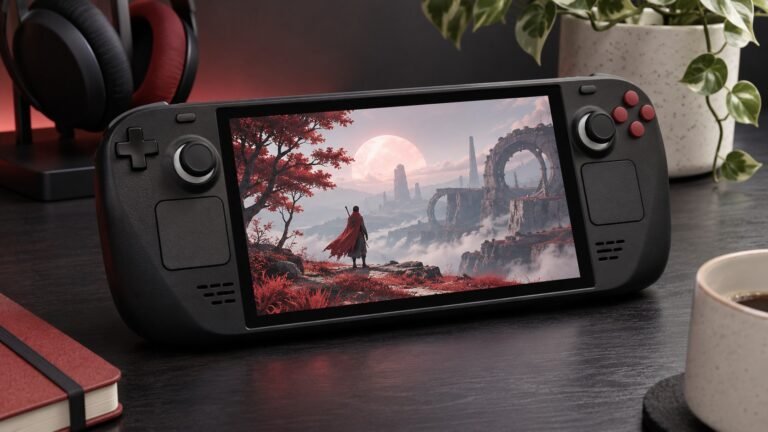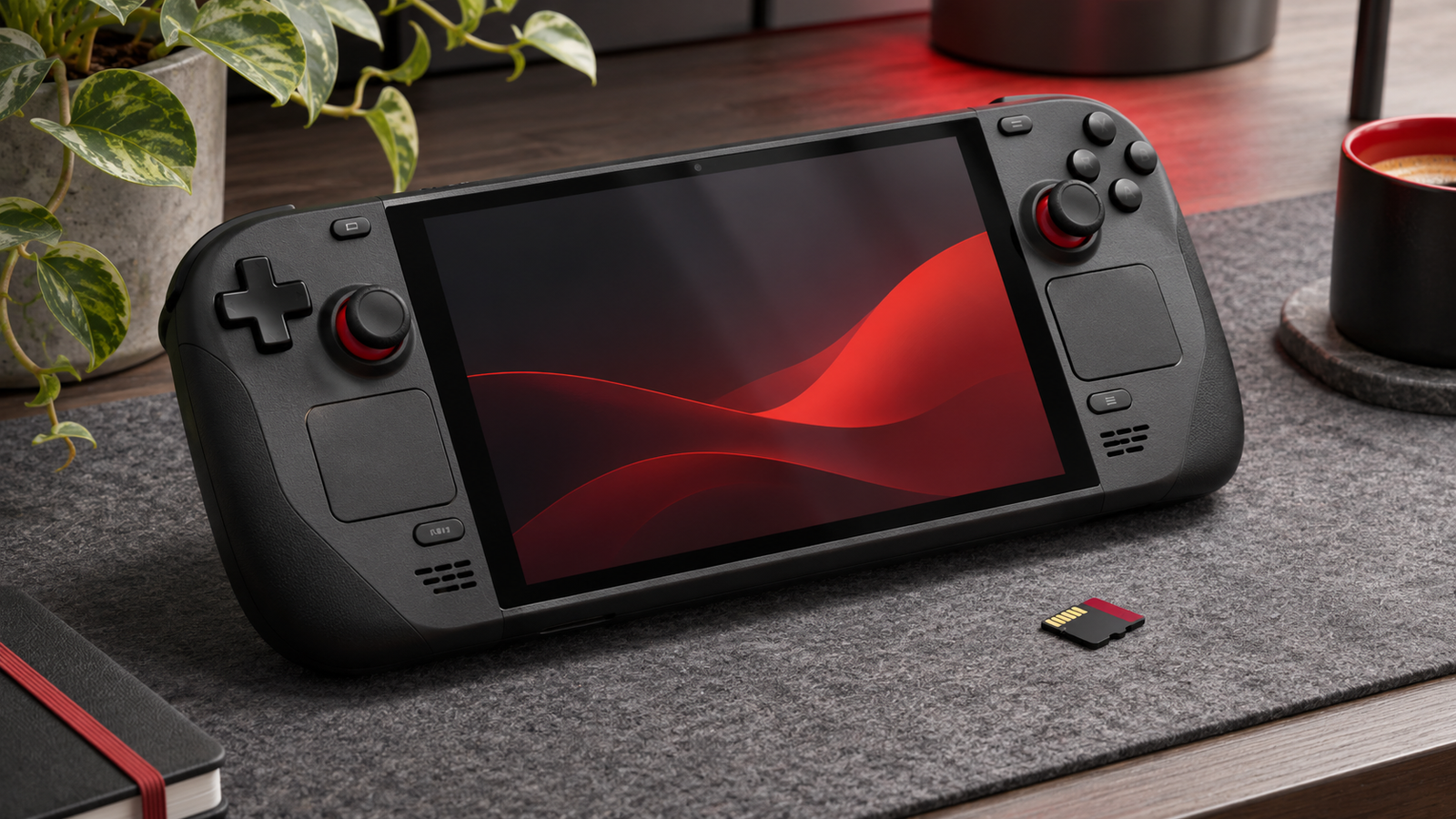
Choose a compatible UHS-I card from a reliable seller, back up anything already on it, and format it from Steam Deck settings. Use the Storage screen to select the card as an install destination or move a game. Launch a small game from the card before moving your whole library.
Choose a card for the games you play
Valve lists supported cards and its format procedure in the Steam Deck basic use guide. Check the current requirements before buying. Capacity is the easiest specification to understand, but consider the size of your installed library rather than the number of games you own. Add together a few games you actually keep installed and leave room for downloads and updates. A card that holds every game today may still be inconvenient if each patch requires moving something first.
Buy from a seller you trust. A suspiciously cheap card can misreport its capacity and appear to work until it has written enough data to hit the real limit. Check the packaging and verify return options. If you have a reliable capacity testing tool and a separate computer, test a blank card before trusting it with a library. A thorough write-and-read test takes time and can erase existing data depending on the tool. Use it only after confirming you have selected the correct card and backed up any files.
Insert and format it on the Deck
Save existing files elsewhere before you format. If the card contains photos or files from another device, copy them to a computer and open a sample from that copy. A successful copy of the folder name alone does not establish that everything arrived. See our home backup testing guide for a practical file verification process. Remove any other removable storage that could be confused with the new card if that makes the setup easier to identify.
Insert the card into the slot in the orientation indicated by the hardware. Do not force it. In Gaming Mode open Steam, Settings, then System and find the format control for the SD card. Review the confirmation carefully and let the process finish before removing the card or shutting down. Open Settings and Storage afterward. Check that both internal storage and the card appear with plausible capacities. Compare capacities as a sanity check, allowing for the different ways advertised and usable sizes can be reported.
Install one game as a test
Choose a small title you can reinstall if something goes wrong. Start the install and select the card if Steam asks for a destination. If the interface uses a default location, use the Storage screen to check which location is currently selected and change it if needed. After the download, confirm the game appears under the card’s storage listing. Then launch it and play far enough to trigger ordinary loading. A title appearing in the library is less useful evidence than a successful launch.
Restart the Deck and open the same title again. That verifies that Steam still sees the installation after a normal restart. If you plan to use the Deck while traveling, test any offline requirements before leaving. Some games need an initial sign-in, launcher activation, or other online step even though the files are already on the card. Treat an account error separately from a card that disappears from Storage. Testing one small title makes those failures easier to isolate.
Move existing games in manageable groups
Open Settings and Storage and select the drive holding the title you want to move. Use the available move action and choose the other drive. The exact buttons may vary by SteamOS release. Start with one game so you learn how long it takes and can check the result. Leave the Deck powered and avoid interrupting the transfer. Verify that the game appears at the destination and launches before queuing several more moves.
Keep some games on the internal SSD if their load times or patch behavior are important to you. A large game can spend more time unpacking or updating than its download speed alone suggests. Compare the same save or loading screen on each storage location if you are deciding where one particular game belongs. If you are also tuning performance on battery, use our Steam Deck battery guide to keep frame limits and brightness consistent between comparisons.
Troubleshoot missing space or failed installs
If a game fails to install, check both volumes for free space. The install size shown in the store may not describe temporary space used during updates. Review the error and confirm that the card is still visible in Storage. If the card repeatedly disappears, save any readable important files elsewhere before further tests. Restart normally and check whether the same behavior occurs with a known-good card. That comparison is more useful than repeatedly formatting a card that has already failed several writes.
If a game is missing from the library list after a restart but the card is present, check whether Steam recognizes that storage location and whether the title is still installed there. Avoid manually deleting folders until you understand what they contain. For general storage diagnostics on a computer, see our drive health guide. A removable flash card may not expose the same health information as an SSD, so pay close attention to reproducible read errors and to whether the reported capacity can actually be written and read.
Keep saves and the card itself in mind
A game installation and its save data are separate concerns. Check Steam Cloud support for the individual game and verify that sync completed if you rely on it. Some titles use local saves or a separate launcher account. Before moving to a new card or resetting the device, confirm you can recover an important save through the game’s supported method. A card full of game files is not necessarily a complete backup of your progress.
For a card you regularly swap, shut down when practical before removing it and avoid removing it while a game, update, or transfer is using it. Store spare cards in a protective case. If several look alike, use a labeled case or record their capacities and contents. Keep enough space available for ordinary updates and review the library periodically. Deleting a game you rarely play is often simpler than relocating several installs when an update runs out of room.
When comparing cards, time a game launch and a substantial update separately. A card that loads an installed game acceptably may take longer to unpack a patch. Test the workload you actually care about and keep the card that fits your routine.
Frequently asked questions
Will the Deck format erase my existing files?
Yes. Copy and verify any data you need before formatting.
Can I move a game back to the internal SSD later?
Use the Storage screen and select the internal drive as the destination, provided it has enough free space.
Does a missing game mean the card failed?
Check whether the card appears in Storage and whether the game files are there. An account or library issue can produce a similar symptom.