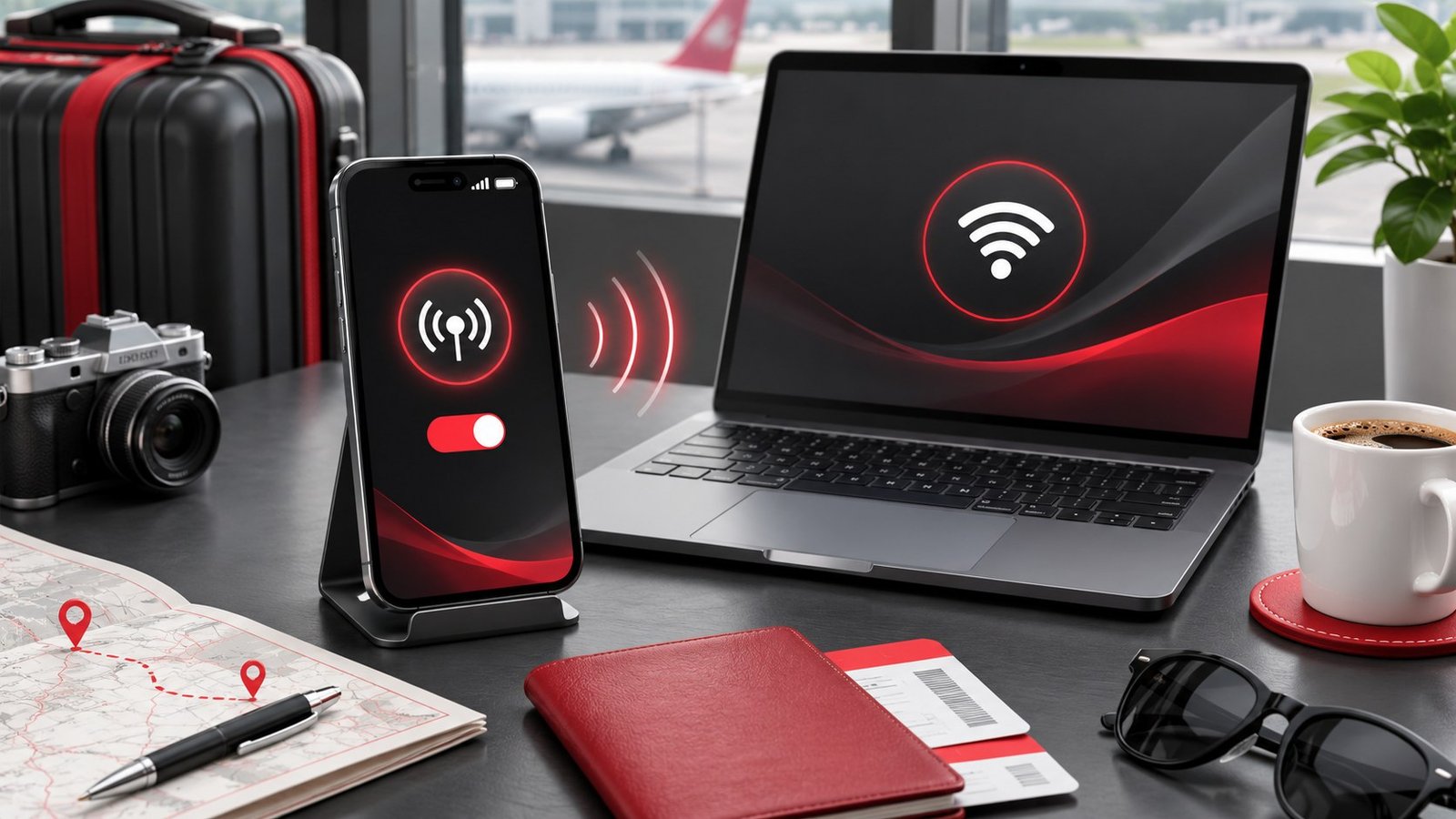
An Android hotspot shares your phone’s mobile data with a laptop or another device. Before relying on it for work or travel, confirm that your plan supports tethering, connect one device, and run the exact task you will need. A laptop can show a strong connection to the phone even when the phone’s mobile signal is weak.
Check mobile data and plan limits
Start by opening the site or service on the phone itself with Wi-Fi off. If mobile data is already unreliable there, the laptop is likely to inherit that problem. Try another location and record where the connection works. A hotspot can be useful during a home internet outage, but its quality still depends on the mobile network and on where you place the phone.
Check the carrier’s hotspot allowance and any roaming terms for your destination. Some plans treat tethering differently from data used directly on the phone. A speed test alone cannot reveal every limit, so read the plan terms or ask your carrier when you are unsure. If you will need a large transfer, estimate its size before you start. A laptop can use more data than a phone because it may run background updates or sync folders.
Make a short list of what must work. A messaging app, a video call, and a file upload have different needs. If you need a hotspot for a meeting, test the call in advance and keep the meeting details available offline. Download essential reference documents on a known connection before leaving. That makes a temporary mobile outage easier to manage.
Connect one laptop and check internet access
On Android, look for Hotspot and tethering in Settings, or search for hotspot. Menu names vary by phone and software version. Give the hotspot a recognizable name and a strong password, then enable it. On the laptop, select that network and enter the password. Google’s Android tethering guide describes Wi-Fi, USB, and Bluetooth options and notes that support can vary.
After the laptop connects, open a site you have not recently visited or check an application that needs a fresh connection. If the laptop reports that it is connected but the site does not load, check mobile data on the phone again. Then disconnect and reconnect the laptop. Avoid changing several network settings at once. Confirm that the laptop joined the phone’s network rather than a similarly named network nearby.
If the laptop cannot see the hotspot, check the phone’s compatibility settings. Some phones let you select a band or enable a compatibility option. Older clients may connect more readily to a supported lower-frequency mode. Our Wi-Fi band comparison explains why band support varies. Keep the password enabled and test again with the phone and laptop near each other.
Separate the Wi-Fi link from the mobile connection
If the laptop is slow, compare the same task on the phone and laptop. If both are slow at the same time, move the phone and try again. If the phone works well but the laptop struggles, check their local connection, the laptop’s background traffic, and any VPN it uses. For a repeatable comparison, pause large uploads and use the same location and service on both devices.
If both devices support USB tethering, try a compatible data cable and follow the phone maker’s instructions. A cable can remove the wireless link between phone and laptop, while the same mobile network still carries traffic beyond the phone. Some operating systems or phone combinations have limitations. If the option is unavailable or the laptop does not detect the device, check the supported combinations before replacing hardware.
A video call can expose a short interruption that a basic webpage test misses. Try a short call from the position where you expect to work and watch for audio dropouts or long delays. If you need to distinguish latency spikes from a slow transfer, the measurements in our ping and packet loss guide can help. Compare with a known connection when possible and note whether the same app fails on both.
Manage data use and phone battery
Check the phone’s usage counter before and after a short session. If the laptop starts downloading a large update or synchronizing files, pause that activity where the application allows it. Use the operating system’s metered connection setting if available and appropriate. Keep the tools you need connected and close applications that could move large amounts of data without your attention.
Hotspot use can drain the battery. Check the charge level before a long session and test the charging arrangement you expect to use. Do not cover the phone or place it where it will overheat. If the battery keeps falling more quickly than expected after you turn tethering off, use our Android battery drain guide to inspect usage separately.
When finished, turn off the hotspot and confirm the laptop reconnects to the network you normally use. Review the phone’s connected-device list during longer sessions and remove connections you do not recognize using the phone’s controls. If you shared the password temporarily, consider changing it afterwards. Record which setup worked so you can reproduce it without experimenting during an outage.
For example, suppose you need a forty-minute call during a planned broadband outage. Try a ten-minute call on the hotspot before the outage and record data use and charge change. Then repeat briefly near the window if the signal was inconsistent at the desk. Use the position that holds the call and plug the phone in if the test shows you will need it. If a shared folder starts syncing, pause that transfer and rerun the call. This exercise tests your actual requirement and lets you spot background activity before the real meeting.
If you need to use the hotspot in a moving vehicle as a passenger, compare the result while stationary before you leave. Coverage can change along a route, and a short successful test at home does not tell you what will happen between stations. Keep a local copy of the work and save changes before you enter an area with uncertain coverage. If your laptop uses a VPN for work, test it with the hotspot before departure and check any connection requirements with your administrator. An ordinary webpage may load while the applications you need still require a different sign-in or connection path. Record the steps that worked while you still have a reliable connection.
Frequently asked questions
Why does my laptop connect but have no internet?
Check whether mobile data works on the phone, whether the carrier allows tethering, and whether the laptop actually joined the hotspot.
Does a hotspot work without mobile coverage?
A hotspot can provide a local Wi-Fi connection, but it needs a working upstream connection for internet access.
Is USB tethering faster than Wi-Fi?
It depends on the devices and connections. Compare the same task on both. The mobile network can still be the limiting link.
How do I reduce data use while tethered?
Pause large background transfers, use a metered connection where supported, and check usage after a short representative session.