Choose a Wi-Fi band by testing the device in the room where you use it. Start with 5 GHz for a nearby computer, try 2.4 GHz when coverage matters more than throughput, and test 6 GHz with compatible hardware near the access point. Leave the router’s normal band selection in place unless a repeatable test gives you a reason to change it.
What changes between 2.4, 5, and 6 GHz
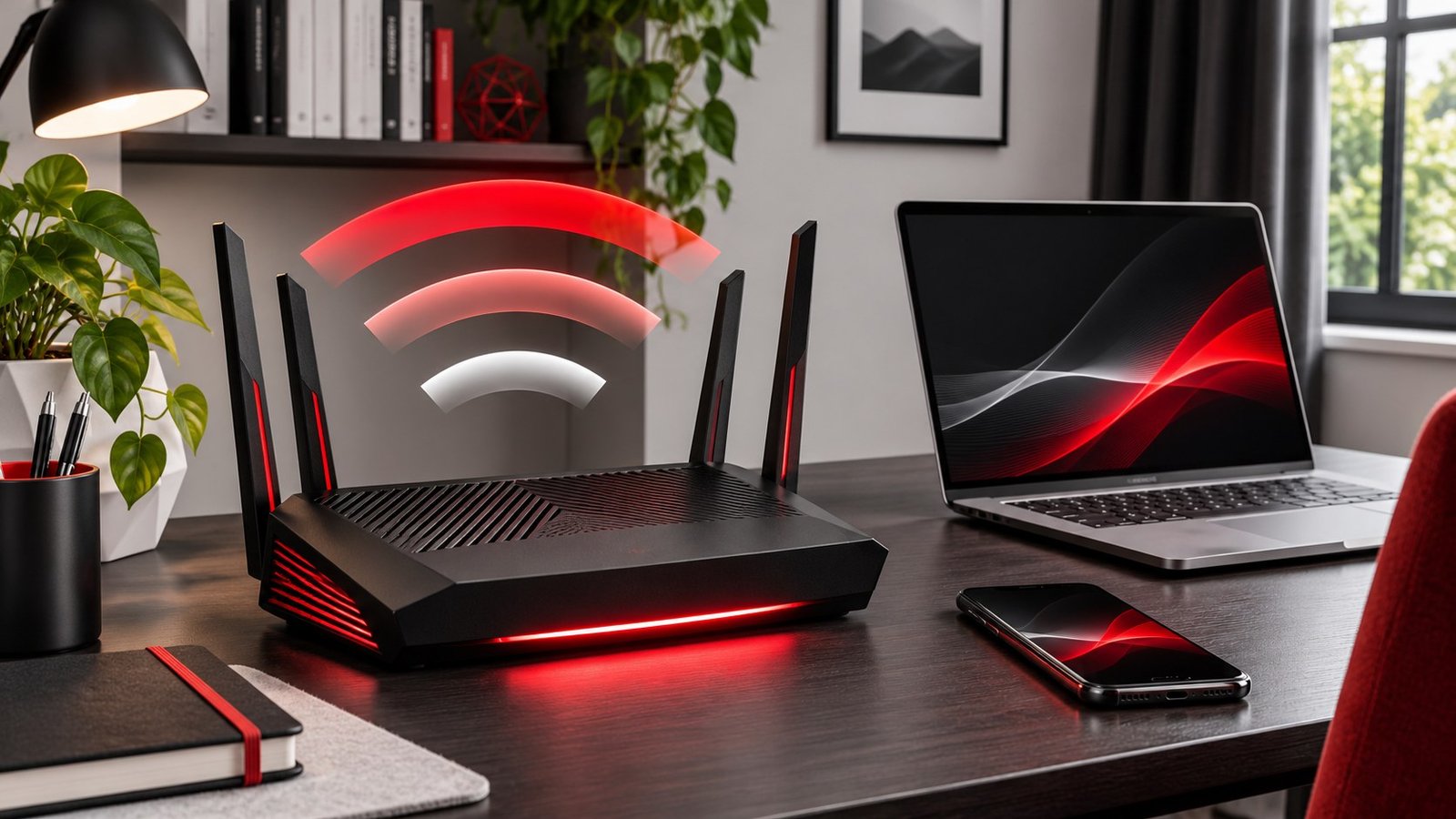
A Wi-Fi band is a portion of radio spectrum. The router and the client must both support the band to use it. A 6 GHz router can still serve older devices on other supported bands. A phone or laptop that supports a newer Wi-Fi generation does not necessarily support every frequency a newer router offers. Check the specifications for the exact client model and your region before assuming the new band will be available.
A lower frequency can be useful through obstacles, which is why 2.4 GHz can still work in a room where a higher-frequency connection struggles. That band also carries traffic from many nearby devices and networks, so better reach does not automatically give you better performance. In an apartment building, a nearby 5 GHz access point may be more dependable than a louder 2.4 GHz network competing with several neighbors.
The 6 GHz band gives compatible systems access to additional spectrum. Try it for a fast local transfer or a desk close to the access point. The result may be different across a floor or through several walls. Also check whether the device connects to the same mesh point during both tests. Comparing 6 GHz beside a satellite with 5 GHz from a distant router tells you about the whole connection, not just the frequencies.
Identify the band your device actually uses
Start in your usual room and connect as normal. Check the Wi-Fi connection details or your router’s client list for the band and access point. The exact controls vary, and some devices show a channel or link rate instead of a plain band label. If both router and client show information, compare the client name and confirm you are looking at the active connection. Take a note rather than relying on the Wi-Fi bars.
Many modern routers use one name across multiple bands. That lets devices and the router choose a connection according to their supported behavior. Apple’s recommended router settings describe using the same network name for supported bands and leaving the bands enabled. For most homes, keeping a normal shared configuration is a practical baseline. If you need to compare bands explicitly, use your router’s documented controls and record the original configuration so you can restore it.
Some household accessories only support 2.4 GHz. If a setup app insists on a particular connection during pairing, follow its manufacturer’s instructions. A temporary setup method may be all you need. Before splitting the main network permanently, consider other devices that rely on roaming across the home. Confirm the result with an accessory in its final location, not just beside the router where you configured it.
Compare the bands using your actual workload
Use the same laptop and the same desk for both measurements. Pause large downloads and choose a test that reflects the problem. For a work call, check whether audio and video stay connected. For a local file transfer, copy the same file between known devices and time the transfer. An internet speed test also includes the provider connection, so compare it with a wired result if you want to know whether Wi-Fi is the bottleneck.
Make at least two passes. Test beside the router and then at the location where you normally use the device. Record the band, access point, and the result each time. If your device changes bands during a run, record that too. In a mesh system, a result can change because the client switched nodes or because the node’s uplink is busy. Our Wi-Fi dead zone guide shows how to isolate the local connection before buying hardware.
Use consistency as well as speed. A connection that finishes a file copy quickly but drops every few minutes may be a bad choice for a video call. Compare the results at the time of day when the problem normally happens. Apartment networks can be busier in the evening, and a result from a quiet morning might not reflect the conditions you are trying to fix.
Decide whether to change bands or move equipment
If 5 GHz performs well next to the router but drops in the next room, try moving the router or the device before changing settings. If 2.4 GHz is stable in the problem room and your workload needs little bandwidth, leave the device on the stable option where the system supports that preference. If none of the bands works reliably in that room, improve access-point placement or add an appropriate wired or wireless point.
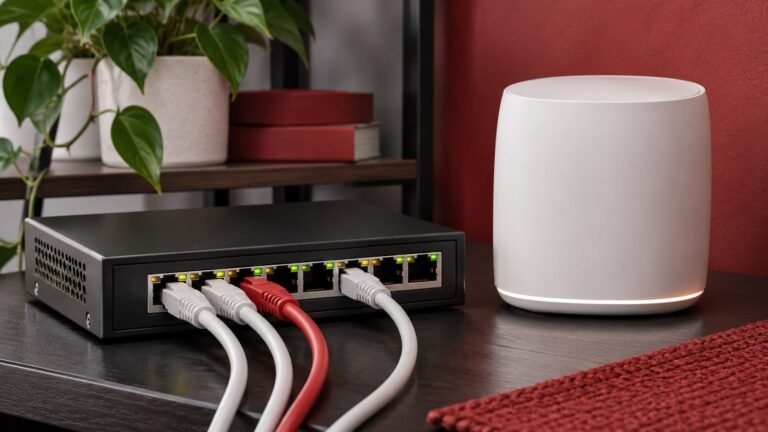
If a mesh node supplies a strong local signal but still performs poorly, check its connection back to the main router. A wired uplink can improve that part of the path if the hardware supports it. See our Ethernet backhaul setup guide for how to test a temporary cable before running permanent wiring. After moving or wiring a node, repeat the same measurements before deciding which band works best.
Keep the settings that make the whole home usable. A fixed band can make sense for a stationary device or a short troubleshooting test. A phone that moves between rooms may work better with the normal shared network configuration. Write down which device, room, and task benefited from any change. If you later replace a router or client, you can rerun that test and decide whether the old preference still helps.
For a purchase decision, list the devices that can actually use the proposed band. Then list the rooms where those devices would benefit. If the only compatible laptop lives two rooms away and your current problem is a weak uplink to that room, improve the path first. When a compatible workstation sits near a busy access point, a 6 GHz test may be more relevant. Match the upgrade to a measured problem.
For the final check, put the phone or laptop back into its usual configuration and walk between the rooms where you use it. A setting chosen at one desk can affect roaming elsewhere. Confirm that everyday accessories still connect, then keep a note of what changed.
Frequently asked questions
Should I turn off 2.4 GHz?
Usually keep it available unless your documented setup gives you a reason to disable it. Some accessories need it, and it can be useful farther from the router.
Does Wi-Fi 6 always include 6 GHz?
Check the device’s specification. Wi-Fi 6E identifies Wi-Fi 6 extended into 6 GHz, and newer equipment can also support that band.
Will 6 GHz make my internet plan faster?
It may improve the local link. The internet service, equipment, and remote server still limit the overall result.
Which band is best for gaming?
Use the connection with the most consistent latency in the place you play. Compare with Ethernet if practical, and check the mesh uplink separately.