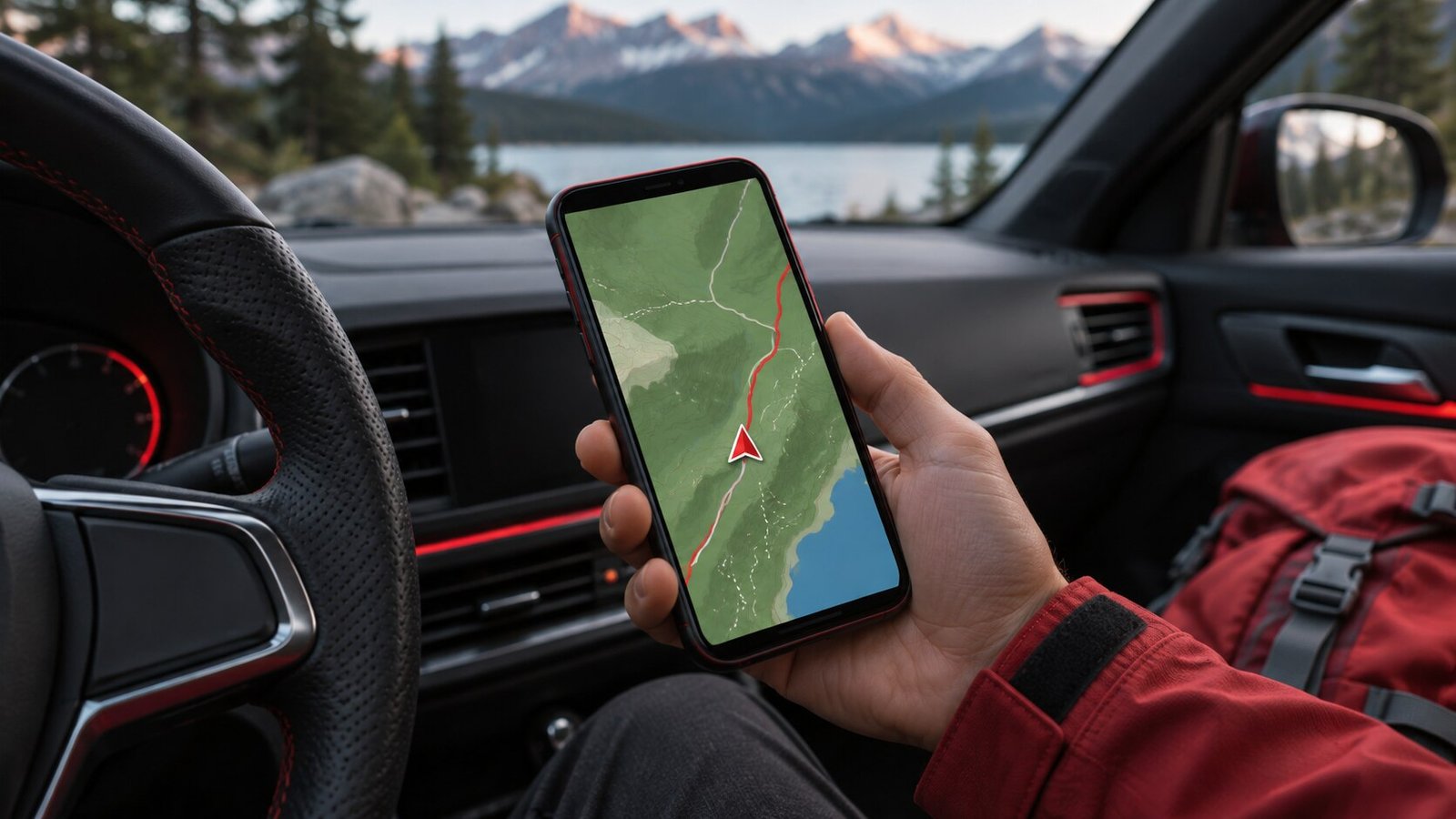
In Apple Maps, tap your profile picture or initials, open Offline Maps, and choose Download New Map. Select the area and download it over a reliable connection. Before leaving, disconnect the phone and check that your destination and a practical route are available.
Choose an area based on the trip
Start by listing the places where you expect weak or expensive connectivity. Include the arrival point, where you are staying and any destinations you plan to visit. A map centered only on the hotel may leave the airport, station or highway outside the download. Look at the route while online and identify which towns or junctions it passes through. Use those points when drawing the area rather than judging the box by how much space it takes up on the screen.
Apple describes coverage and controls in its offline maps guide. Availability varies by area. If the place you need cannot be downloaded, find that out before travel and keep the address or directions in another accessible form. For an itinerary covering several cities, consider smaller downloads around each city plus enough coverage for any road segment where you need directions. Use overlap near boundaries you expect to cross.
Download and verify the selected region
Open Maps and tap your profile picture or initials near the search interface. Choose Offline Maps and look for the action to download a new map. Find a starting location and adjust the rectangle to cover your route. Read the estimated size before confirming. Keep the app and phone available until the download finishes, particularly when it is large. If it pauses, confirm the connection is still available and look for the downloaded entry before starting another copy.
Give each area a name you recognize, especially when several downloads cover places with similar names. Open the map entry afterward and check its boundaries. If an important destination is near the edge, enlarge that area or download another one. Remember that the streets leading into a town can matter more than its center pin. For driving, consider the approach from both directions in case roadworks or a missed turn send you around the other side.
Test the route without connectivity
While you still have time to make changes, switch off Wi-Fi and cellular data temporarily or use Airplane Mode and confirm Wi-Fi stayed off. Open Maps and search for the intended destination. Try a route between two points you know are covered. If your actual starting position is outside the download, set a starting point inside the area for this test. Open a second destination close to a boundary to check how much of the trip is usable. Reconnect after the test.
Apple Maps can provide supported directions and place information from downloaded areas. Features that depend on live data, such as changing traffic conditions, need a connection. Keep that distinction in mind when comparing an online route with an offline test. Save the street address or booking details separately in an accessible location. Our iPhone document scanning guide shows how to keep a paper itinerary as a PDF. Open that copy offline as well if you intend to rely on it.
Manage downloads and available space
Review the Offline Maps list and check the settings for updates, download connections and storage optimization. Choose a download connection appropriate for your data plan. If space is limited, keep the areas you expect to use soon and remove ones from completed trips. Deleting a map download removes that offline copy. Check your upcoming itinerary before clearing a large region simply because it occupies more room than other maps.
If you need room for a large map, check the iPhone’s storage breakdown before removing anything. Videos may be the largest group. Copy and verify any media you want to keep before deleting it. Our iPhone photo transfer guide explains how to check original files and the destination copy. Turning on a storage optimization option may change which older maps remain available. Check that your intended map still appears when you are ready to leave.
Handle weak reception, route gaps and battery limits
If Maps can show a street but cannot provide the route you want, review whether both endpoints and the connecting area are included. Try a shorter route inside the downloaded region. A successful short route suggests that the longer one may need additional coverage. If the display can show the map but the position drifts, move to an open area when it is safe. Tall buildings, tunnels and a vehicle’s position can affect how well a phone obtains a location fix.
Consider how long the phone needs to last. A lit screen and continuous navigation can make a long trip behave differently from an ordinary day. Keep a suitable charger ready if you are driving and check whether the phone actually charges under your usual navigation workload. Our iPhone battery health guide explains how to compare capacity with everyday runtime. If you are walking, keep a separate record of your destination and major turns so you can reduce screen use when appropriate.
Repeat the check just before departure
Open the offline list and look at the name and coverage of each intended download. Check any automatic update status while you are still on a stable connection. If the itinerary changed, test the new destination rather than assuming a nearby town is inside the old boundary. Try one route at the mode you plan to use. A driving test does not establish that every walking or transit option at that location is supported.
For a shared trip, prepare another device if someone else needs their own directions. Confirm it has the map saved locally and enough space for its downloads. Do one test with both phones disconnected from data, then reconnect before leaving. Give each person the written address and intended meeting point. This keeps the plan useful even if one phone runs out of charge or the group takes different routes. When you return, remove old downloads you no longer need and keep wider regions only if you expect to revisit them.
If a route crosses the edge of your download, keep its major junctions or waypoints saved in advance. Then test the trip as smaller segments inside the covered areas. This makes the exact gap easier to identify before you lose connectivity.
A useful last check is to open the destination’s place card and confirm the street number as well as the name. Similar listings can lead to different entrances, especially at large stations or hotels with multiple branches.
Frequently asked questions
Can I use offline maps abroad?
Check that the destination is eligible and download the area before travel. Test it on the device you will take.
Will offline maps show live traffic?
Live conditions depend on connectivity. Allow for changes and verify applicable road information separately where practical.
Can I see my position with cellular data off?
A phone can determine its position without cellular data under suitable conditions. Test the actual device and watch for weak location reception.