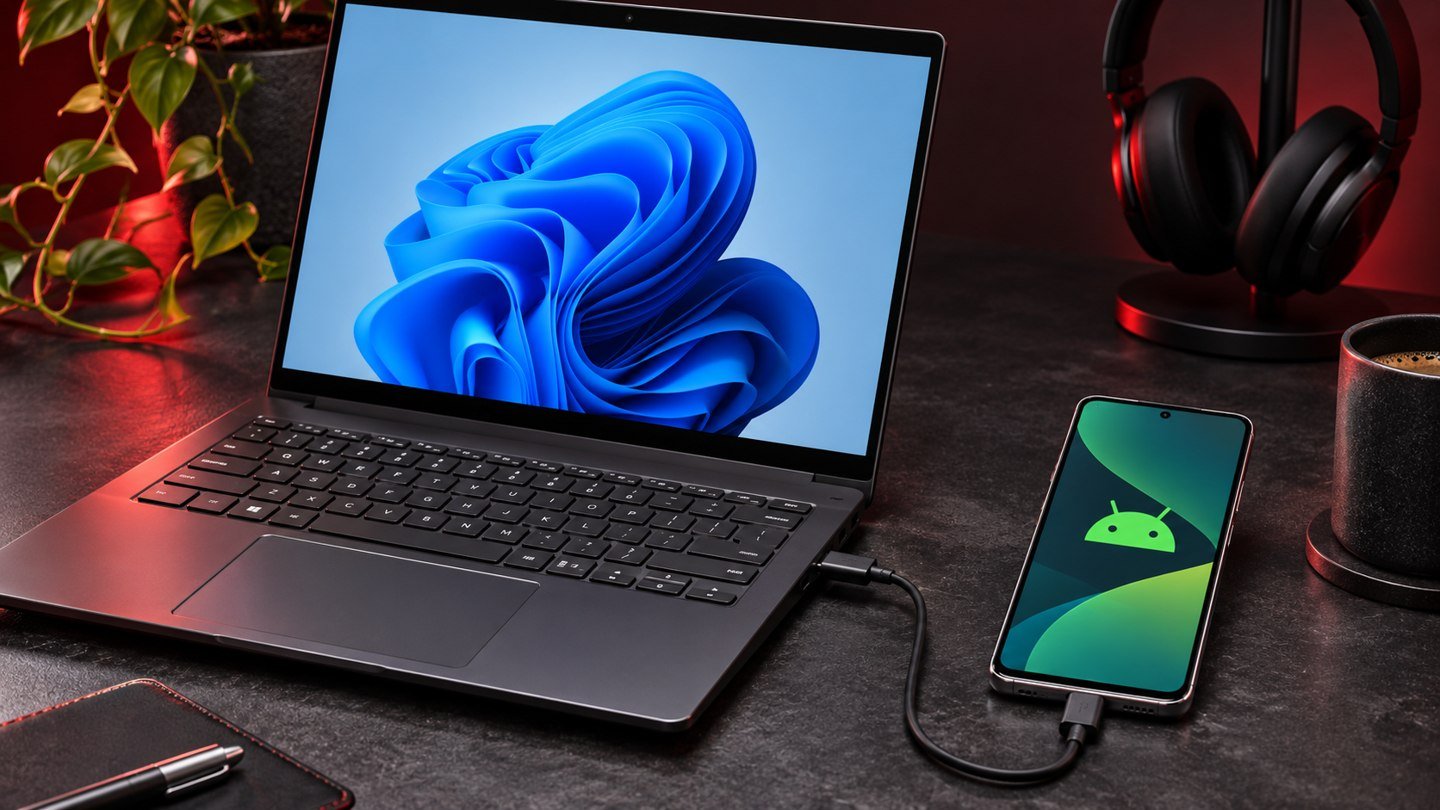
A compatible Google Pixel can act as a webcam when you connect it to a computer with a USB data cable and select Webcam in the phone’s USB options. The host should see a camera it can choose in a recording app or video call. Confirm the setup in a local preview first. Once the picture works, set the microphone separately, support the phone at a usable angle, and check the complete setup in the app you plan to use.
Check compatibility and choose a data cable
Google documents the feature in its guide to using a Pixel phone as a webcam. The host needs support for the USB Video Class standard, and the cable needs to carry data. Use a cable you have already verified with a data device if possible. A cable that powers a charger or desk lamp may only provide power. Keep a second known data cable handy if the phone charges but never offers a usable webcam option.
For the first test, connect the phone directly to a laptop or desktop port. A dock can work in many setups, but a direct connection leaves fewer devices to investigate if the camera does not appear. Find a spot where the phone can stand steadily and where the cable reaches without twisting the connector. A connection that works flat on the desk can become intermittent once the phone stands upright and the wire bends sharply against the edge of a mount.
Select Webcam mode on the phone
Connect the phone and open the USB notification. Choose Webcam under the options for how to use USB. Follow the available camera preview controls on the phone if you need to adjust the view. Open a local camera preview on the host and choose the Pixel feed. Compare the visible image with what the phone is pointed at. That simple check keeps you from accidentally evaluating the laptop’s built-in camera when the host changed its default device.
If the USB menu appears but the webcam choice does not, check that the phone model and installed software offer the feature. Try a different cable and host port before assuming an application setting can make it appear. When the phone offers webcam mode and the computer sees a device but has no picture, switch to a second camera app for a short test. This distinction gives you a useful starting point. You can focus on the USB path when the host never sees the camera, or on app permissions and device selection when another app can display it.
Choose the camera and microphone in the meeting app
Open the video settings in the call application and select the phone’s camera. In a browser-based meeting, check that the site has permission to use a camera and select the Pixel if the available devices are listed. Close a local preview if it prevents the meeting app from accessing the device. On a shared or managed computer, system permissions may affect which apps can open a camera. Compare a built-in camera preview with the meeting preview before changing permissions for several apps at once.
Pick the microphone you plan to use and speak at your normal distance. Watch the input meter or record a short local sample and listen to it. The camera feed does not determine which microphone an app uses. A headset or desk microphone can be a better fit for a phone placed several feet away. Review our guide to per-app audio output in Windows 11 if you can send audio but have trouble hearing the meeting through the device you expected.
Improve the shot before adding settings
Raise or reposition the phone so the camera is near eye level when you sit normally. Try a few angles while watching the preview. Leave room above your head and enough space to move without leaning out of frame. Put a light in front of you or off to one side if the main room light is behind you. Making the scene easier to expose often improves the result more than choosing another mounting location with poor light.
Check the preview again when using a different camera or field of view, if the phone offers that choice. A wider view can be useful for demonstrating a keyboard or an object on your desk. For a face-to-face meeting, a tighter view may reduce distractions. Look beyond the frame’s center before sharing video. A repositioned camera can reveal more of the room than the laptop camera did. If you expect to move the mount between sessions, mark a sensible starting point so the next setup takes less time.
Isolate a camera that freezes or disappears
Test the setup for a few minutes in the app you actually use. Watch for a disconnect when the phone or cable is nudged, or when the computer display changes state. Try a direct connection with a different cable while leaving the other settings alone. If a direct connection works consistently and a dock path fails, investigate that path rather than changing permissions in every program. Our Windows Nearby Sharing guide covers a wireless file-sharing workflow for a separate task when sending files is what you need.
If the image appears stable in the computer’s camera preview but freezes for others in a meeting, look at the meeting app and the network separately. Use the app’s own preview or a short private test call if available. Check whether audio also dropped at the same time, and compare with the built-in camera under the same conditions. A USB fault and a poor uplink can both look like frozen video to a remote participant, so check what you can see locally before changing the phone setup.
Keep the laptop’s built-in camera available as a fallback for an important meeting. Rehearse switching cameras and confirm which microphone stays selected. If you need the phone for a call or authentication during the meeting, decide whether the mount and cable allow you to use it comfortably. A short run with the complete setup can reveal problems that a ten-second check of the picture would miss.
At the end of a session, end the call and disconnect the cable if you need the phone back at your usual charging spot. The next time you connect it, check the USB mode and the app’s selected camera again. A saved app preference can point to a device that is temporarily unavailable, especially if you joined another meeting with the laptop camera between tests.
Frequently asked questions
Why does the phone charge without showing up as a camera?
Confirm that Webcam mode is selected and the cable can carry data. Test a direct port with a second known data cable. Check phone compatibility and whether the host can see the camera in a local preview.
Do I have to use the phone for audio too?
Select the microphone independently in your meeting or recording program. Listen to a sample so you know which input is active and how it sounds at your normal speaking position.
Can a browser call use the Pixel feed?
It can when the host exposes the camera to the browser and the site has the required permission. Look for the Pixel in the meeting’s camera selection and check the site preview before sharing it.
Why does the preview look different from my meeting video?
The meeting app can apply its own crop, effects or quality limits. Check the preview inside the meeting app after choosing the device and compare it with a local camera preview when troubleshooting.