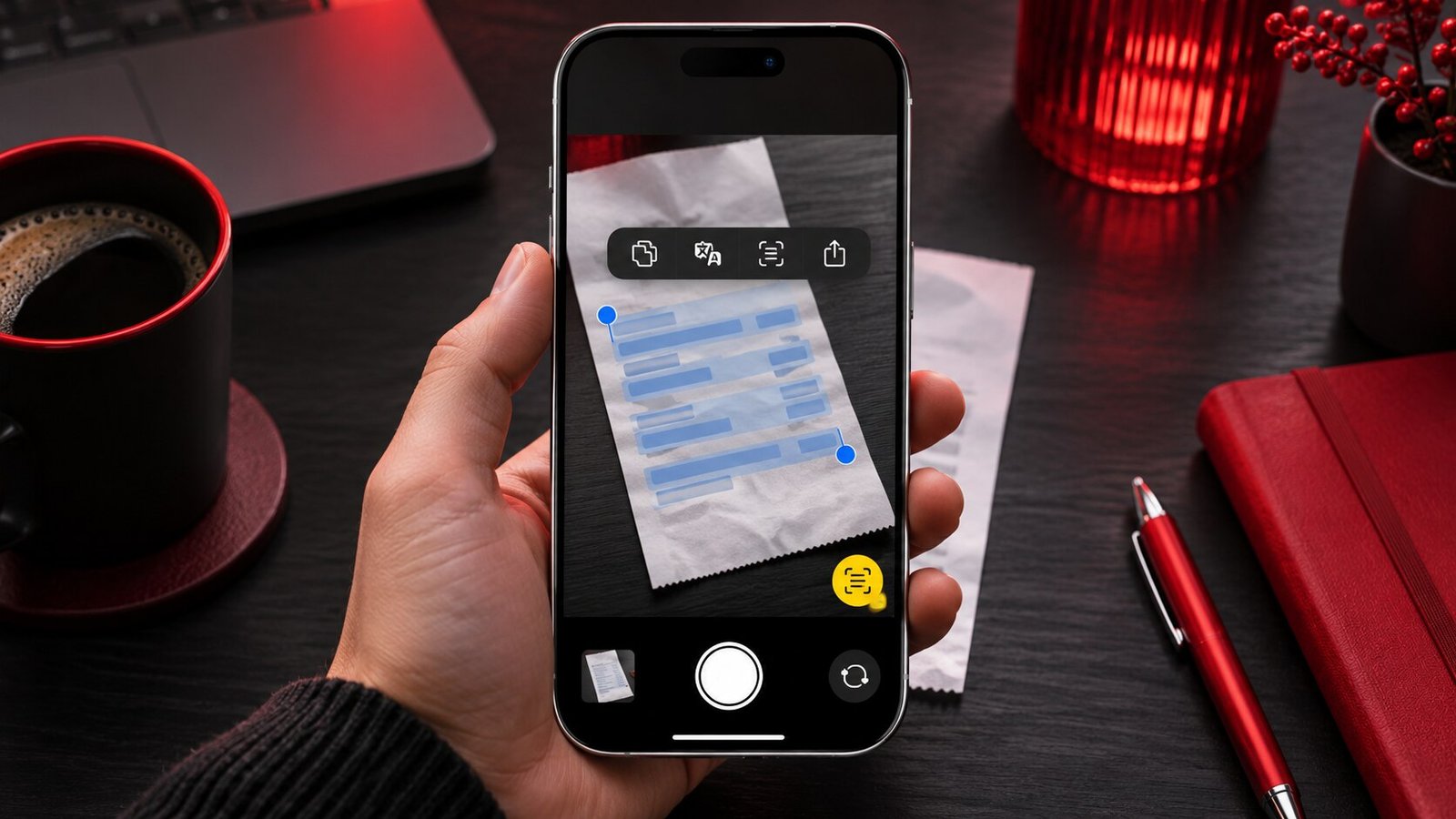
Live Text can turn a line on a sign, a screenshot or a photo into selectable text on your iPhone. Aim the Camera app at printed text and tap the Live Text icon when it appears, or open an existing image in Photos and touch and hold the text. You can copy a selection and paste it into another app. Translation and other actions may also appear depending on what the phone recognizes. For numbers, names and addresses, compare the selected result with the source before acting on it.
Check that Live Text is available
Open Settings > General > Language & Region and look for the Live Text switch. Turn it on if the switch is available and the feature is disabled. Support varies by device, software version and language. The actions offered for a given selection can also vary. If the feature is missing, check Apple’s Live Text camera guide for the current availability and controls. On a compatible device, start with a printed heading in a language you normally use and see whether the Camera app detects it.
Try something simple first, such as a page with dark text on a light background. Hold the page and phone steady, keep the text large in the viewfinder and move away from glare. The icon may take a moment to appear as the camera focuses. This sample gives you a baseline for later attempts with a dim restaurant menu, a curved label or a narrow strip of text at the edge of a screenshot.
Copy text directly from Camera
Open Camera, point it at the text and tap the Live Text icon when it appears. Touch and hold a recognized word and adjust the selection handles around the text you want. Tap Copy, switch to a destination such as Notes and paste. When copying a long paragraph, compare the first and last lines to make sure the handles reached the correct boundaries. Use two smaller selections if another column keeps getting pulled into the result.
For an address, try selecting the street, city and postal code together, then verify each component in the pasted version. If the street name sits on a separate sign or line, copy it separately and combine the two selections yourself. Before navigating to a result, confirm that Maps found the location you intended. Read our guide to downloading offline maps on iPhone if you need the route while traveling with limited connectivity.
Extract text from a photo or video
Open a photo or screenshot in Photos. Touch and hold the text to see whether the selection handles appear. You can also use the Live Text icon when Photos offers it. Drag the handles to isolate a section and copy it. This route is helpful when the original object is gone or when you want to take your time checking the extraction. A screenshot of an app interface can work if the text is large and clear in the captured image.
For a video, pause on a frame where the text is legible and use the Live Text controls if they appear. Move a little earlier or later if the frame is blurry or subtitles are changing. For slides, look for the frame after the presenter stops moving the cursor across the words. Copy only the relevant lines so you preserve enough context without picking up neighboring labels that make the pasted result harder to read.
If the image has a cluttered layout, zoom in to inspect the exact line you need. If the selection still includes other lines, use a duplicate or a cropped copy so you retain the original. Cropping can help isolate a block, while a clearer photo may be necessary for text that was too small or heavily compressed in the source. Save both pieces when you need an exact reference and an editable transcription.
Translate a selection or look up a term
Select a phrase to see which actions are available. When Translate appears, choose it and check the detected language and the result. Choose a complete sentence where possible. One short word may be ambiguous, especially with a menu item, a place name or a word common to several languages. Compare headings or adjacent lines to establish the subject and translate a second passage if one result feels out of place.
Look Up can help with an unfamiliar term when that action is available. The results still depend on the word Live Text selected, so check the spelling first. Some recognized data, such as phone numbers or URLs, may come with their own actions. Read the extracted value before dialing or opening it. A single incorrect digit can change the destination, and an unfamiliar URL may be easier to assess by pasting it into a note before deciding whether to visit it.
Fix bad selections and verify important details
If Live Text offers no selection, improve the source. Use a well-lit image, hold the camera square to flat text and take another shot if the first one is soft. For curved packaging, try a few images from different angles so each line is flat enough to read. If the source is a screenshot, capture at a larger font size where possible. For accessibility features that make an iPhone easier to use in other situations, see our guide to Sound Recognition on iPhone.
Watch for characters that look alike, including a zero and capital O, or a one and lowercase l. Dates, serial numbers, coupon codes and apartment numbers deserve a direct comparison with the original. Line breaks can also disappear or move. After pasting, check whether an address has retained its unit number or whether a label and its value have ended up on different lines. For a form or transaction, keep the original available during the check.
For repeated extractions, try pasting a passage into Notes before transferring it to your final destination. You can compare it with the image, fix spacing and remove stray characters there. If a copied list includes several prices or measurements, check each value against its original label as well as checking the digits.
Frequently asked questions
Do I have to take a photo before copying text?
You can copy detected text directly from Camera when the Live Text icon appears. For a difficult source, keeping a photo can make it easier to try alternate selections and verify the pasted result later.
Can Live Text select multiple columns correctly?
It can detect text across an image, but the order of a complex layout can differ from the order you expect. Select one column at a time and paste each one where it belongs. Check that a heading is still associated with the right lines.
Why does one photo work while another fails?
Image quality, lighting, size, contrast, language and viewing angle can affect detection. Test with a clear printed line to confirm the feature is working, then improve or replace the harder image.
Can I copy from an image sent by someone else?
If you can open the image on your iPhone and Live Text recognizes the text, you can select it in a supported view such as Photos. Check that a messaging app has not compressed the picture enough to obscure small characters. Ask for the original image if legibility matters.