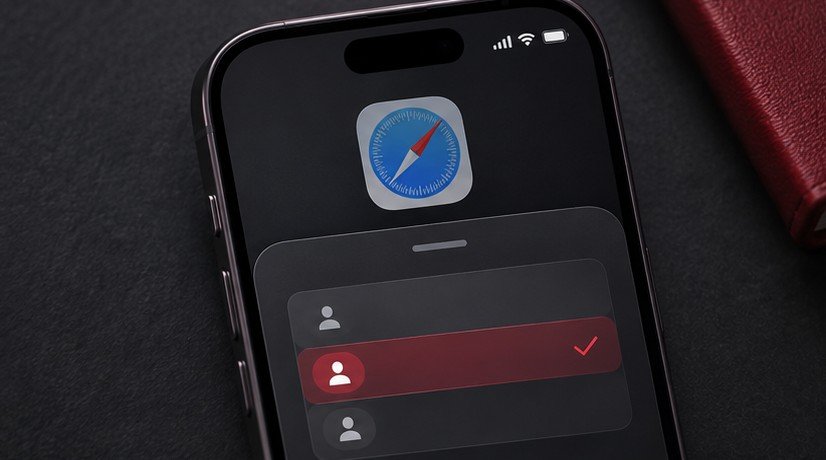
Safari profiles on iPhone let you keep separate browsing contexts for work, personal use or a project. Start by creating a clearly named profile and opening a test site in it. Then switch to your ordinary profile and compare the tabs and site sign-in. This tells you whether you are working in the intended context before you submit a form or change an account setting. Choose only as many profiles as you can recognize reliably on a small screen.
Create and name a new profile
Open Settings > Apps > Safari on versions of iOS that organize app settings under Apps. In earlier interfaces, Safari may have its own entry in Settings. Find Profiles and create a New Profile. Choose a name that describes when you will use it. Set its icon and color if offered, and review its favorites and new tab settings. Apple documents the available controls in its Safari profiles guide for iPhone.
Think about what the distinction should accomplish. A work profile can contain your work portal, documentation and a separate sign-in for a service you also use personally. A research profile can hold a small set of open topics you want to return to over several days. Begin with one of those use cases. Several similar profiles can become difficult to tell apart. If you choose a short name such as Work, use a recognizable icon or color alongside it so you can identify it quickly in Safari’s tabs view.
Open the profile and run a sign-in check
In Safari, open the tabs view and find the control for tab groups or profiles. Choose the profile you just added, then open a blank tab and visit a low-risk page you recognize. Switch back to the other profile and check that the tab remained in the intended context. Then test a service where you use different accounts. Verify the user name or account indicator inside the site itself before taking any action. The profile selection can make a specific site session easier to manage, but it does not tell you which account you chose when you signed in.
If opening a link brings up a page in an unexpected profile, note where the link came from and which Safari view was active before you tapped it. Try again using a link that opens a read-only page so you can observe what happens without submitting anything. If the destination offers account switching of its own, check both controls. Safari chooses the browser context and the website controls which of its accounts are available within it. When you have several Apple devices, check Safari on each one before assuming the same work arrangement is already in use there.
Understand which browsing data is separate
Safari profiles can keep browsing history, cookies and website data separate. They can also organize tabs and tab groups and provide different extension settings. Open a test site and observe whether you need to sign in separately in the other profile. Treat this as a convenience check. For content that needs an access restriction, use the appropriate device or account protections and owner-controlled sharing settings. Anyone able to use the same unlocked browsing interface may be able to switch profiles.
Review extension settings in the profile before relying on a feature. For example, a reading tool or content blocker you expect in one context may need to be enabled for the other. Open a familiar site and check the feature from the profile you are testing. If a page behaves differently after enabling something, disable that one extension temporarily and retry. This helps distinguish site behavior from a profile-specific extension. Avoid turning on every extension simply to reproduce the first profile. Review which ones belong in your actual browsing routine.
Build a work and personal workflow
Put the most frequently used work sites in the new profile’s favorites if you use the favorites controls. Open one site you need daily and confirm that both the favorite and the cookie session belong where you expect. For a borrowed link or a public reference page, check whether it is useful to keep it among work tabs or whether you only need it once. Closing old tabs after finishing a project makes the profile easier to recognize when you come back to it later.
A profile is especially useful when you already switch among services with similar interfaces. For example, open a shared project tracker using its work sign-in, then check that the personal profile opens the same service with your personal sign-in. Avoid doing this first with an action that sends something. Read a harmless page in each profile and verify which account owns it. If you often copy text into a task from another iPhone app, see our Live Text guide for a separate way to capture and verify material before pasting it into a web page.
Troubleshoot a profile that seems to have disappeared
Check the active Safari profile and whether you are in the tab group you intended. A missing tab can simply belong to another profile or another group. If the profile itself is missing, return to Safari settings to see whether it exists on that device. Apple describes how profiles can appear on other Apple devices signed into the same Apple Account. Check the relevant account and Safari settings when you are trying to use the same profile across your own devices.
If a site behaves differently in just one profile, compare extension settings, sign-in state and the page address before clearing browsing data. A broad reset can sign you out of sites that were working. If a new profile is serving only as a test, close the test tabs when you finish. Review any useful information you want to retain before removing a profile. When setting up the larger work routine, our guide to iPhone personal automations covers the separate task of running a supported shortcut when an event occurs.
When a particular profile is used for a short project, make a bookmark of the final reference pages before closing it out. Check that the bookmarks are visible where you intend to keep them. A browser tab is convenient during work but can be a poor substitute for a durable project reference.
Frequently asked questions
Can I use the same website in two profiles?
Yes, you can open the website in both profiles and check which site account is active in each one. Separate website data can let you maintain sessions independently. Confirm which account appears inside the website before performing an action.
Will creating a profile move all my old tabs?
Check the existing profile and any tab groups before assuming a newly created profile contains earlier tabs. Start with a small number of bookmarks or pages you deliberately open in the new profile.
Can a profile have a different icon and color?
Use the profile options to set a distinct name, icon and color where available. Make them easy to recognize when switching in a hurry. That small change is especially useful if several profiles use the same websites.
Why does a site open with the wrong account?
Check both the active Safari profile and the account indicator in the site. If they disagree with your expectations, switch to the intended profile and separately sign into the appropriate site account.