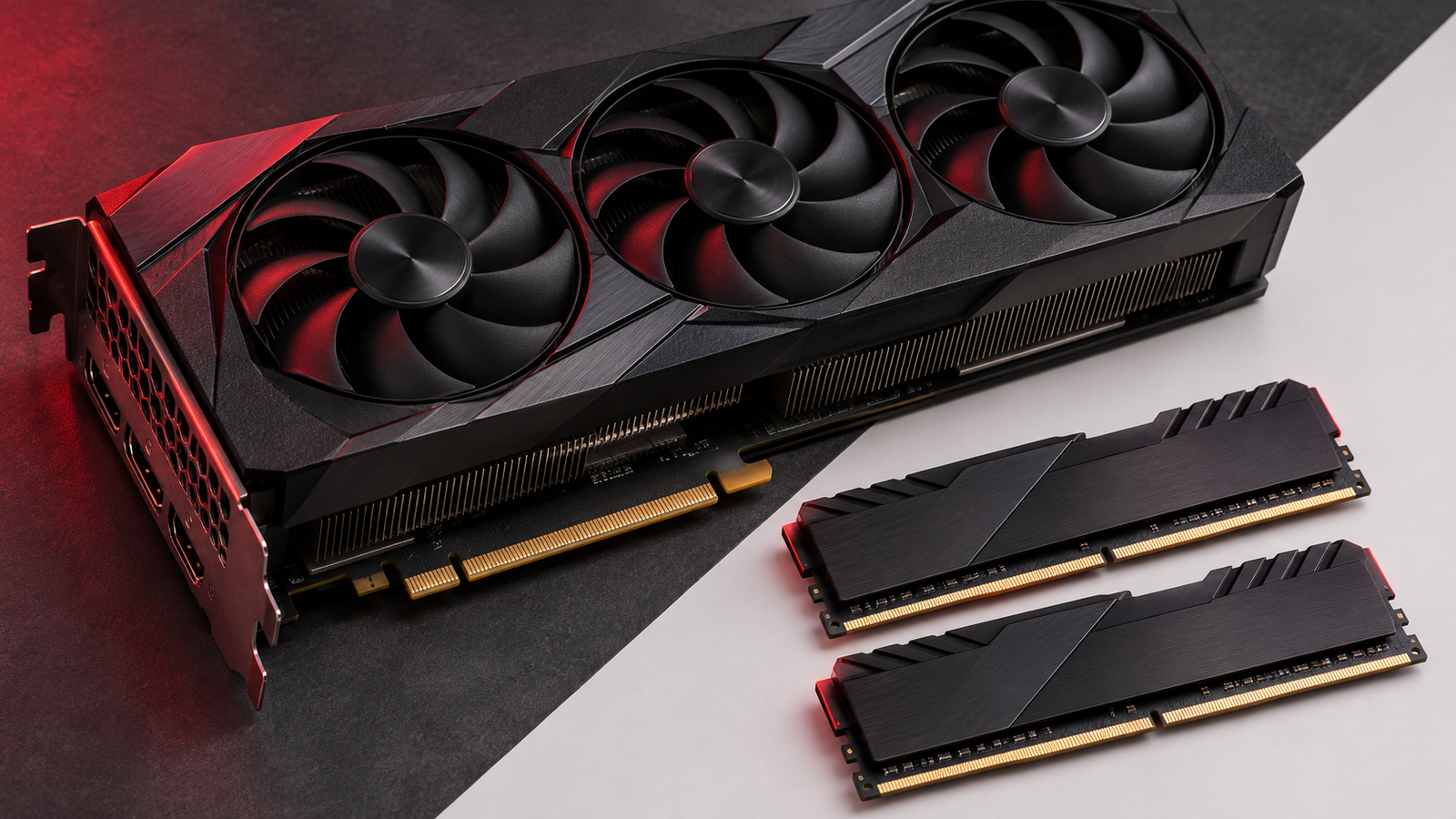
When you run a language model locally, system RAM and GPU memory determine what can fit, while the processor and memory bandwidth help determine how fast it runs. If you are deciding whether to upgrade, start by running the model and context size you actually need. Watch where Ollama places the work, check the operating system’s memory readings, and time the same prompt before changing anything.
Understand system RAM, VRAM, and unified memory
System RAM holds the applications and data the operating system is actively using. A desktop graphics card usually has a separate pool of dedicated video memory, often called VRAM. A local inference engine can place some or all of a model’s work on a supported GPU, depending on the model, runtime, hardware, and available memory. If the engine has to place some work on the CPU, the model may still run with a different performance profile.
Apple silicon Macs use unified memory, shared by the CPU and GPU. On those machines, a browser, a large photo editor, and a running model all draw from the same physical pool. Some Windows computers also use integrated graphics with shared system memory. These architectures make a number on a graphics specification sheet hard to compare directly with a dedicated graphics card. Check the exact configuration and measure with the applications you actually keep open.
On a Windows PC with a discrete GPU, record the dedicated GPU memory figure separately from shared GPU memory. On macOS, open Activity Monitor and watch Memory Pressure and Swap Used while you work. Apple explains what these readings mean in its Activity Monitor memory guide. The number you want is the headroom available during your workload, after the operating system and other applications have taken their share.
Estimate the model’s memory needs
Begin with the exact model tag and quantization you want to run. Quantization stores model weights at reduced precision and can reduce their size. Different downloads of the same model family may use different quantizations, so compare the actual variants. A smaller file often makes the first run easier, and you can test whether the resulting answers still meet your needs with a known set of examples.
A download size is a useful lower-level clue about how much data the model contains. The runtime also needs room for intermediate work and for conversation context. A model that loads with a short prompt can struggle once you give it a long source document or carry a conversation through many turns. Look up the configured context length as well as the model’s advertised maximum. Ollama’s context length documentation explains how to inspect the allocation and change it.
For a practical starting point, use the smaller model tag from our guide to running AI locally with Ollama. Write down the model tag and the runtime version. Then choose a short prompt and one realistic longer prompt. A short request isolates the basic model and gives you a quick baseline. The longer one shows whether your actual task still fits.
Measure a real workload on your machine
Start with the computer in its usual working state. For example, leave your browser and editor open if you normally use them while running AI. Record the baseline system memory and dedicated GPU memory, if applicable. Then run the small model and send the short prompt. Keep the model loaded and open a second terminal for the following command.
ollama psRecord the processor split and context length that Ollama reports. On a supported dedicated GPU, compare the dedicated memory reading before and during the run. On an Apple silicon Mac, compare Memory Pressure and swap readings. For speed, note the time until the first visible output, then note the time needed to finish a response of roughly the same length. The first run can include model-loading time, so repeat after the model is loaded if you want to isolate chat performance.
Next, run the longer prompt in a fresh conversation. Keep its wording and requested answer length fixed while comparing configurations. For example, ask each run to extract the same ten facts from a document you can share safely with the runtime. Save a list of the correct facts and check them alongside the timing. That way, you can tell whether a configuration change affects usability, speed, answer quality, or all three.
Interpret the results before spending money
If the short prompt is fast and the longer one stalls, try reducing the input or using a fresh conversation before replacing hardware. A workflow that feeds one relevant section at a time may fit your machine and give you clearer source references. If only long prompts fail and your task needs them intact, compare a smaller model with a larger configured context and test the answers again.
If Ollama reports a mixed CPU/GPU run while dedicated memory is close to full, try a smaller or more compressed model. If that model fits on the GPU and meets your quality target, keep it as your daily option. If GPU usage is low despite substantial available memory, check whether the runtime supports your GPU and driver. Available memory alone does not establish that the software can use that hardware for inference.
If the system swaps heavily while the model is running, close one memory-heavy application and repeat the same test. Sustained pressure that disappears when you close that application suggests competition for system memory. A slow but stable run with comfortable memory readings may point toward the processor or the software path instead. A repeatable measurement gives you more information than the fact that a single answer felt slow.
Decide which upgrade would help
More system RAM can help when the operating system and active applications compete for memory, or when a CPU-based workload needs a larger pool. For GPU-first inference on a desktop, a compatible card with more dedicated memory can help fit a model and context on the GPU. Compare runtime compatibility, available memory, and power or physical fit before choosing a card.
For a machine with unified memory, evaluate the entire computer configuration against your everyday workload. Check the manufacturer’s upgrade options before buying. Your notes should tell you whether you need a larger model, a longer input, faster answers, or the ability to keep other work open. Those are different constraints and can lead to different purchases. For related upgrade topics, browse PC Components.
Frequently asked questions
Is 16 GB of RAM enough for local AI?
It can be enough for a small text model with short context. Check the exact variant, what else is running, and whether a discrete GPU handles some of the work. Try your own prompt and measure before buying.
Can more RAM compensate for limited VRAM?
Some runtimes can run part or all of the workload on the CPU using system RAM. That can make a model usable, although its speed may differ from running the same model fully on a supported GPU.
Does more VRAM automatically make a model faster?
More capacity can let a larger workload fit. If the current workload already fits, speed still depends on the processor, memory bandwidth, software, and model configuration.
Why does a model load successfully and still run out of memory later?
Longer inputs or conversations can increase runtime memory use. Repeat the test with a shorter prompt or a smaller model, and inspect the configured context length.