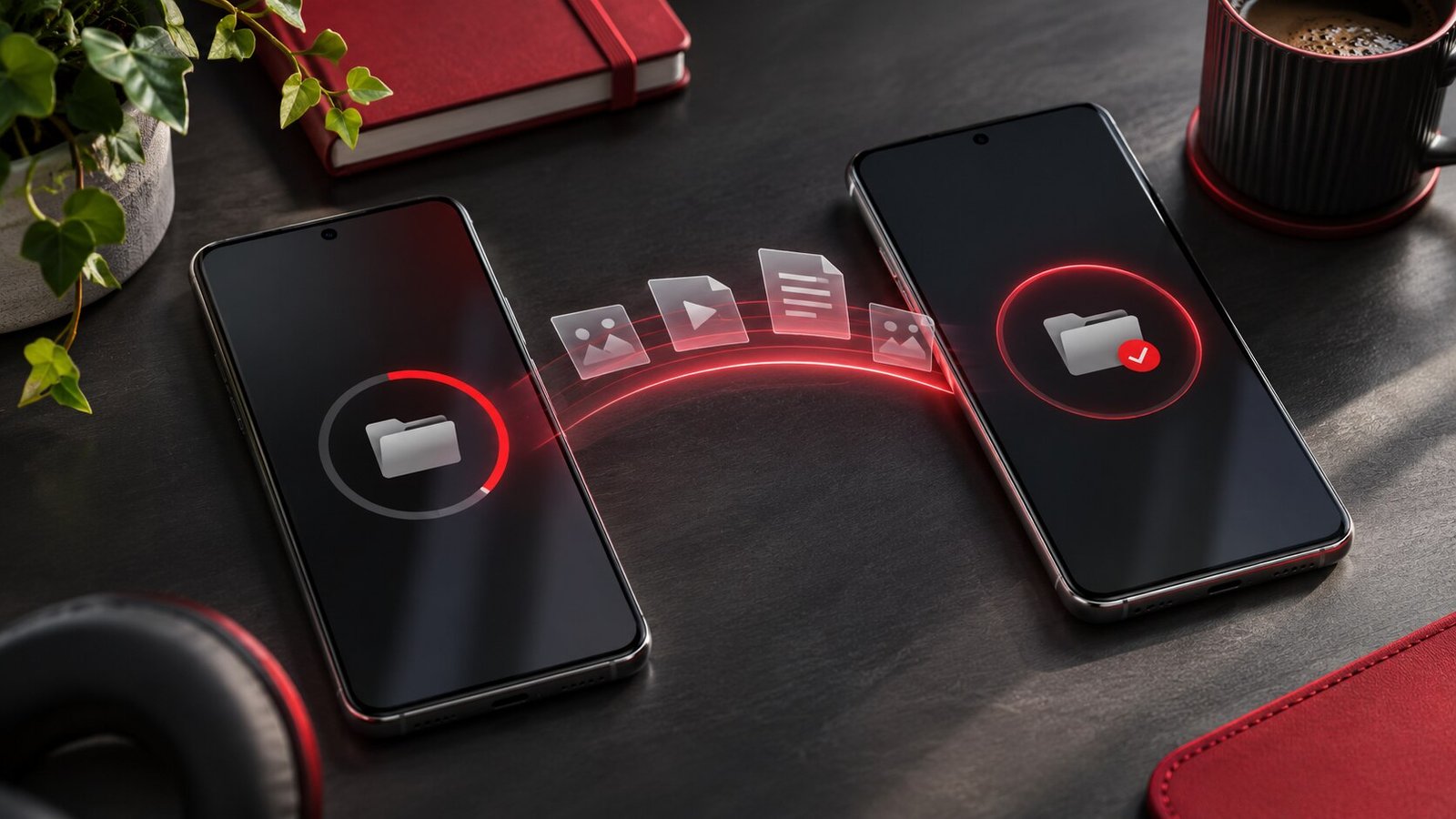
Open the item, tap Share, choose AirDrop, then select the nearby Apple device. Keep Wi-Fi and Bluetooth on at both ends and turn off Personal Hotspot if it is active. Test with one harmless photo before sending a large batch.
Prepare both devices
Put the devices near each other and unlock them for the first test. Confirm that Wi-Fi and Bluetooth are on. AirDrop does not require that both devices join the same home network for the nearby transfer. If one device is serving as a personal hotspot, disconnect from the hotspot or turn the feature off before trying again. Check that the receiving device is actually awake and available. On a desk with several Macs or phones, read the receiver’s name from its own settings before selecting a similarly named device.
Apple’s AirDrop guide documents the current sending steps and receiving options. Menu labels can differ by platform and software version. A managed work or school device may expose fewer choices. Ask the administrator what is supported rather than changing its security settings or assuming the hardware is faulty.
Check who can see the receiver
Start with the receiver’s AirDrop settings. Contacts Only is a practical everyday choice for familiar people. If it does not recognize the sender, check the contact record and whether it contains the address or phone number associated with the sender’s Apple Account. A saved nickname or a different address can look right to you while failing the identity check. Make the change on the correct device if the person has several contact books.
For a brief test, use the available Everyone option on the receiving device when appropriate and follow any verification prompt the devices show. On current iPhone software this setting can be time limited. Return it to your usual preference after the test. Approve requests you recognize. If the same test works with discoverability widened but fails in Contacts Only, look at account and contact matching before replacing a cable, restarting a router, or changing unrelated settings.
Send a small sample and find it
Open a harmless picture or a small PDF and use its Share sheet. Select AirDrop, choose the intended recipient, and watch both screens. The receiving device may ask for acceptance. Transfers between devices signed in to the same Apple Account can be accepted automatically. Note whether the sender shows Waiting, Sending, or a completion message. These states tell you whether the devices found each other, started a transfer, or got through it.
Look for the file in the app or destination appropriate to the type of item. A photo sent to an iPhone commonly appears in Photos, while a Mac commonly saves received files in Downloads. A link may open in an app rather than arriving as an ordinary file. Open the sample before sending the real material. If you are sending a scanned PDF, first verify that the attachment is the file you mean to send. Our iPhone Notes scanning guide shows how to review and export the PDF.
Handle a missing recipient or a stalled transfer
If no recipient appears, return to the receiver’s AirDrop visibility, Wi-Fi and Bluetooth settings. Confirm the devices are nearby and the receiver remains awake. Try the same sample in the other direction if both people can do so. A one-way failure can reveal that one device is unable to receive even though it can send. Restart the affected devices only after these checks so you know whether it helped.
If the recipient appears but the transfer stays at Waiting, look at the receiver for a pending prompt and verify the selected name. Cancel a stuck request before starting a new one. If small items complete but a large video fails, check available storage and try the video by itself. You can use a wired import for a large photo collection. Our iPhone photo transfer guide covers checking originals and verifying a copied batch.
Check originals and verify what arrived
AirDrop shares the item supplied by the sending app. A photo export, a link to an online item, and an original file are different outputs. Review the Share sheet and any options it offers before committing to a long transfer. If an app needs to retrieve the original from cloud storage, the sending side may have to finish that step first. Test one older item whose original you know may be online and compare it with a recent local item.
Keep the sender’s original until the recipient checks the copy. Open the document or play several seconds of the video. Check the name and page count for a PDF, or the duration for a video. For multiple items, compare the expected count with what arrived. Follow the same verification practice when sending material you want to retain as a backup. A successful notification does not establish that the recipient saved the intended variation or can still find it later. See our backup verification guide for a practical sample test.
Use repeatable checks on a shared desk
When moving many files between your own devices, start with a sample whose name you recognize. Keep the receiving app closed or note its initial state so you can see what changed. If a second person helps, agree which file and device name you expect before pressing Send. When the transfer completes, tell them where you expect the file to appear. The handover is complete when they can open the exact item.
If you alternate between home and work equipment, record which devices are managed and which workflows are allowed. A recurring problem on one managed receiver is worth raising with its support team. Include the models, software versions, direction of transfer and the status where it stops. Repeat with small non-sensitive content before discussing your real documents. That provides a clean reproduction without sharing material the support team does not need.
For travel, test transfers with the same devices before departure. If your plan depends on sharing an item already stored in an app, open that item fully before switching off network access. That distinguishes a successful nearby transfer from an unavailable original.
When the only copy is a video that you just finished editing, export it first and open the exported file on the sender. Send that export by itself, then compare duration and audio on the receiver. This avoids mistaking a preview from the editing app for the finished video. For a batch of similarly named files, group them by date or project and send one group at a time.
Frequently asked questions
Can I AirDrop to Windows?
AirDrop is for compatible Apple devices. Use an appropriate cable, cloud service or another transfer method for Windows.
Why do I see two devices with similar names?
Check the name shown on the intended receiver before selecting it. If in doubt, ask the other person to confirm the request before accepting.
Can I send a collection in several batches?
Yes. Use small groups that you can count and verify when the collection matters. Start with a sample to confirm format and destination.