Open Steam Settings → Controller and verify the controller responds before opening a game. Then check the game’s Controller properties and compare the available Steam Input setting with the game’s normal behavior. Test one setting at a time and save any custom layout before changing it.
Confirm that Steam receives the controller input
Connect a single controller directly to the PC for the first test. If it supports both USB and Bluetooth, a known-good data cable can provide a useful baseline. Open Steam Settings and select Controller. Check whether the expected device appears and use the available input test to move each stick, press the triggers, and try the buttons. Watch for a trigger that never reaches its expected range or a stick that moves while untouched. A game layout cannot repair an input that the client does not receive.
Compare the controller with a second known-good cable or port if it is missing. If it works over USB but not wirelessly, troubleshoot the link independently before changing layout settings. Our Windows Bluetooth guide explains how to verify discovery and reconnection. Valve’s controller troubleshooting documentation describes Steam controls and additional diagnostics for its own controller. For other models, use the device maker’s instructions for pairing and firmware.
Check the game’s controller options
Choose one game that already supports a controller and launch it directly from the Steam Library. Check whether the main menu responds and continue into an actual level. Some titles handle menu and gameplay input differently. Write down the exact symptom. A game that accepts buttons but shows different labels is easier to narrow down than one where every control appears broken. Record whether the controller has a recognized in-game profile or whether the title expects a particular controller type.
Close the game before changing its Steam configuration. Open the game’s Properties and look under Controller for the per-game Steam Input options. Note the current setting. Try a supported default before testing an explicit enable or disable override. Restart the game and return to the same point after each change. A game with native controller support may work well directly. Another may need Steam Input to provide the mapping it expects. Choose based on the result you can reproduce for that one title.
Test a simple layout before editing it
Open the controller layout interface for the game and check the current layout. If you have made custom changes, save or record them first. Try a straightforward gamepad layout for a supported title. Verify one action at a time, starting with movement, camera control and the primary confirmation button. Confirm the active layout after you switch it. Some community configurations are built for a particular controller model or may deliberately map a button to a keyboard command. Treat the description as a clue and inspect the mapping before applying it to a game with important save data.
In a game without ordinary controller support, a layout that sends keyboard and mouse commands may be appropriate. Choose it deliberately and verify whether the game can use those commands alongside any native input. For example, map a single menu command and confirm the title shows the expected result before configuring every button. Keep a copy of a working baseline so you can return to it after testing more elaborate activators or combinations.
Isolate doubled input and unexpected prompts
If one button moves the menu twice, disconnect spare controllers and close any optional remapping utility that you started for this test. Check whether the game can see both a physical controller and an emulated device. Compare the game with its normal Steam Input setting and one deliberate change. Move through the same menu with single, distinct presses. If the duplicate disappears, restore other components one at a time until you identify the combination that caused it.
A game may show Xbox-style labels while a different physical controller still functions because it receives a standardized mapping. Test the action indicated by the prompt and examine whether the game provides its own prompt style setting. If controls switch between gamepad and keyboard labels repeatedly, see whether the layout sends a mouse or keyboard action when you touch a stick or pad. A small mapping change can resolve distracting prompt changes without replacing the entire controller profile.
Compare local play with Remote Play
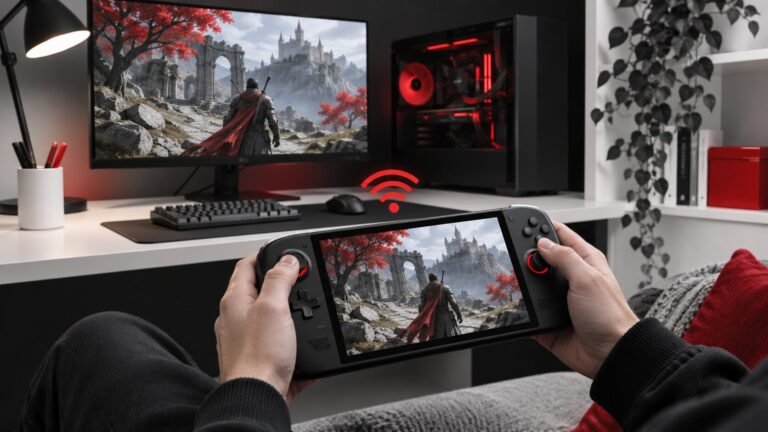
If the controller works on the host but fails during a stream, test it on the receiving device before connecting. Confirm that the streaming client sees the input and that the host game is using its usual layout. Then repeat with the controller attached to the host if that is practical. Our Steam Remote Play guide separates host rendering, network delay and client input. A wireless connection problem can feel like a layout issue when a button eventually responds several seconds after you pressed it.
Use short tests and keep the game scene constant. Compare a pause menu with a section that requires movement or camera input. If local and streamed play both fail in the same way, focus on the controller or game configuration. If only streamed play fails, record the client device and where input stops. This gives you a better support question than simply reporting that the controller is broken.
Save a working baseline and verify it again
When the setup works, note the Steam Input override, layout name and controller connection. Exit the game normally and launch it again. Verify the controls after reconnecting the controller and check that the intended profile loads. If the game recently updated and now fails even with another input device, use our Steam file verification guide to check the installation separately. Do not keep altering the controller while an independent launch error is unresolved.
For a shared computer, keep each game’s changes tied to that game when possible. A global setting that fixes one title can alter another. Save a note of the original options so you can reverse your changes. If you later need support, include the controller model, Steam connection method, input test result and the first place where the behavior changes. A short reproducible test is more useful than a list of every option you tried over several sessions.
If you use a controller for accessibility, check the core actions you need before replacing any existing configuration. Make a copy of the old layout and test the new arrangement in a safe menu. Keep the original available until you can navigate and exit the game predictably.
Check that the controller also behaves after the PC wakes from sleep. Reconnection can create a new device state even though the layout is unchanged.
Frequently asked questions
Should Steam Input always be enabled?
Test the game’s own controller support first and compare the per-game options. Keep the setting that works with your controller.
Why do I see the wrong button symbols?
The game may receive a standardized controller layout. Check the game’s prompt options and verify the actual mapping.
What if Steam does not detect the controller?
Check the cable or pairing and use a known working input device as a comparison before changing the layout.