
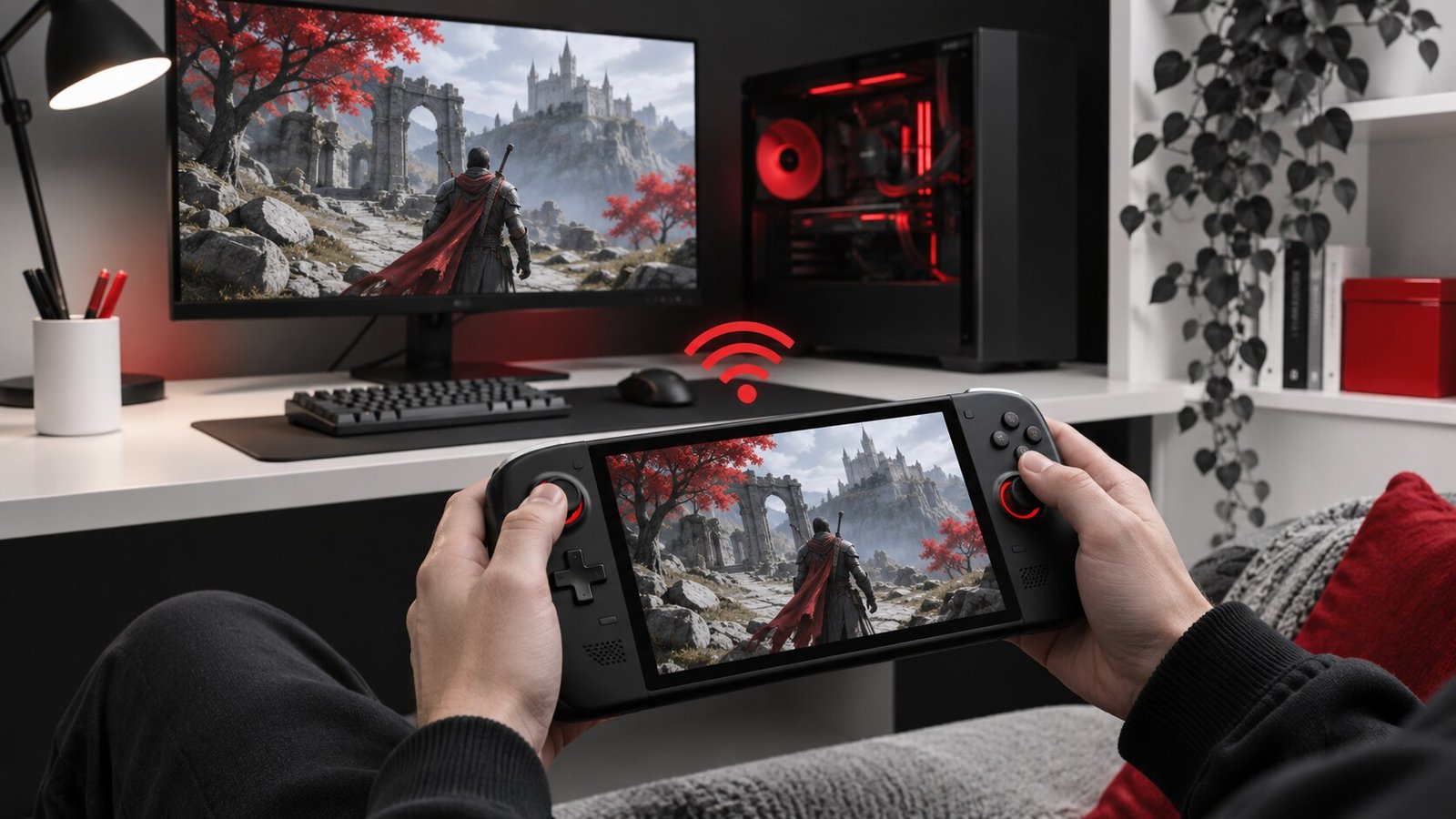
Enable Remote Play on the host computer and connect from Steam or a supported Steam Link client. Start with both devices at home and the host on Ethernet if possible. Test one familiar game, then use the same scene to diagnose any delay, stutter or controller problem.
Choose the host and client
The host is the computer that runs the game. The client receives the picture and audio and sends controls back. This matters when you diagnose performance. A game can run poorly on the host even when the stream has a fast connection. A game can also run smoothly on the host while the client receives an uneven picture. Start by launching it directly on the host and recording how the scene behaves before streaming it.
Choose a client you actually expect to use. A phone with a controller, another computer and a television with a supported Steam Link client can have different display and input behavior. Valve’s Steam Remote Play support guide describes the service and its compatibility. For an initial test, choose a game you already own and can play with a normal controller or keyboard. Leave complicated launchers and mods for later so the first result is easier to interpret.
Enable and connect on your local network
Open Steam on the host and look in Settings for Remote Play. Turn it on and keep Steam running. Wake the host and finish any pending game or client update. On the receiving device, open its supported Steam or Steam Link client and follow the pairing or connection prompt. The workflow differs between two desktop clients and a separate Steam Link app. Match the host name to the computer you intended to use and approve only a pairing request you initiated.
Start on your normal local network. A guest wireless network can isolate devices from one another even when both can access the internet. If the host is missing, confirm the network name on both ends and check the host’s Steam settings. Do not open ports on the router just to get an initial in-home test working. If the two devices use different networks because of your home setup, identify that before changing any streaming setting.
Run a short baseline test
Connect the host over Ethernet if available. Put the client in a room with reliable reception. Stream a familiar title and use the same section you tried directly on the host. Keep the initial resolution and quality setting modest. Take note of startup time, controller response, picture smoothness and sound. If the client offers a performance overlay, enable it long enough to record what changes when a problem appears. Treat it as one measurement alongside what you actually see and feel.
If the wired host is unexpectedly slow, our Ethernet link speed guide explains how to confirm negotiated speed and test a known-good cable. A low link rate by itself does not prove it caused a streaming problem. Compare performance while the network is quiet and while normal household activity is happening. A stream can behave well for a minute before a large transfer begins elsewhere.
Separate network delay from rendering delay
When input feels slow, try the same game locally on the host again. If both tests feel slow, first check the game’s frame rate, display and input settings. If the host feels responsive but the stream does not, lower the streaming resolution or quality one step, then repeat. Reducing streaming demand can reveal whether the connection or video processing is struggling. Compare an easy scene with a busy one to see whether the delay appears only when the host is working harder.
Move the client closer to the router or try a wired client if available. Our router placement guide provides a room-by-room test for checking whether reception changes the result. If a better connection helps, make that improvement before raising streaming quality. If delay stays the same on a wired baseline, investigate host rendering, encoding, client decoding or display processing separately. Try one change at a time and return to the same game scene.
Check controller and audio separately
Confirm the controller works on the client before connecting. If the game reacts to Steam menus but ignores input during play, check the game’s controller support and the active layout. Try a common gamepad layout before customizing button mappings. If the client uses Bluetooth and inputs drop even outside the stream, use our Bluetooth pairing guide for a Windows client. For another operating system, follow that device’s own pairing instructions.
Check audio with a game scene you know has sound. Verify the client’s output and volume first. If other apps play normally, inspect the stream and game settings. Test with headphones or speakers you already know work. If the video is smooth but audio is delayed, record whether the problem follows a particular output device. It is easier to test sound separately than to change display, controller and network settings in one attempt.
Tune for the room where you play
After a clean baseline, go back to your usual chair and repeat the test. A connection that works next to the router can behave differently through walls. Increase quality one step only after confirming that input and picture remain stable during a normal session. Some games are more sensitive to delay than others. Choose settings based on what you plan to play instead of using the highest number offered by the client.
Record the successful host, client, network and settings. If the stream later changes, try the original test before rearranging equipment. Note whether it affects one game or every game, and whether it happens at the same location or everywhere. A saved baseline makes it easier to decide whether to review a game update, client setting or network change first.
If the stream regularly fails when the host goes idle, check what the host does when its screen turns off or it sleeps. Test with the machine awake and available before changing anything. For a computer you share, coordinate when it will be used so a local session does not interrupt your test.
For a useful stress test, try a scene with fast camera movement as well as a quiet menu. Fast motion can expose compression artifacts and dropped frames that a stationary screen hides. Take the same route twice, at the same streaming quality. If the picture breaks up while the host stays smooth, note whether the client reports a network or decoding problem. Then lower one setting and see whether the problem returns. Keep the original settings in your notes so you can reverse the experiment.
Frequently asked questions
Does the game need to be installed on the client?
In a standard remote streaming setup the host runs the installed game. The client receives the stream.
Is Remote Play Together the same setup?
Remote Play Together is a feature for inviting others into supported local multiplayer games. This guide focuses on streaming to your own client.
Should I use the highest quality mode?
Start with a stable baseline and increase quality only when your usual game remains responsive.


