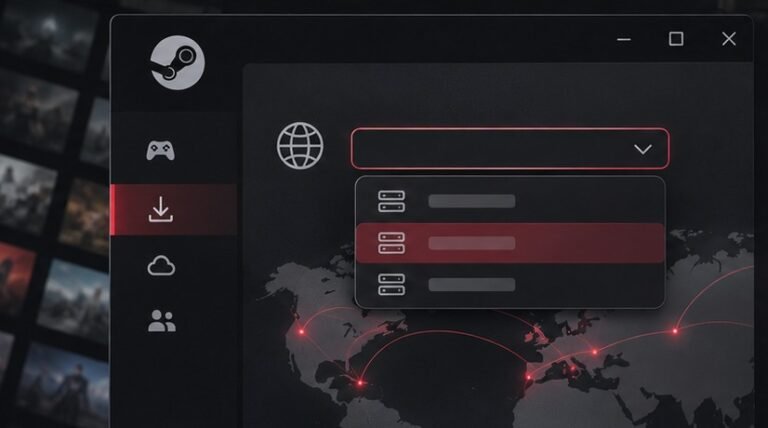
Open Steam Settings, choose Storage, and add a library on the destination drive. Select the games on the original drive and use Steam’s Move action. Afterward, launch a game and open a familiar save before treating the old location as disposable.
Choose what to move
Review the games you play regularly and the space each uses. Moving one large title can free enough room without changing the rest of your library. Check available space on both drives, including some room on the destination for updates. A game can need temporary room to unpack a patch. If your Windows volume is nearly full, our Storage Sense guide explains how to check what else is using it.
Decide whether you want room for more games or a change in loading performance. A second SSD can give you both, but moving between two similarly fast drives may make little difference to a particular game. Time a familiar loading sequence if performance is your reason. For an external drive, make sure the cable and port remain reliable under sustained use. If the drive often disconnects, solve that before asking it to store an active game library.
Protect game saves and mods
Look up where the game stores its saves. They may be in a Windows user folder, in Steam userdata, or in a location documented by the publisher. Confirm Steam Cloud sync if the game supports it and you use it. Make a separate copy when important progress exists only locally. Installed assets are usually replaceable. Saves and custom configurations can take much longer to recreate. Our backup verification guide explains how to check that an important copy can be recovered.
If you use mods, note the manager profile and the paths it expects. Steam can move the game files it manages, but a separate mod manager may still point to the old location. Close the game and its launcher. Finish pending updates if practical before the move. Write down where the game used to be installed, especially if you have several libraries with similar names. That gives you a known starting point if another program refers to the old path afterward.
Set up the destination Steam library
Open Steam on the PC and go to Settings → Storage. Use the control for adding a drive or library and select the intended destination. Valve describes managing library locations in its Steam installation and game moving guide. The controls can vary slightly by client version. Check the drive letter, folder and available capacity after adding it. If the destination has a similar label to the original drive, use File Explorer to make the distinction clear.
Use a stable drive location. A removable drive can receive a different letter on another computer or after devices are rearranged. If Steam later cannot find the library, confirm the drive is mounted and that the client is looking at the same path. Avoid creating a second empty library by accident while investigating. An empty folder with a familiar name is not evidence that the old data was removed. First locate the actual folder holding the installed files.
Move one game and inspect the result
In Storage, select the drive where the game is currently installed. Choose the game and use Move, then select the new Steam library. Let the operation finish before closing Steam or disconnecting storage. The time depends on the game’s size, disk speed and the types of files being written. Small file counts and large archives can produce different progress patterns. Avoid starting another disk-heavy task while waiting for the initial transfer.
Confirm that Steam now lists the game under the destination library. Launch it normally and try a familiar level or save. Check any third-party launcher that the game normally opens. If Steam reports missing or invalid game files, follow our Steam file verification guide. A repair may download replacement data. If your first move works, transfer additional games in small groups so a failure is easier to isolate.
Investigate transfers that stall or fail
Check the amount of free space at the destination and the source drive’s condition. If a transfer fails repeatedly at the same point, look for a readable error and record it. An external drive that drops out under load can cause a different problem from a full destination. Try a direct connection with a known-good cable when external storage is involved. Stop and protect other important files if the disk begins reporting repeated read or write errors.
If Steam cannot detect a library after a successful move, check the currently mounted drive and Steam’s Storage list. Restart the client normally after confirming that no transfer is running. Verify that the operating system still opens files from the drive. Avoid manually deleting old folders while you are unsure which installation Steam sees. If you need to move the Steam application itself, follow Valve’s separate procedure and back up relevant data first.
Verify the new location after an update
Open the game on another day after Steam has restarted. Check that a patch completes on the new volume and that your controls, saves and settings still work. If an external drive is normally disconnected when you travel, establish which games you can use on the internal drive before leaving. For handheld devices, see our Steam Deck storage guide for a setup designed around the Deck’s own storage controls.
Keep some space available so you can install patches without moving another title every week. You can set the intended default library for future downloads when Steam offers the option, but check the chosen destination at install time. Review the old and new drives after a few ordinary sessions. If the change met your goal, record the new library path and leave it available to tools that need it. If it did not improve load times, compare the same scene before changing hardware again.
Before moving several games, look at which ones are already queued for updates. Start with a title that has finished patching so Steam is only doing one operation. A small successful move gives you a useful baseline when a larger title later takes longer than expected.
If you compare two drives for performance, keep graphics settings and the game version constant. Time the same save from the menu and note whether it is the first load after starting Windows or a repeat load. Recently read data can affect repeat timing. A drive with better peak throughput may offer little benefit if the game spends most of the time compiling shaders or waiting for a server.
Frequently asked questions
Does moving a game download it again?
The Move action transfers its installed data. Steam may still download updates or replacement files if it finds a problem.
Can I move games back later?
Yes, use Storage again and choose the original library if it has enough free space.
Does moving a game back up my saves?
Check where that particular game stores saves and make a separate verified copy if those saves matter.