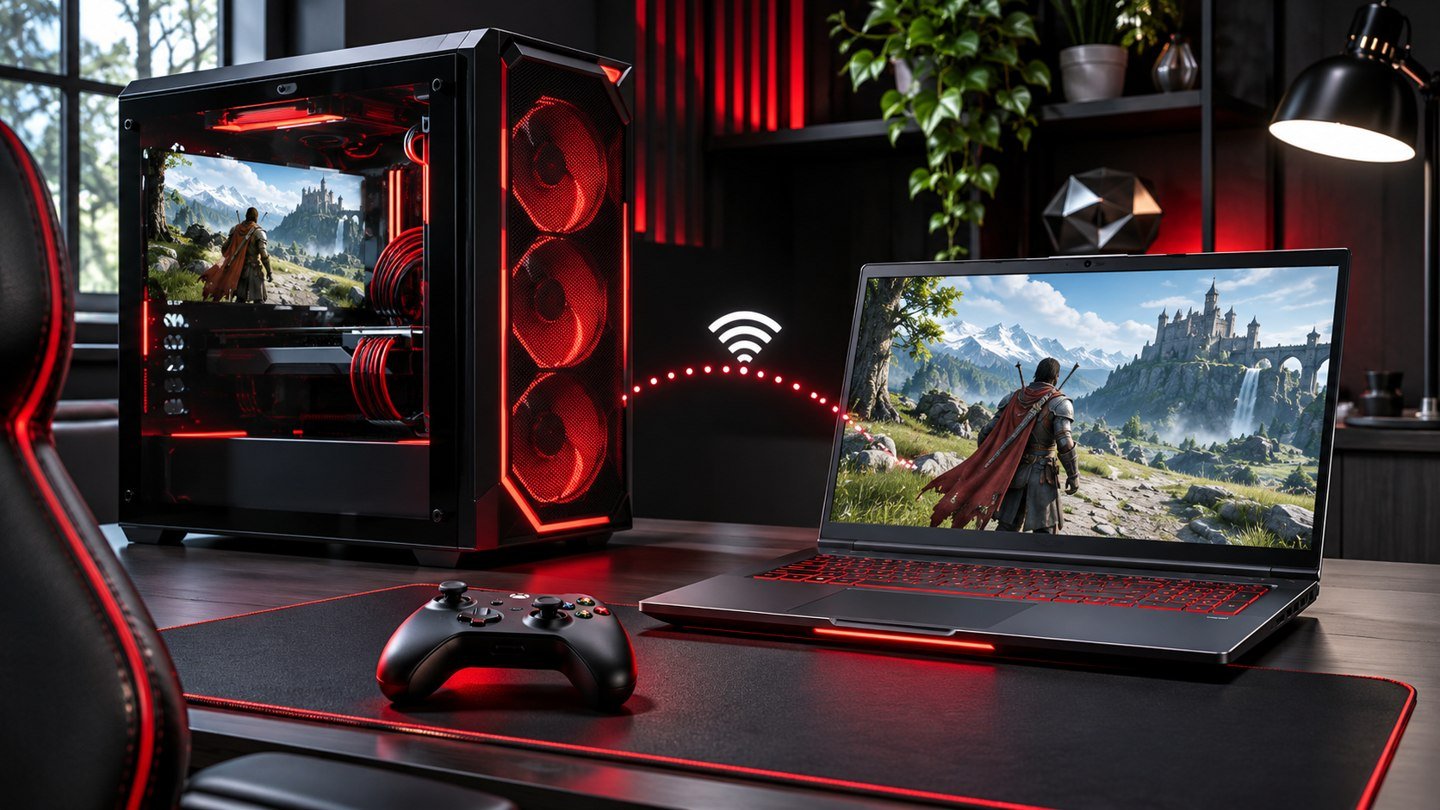
When you already have a Steam game installed on one device, Steam Local Network Game Transfers can reuse those files on another device on the same network. Start the normal installation on the receiving device, then look for Steam to indicate that it is getting files from the other client. Both clients need to be online and configured to allow the transfer. The source device must be ready to serve the game files. A successful transfer can save internet bandwidth, especially when setting up a new gaming PC or filling a Steam Deck with games already installed at home.
Prepare the source and destination
Open Steam on the computer that holds the game and check its Downloads page. Let any updates for the intended game finish. Close the game if it is running, then leave the Steam client open and idle. On a PC, use the desktop client in its regular desktop mode for the source. Confirm that the second device has enough storage for the installation and that the intended Steam library is selected. Valve lists the source and client conditions in its Local Network Game Transfers support guide.
Both devices should be on the same local network and able to see each other directly. A wired desktop and a laptop on the regular home Wi-Fi can share a network. A laptop using a guest Wi-Fi network may be isolated from the desktop even though both devices use the same internet connection. For the first test, connect to the primary network and check that both clients are signed in and online. If the source device is a laptop, leave it awake and connected while the files move.
Choose who can send and receive files
Open Steam > Settings > Downloads on the PC client and find the game file transfer options. Check this setting on both devices. Choose the option for your own devices if you are using the same account and that scope covers what you need. If you are transferring between Steam friends who both have access to the game, choose a scope that permits that transfer on both sides. The broader options can let people on the same network discover which titles are installed, so use the scope that fits the devices involved.
A transfer supplies installation content when the receiving account can play the game. Check library access and availability before troubleshooting file sharing. A local copy cannot turn a preloaded title into a playable game before its public release. If you are using a shared library, see our Steam Families setup guide for the separate rules that determine access.
Start the install and confirm the source
On the receiving device, open the game in your library and start its installation. Watch the download details for an indication that the source is a local Steam client. If there is no local source, Steam can proceed with an internet download. An increasing progress bar by itself does not tell you which route is active. If you are trialing the feature to conserve a metered connection, pause early if the indicator shows an internet source and check the local conditions before resuming.
Use a modest game for the first test if both devices already have access to one. A test of manageable size leaves time to compare network conditions without committing to a large install. Note the source name and roughly how quickly the install progresses. When Steam has finished, launch the game from the receiving device and check a representative level or menu. Game launch is a useful final check even when Steam shows that it has already verified and installed the files.
Troubleshoot transfers that use the internet instead
If Steam starts from the internet, first check the source’s Downloads page and close any running game. Confirm that the source has an updated installation of the intended title. Make sure neither client is in Offline Mode. Then check both transfer scopes and confirm that the two devices can communicate over the same network. If one device recently switched from regular Wi-Fi to a guest network or started using a VPN, compare the route it now uses with the one that previously worked.
If the source appears and then disappears, check whether the source computer went to sleep, started a download or launched a game. Retry with the machine idle and awake. For a managed PC or network, ask whoever administers it to review whether local Steam traffic is allowed. Valve documents the local ports Steam uses for discovery and data transfer. These are local connections between the devices involved, so keep troubleshooting focused on that path. A change at the internet-facing router is generally irrelevant to a transfer between devices on the same permitted LAN.
If the local connection works but speed is disappointing, compare like with like. Try both devices on a wired network where practical, or test them nearer the access point. Copying and installing a game can use disk and CPU resources as well as network capacity. Watch both machines for a busy disk or other work. If you only need to move an installed game between drives on the same PC, use Steam’s storage controls instead. A network transfer is useful when the game needs to land on a separate device.
Check saves and extras separately
Once the game launches, check whether your saves and settings are present. Valve’s transfer copies supported game content. Local saves, configuration files, Workshop items and some other data are handled separately. If the game uses Steam Cloud, give the destination time to synchronize and open a save you recognize. If you see a conflict or discover that an older save is present, use our Steam Cloud save conflict guide before choosing which copy to keep.
Try any mods or custom controls you rely on before deleting an old installation. A clean copy of the game can be ready before the optional content that makes up your usual setup. For a title that you play without internet access, confirm it starts as expected after you finish the setup. Our Steam Remote Play guide covers a different option if your goal is playing a game that remains installed and running on a host PC.
Frequently asked questions
Can a Steam Deck receive game files locally?
Yes, it can receive supported game content from a Steam client on the same network when both devices meet the transfer conditions. Check the intended storage location and available space before starting the install.
Should I leave the game open on the source PC?
Close it and let the source Steam client sit idle. A client that is busy running a game or downloading content may be unavailable to send files. Check the source again if the destination falls back to an internet download.
Does a local transfer also transfer my save files?
Check save migration separately. Steam Cloud can synchronize saves for games that support it, and other games may require their own migration steps. Verify a save inside the game before removing the source installation.
Why is Steam downloading files after part of the transfer completed?
Steam can continue from its content servers when a local source becomes unavailable or cannot provide everything needed. Review the local transfer status and the source device’s state if preserving internet bandwidth is important.