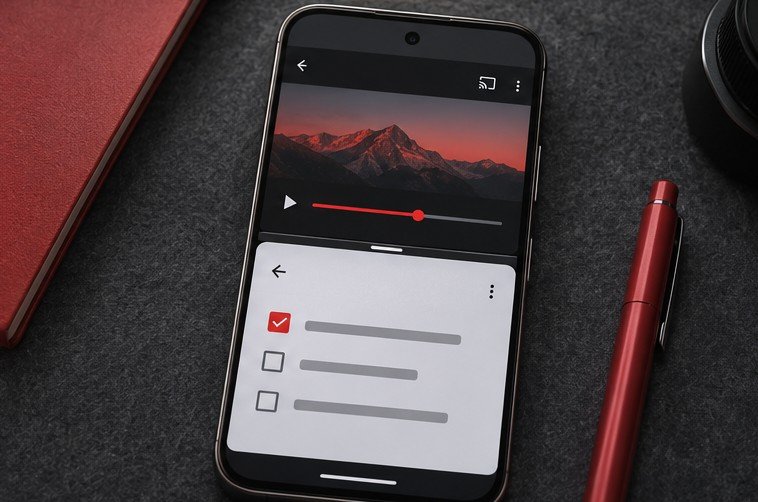
Use split screen on a compatible Google Pixel to keep two apps visible at the same time. Open the overview of recent apps, tap an app’s icon, choose the split-screen action and select the second app. Start with a pair you can use in short bursts, such as a browser and a notes app. Adjust the dividing line until the app you are actively using has enough room. When the keyboard or a detailed interface makes the two areas too small, return to a single app and use normal switching for that part of the task.
Start from the recent-apps screen
Open the two apps you intend to use so they are easy to find. Bring up the recent-apps overview using your phone’s navigation controls. With gesture navigation, swipe up from the bottom and hold briefly. With button navigation, use the overview button. Tap the first app’s icon in the overview and select the split-screen action if it is available. Then choose the second app from the choices shown. Google documents the controls and how to leave the view in its Pixel split-screen guide.
Use a familiar app pair for the first test. A calculator and a page containing numbers make it easy to tell whether each app remains useful at the same time. Tap in one app, then in the other, and watch which one gets the keyboard or other input. The goal for the first run is seeing how focus works. Once that is familiar, try the more demanding pair you originally wanted. If the split-screen option is missing, try a different first app before changing the phone’s navigation settings.
Resize the split around the active task
Drag the divider to give more room to the app that needs it. Reading a list may work in a narrow portion of the screen while composing a reply needs more space. Leave enough of the smaller app visible to see the detail you are using it for. On a narrow phone, the useful size may change as soon as the keyboard opens. Type a short phrase and check whether the relevant fields still fit before committing to a long entry.
Try the layout with the display orientation you normally use. When supported by the device and apps, landscape can change how the views fit. In some tasks it makes long lines easier to read. In others it shortens the available height once the keyboard is visible. Test whether you can still read a complete input field and see enough of the reference. Use one app at a time during the part that needs the full screen, then return to the pair for checking values or copying a short passage.
Use a real task to decide if the layout helps
Start with a task you already know how to do, such as copying a product name and model number from a web page into a shopping list. Put the reference in the upper area and the list in the other area for portrait use. Copy one line, check the result and repeat. If the last character is hidden behind a menu or clipped in the smaller view, give the reference more room. When working with account numbers, addresses or item codes, verify the result against the original before you act on it.
For a different example, open a calculation in one app and the source amounts in another. Calculate an easy known example first to check that you can see enough context for each number. In a recipe, you might only need the ingredient list and a unit converter. For a table with several columns, use the full screen for the source if titles and values are hard to match in a split. A layout helps when it saves switching without obscuring the material you are using.
If you need more than a small screen for the task, consider moving work to a computer and using it alongside the phone. Our guide to using a Google Pixel as a USB webcam covers one way the phone can serve a separate role on that desk. For arranging independent windows on the larger screen, our Windows 11 Snap Layouts guide describes the desktop equivalent for those apps.
Troubleshoot missing options and awkward app layouts
If one app’s menu does not offer split screen, try it as the second app and check what the phone reports. Some apps or activities may not support the arrangement. If the option is absent consistently for that app, choose another workflow for the task. Do not assume that every screen inside an otherwise compatible app behaves the same. A login activity, fullscreen media player or special editor can have its own layout constraints.
If the split opens and one app immediately returns to a different page, repeat the task with both apps opened on representative screens before pairing them. Observe whether rotating the phone or invoking the keyboard changes the state. If you rely on an unsaved entry, save or copy it before experimenting. Apps can redraw or reload their view when the available screen size changes. Check that you can reliably return to the important content before using the arrangement during a call or at a time-sensitive checkout.
When one app looks much too small, verify how it behaves without the keyboard and after moving the divider. If that is still awkward, use normal app switching. A keyboard workflow might benefit from reading a reference in split screen, pasting the required detail, then expanding the writing app for the rest. You can divide the task into those phases rather than leaving both apps visible from start to finish.
Return to full screen and check your work
Drag the divider all the way toward the app you want to dismiss from the split, then verify which app remains visible. Before leaving a form or note, check that it has saved the last change. If you reopen the pair later, confirm that each app returned to the right page. Start with a small repeatable task if you need to get comfortable with the gesture for expanding one side or finding the app again in overview.
If you use the same pair frequently, try opening both apps in a predictable order. That makes them easier to find in overview and gives you a familiar layout when you start.
Frequently asked questions
Why is the split-screen option missing for one app?
Support can depend on the app and the current activity. Check the option with a familiar app first. Use the full-screen view if the app you need does not support the split reliably.
Can I adjust the space each app gets?
Drag the divider and watch how both views respond. The keyboard may compress the working area when you start typing, so check the layout during the actual task.
How do I return to one app?
Drag the dividing line toward the edge of the app you want to dismiss. Check the remaining app and save the working item before starting another layout.
Is split screen useful on a small phone?
It can help with short references, quick calculations and checking values. Test your real task first. Use the full display for the part that needs a large keyboard, a detailed table or a long editing view.