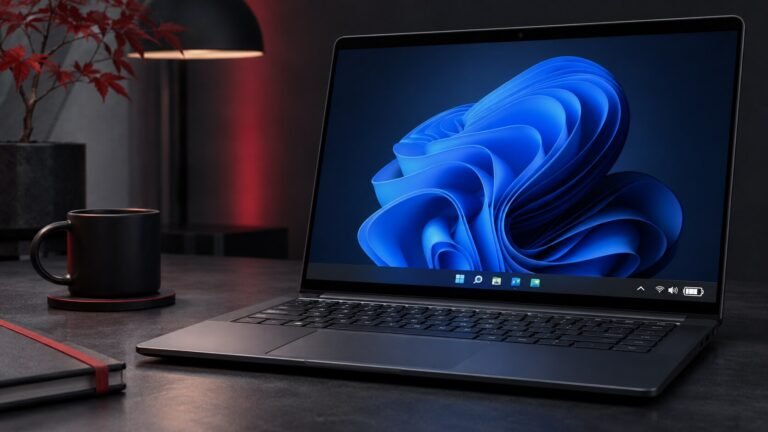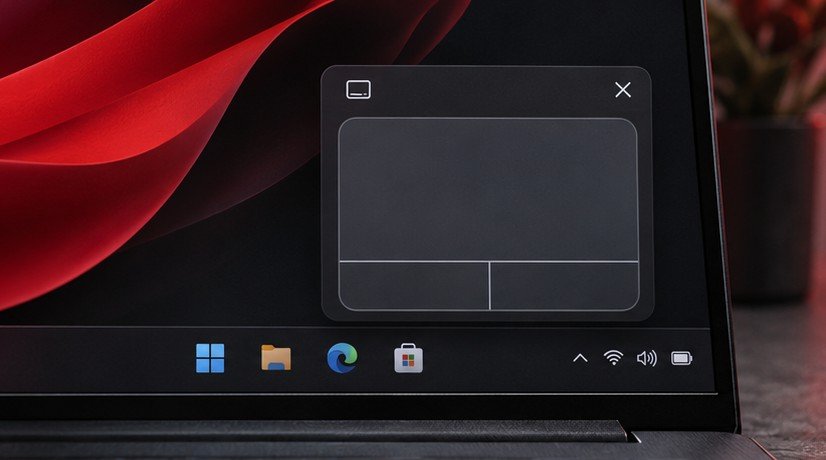
A Windows 11 tablet can display a virtual touchpad for tasks that are easier with a pointer than with direct touch. Enable the virtual touchpad icon in taskbar settings, then open the pad and move a finger across it. The pointer moves relative to that gesture. This is especially useful when your touchscreen is connected to an external display that you cannot touch. Start with a simple target on the other screen, then check whether dragging, scrolling and the space used by the virtual pad suit your work.
Enable the taskbar control
Open Settings > Personalization > Taskbar and look for Virtual touchpad in the system tray icon settings, where available. Enable it and look for the new icon near the notification area. Select the icon to show the touchpad. Microsoft documents the control in its virtual touchpad instructions. The exact taskbar grouping can change with Windows updates. If your device does not have an active touchscreen, check the hardware and feature requirements before searching for another switch.
Exercise the control while the device is in the orientation you plan to use. Some tablets change their taskbar layout as you rotate or connect a keyboard. If you enabled the icon but cannot see it, return to the system tray and examine any collapsed area or the controls displayed in that mode. Open the panel before starting a task that would be difficult to interrupt. It is easier to diagnose a missing icon with a spare input method available.
Test pointer movement and selection
Touch within the virtual pad and slide a finger a short distance. Look for the pointer to move across the desktop. Use the pad’s available buttons or actions to select a harmless target, such as a local folder. To see how fine movement feels, try selecting a small icon and then move to a larger one. Notice how much travel your finger needs to move from one side of the external screen to the other. Lift and reposition your finger between movements when the virtual area is smaller than the distance the pointer must cover.
Next try a task that uses the secondary click or a drag. In an editor, use sample text and see if you can select a few words without inadvertently moving the document. Test scrolling on a page where you can see the movement clearly. Gesture support and comfort can vary, so use the control that produces a predictable result on your device. If dragging a small handle is difficult, check whether the app offers a keyboard alternative. Our Windows Mouse Keys guide describes another built-in way to move the pointer when you have a suitable keyboard.
Set up the external screen first
Connect the display and open Settings > System > Display. Use Identify to check how Windows numbered the screens. If you want separate content on them, choose Extend using the display controls or Windows + P. Match the on-screen arrangement to the physical placement. If the screen is to the left in the diagram, move the pointer to the left edge of the current screen to cross over. The direction can feel unexpected when the diagram still describes an older desk arrangement.
Place a large application window on the external screen to practice. Use the virtual pad to reach that window, select its title or a visible control, and return to the touchscreen display. If the pad opens somewhere inconvenient, move it using its available window controls where possible. Keep a route for closing it if it covers a frequently used button. Our guide to keeping window positions when undocking Windows 11 covers the separate display behavior that matters when you disconnect and reconnect throughout the day.
Compare direct touch with the virtual pad
Direct touch is convenient for large buttons on the screen in front of you. The virtual touchpad is useful when you need a pointer on a non-touch monitor or want to position it without covering the target with a finger. For precision work, compare the options on the actual task. Try selecting text, positioning a chart label and opening a context menu. Decide where the pad saves reaching and where a physical pointer or keyboard remains simpler.
In a presentation, keep the pad on the touchscreen and use the editor or presenter controls on the appropriate screen. Test with a sample deck and verify which display the audience sees. In an editing workflow, leave space around the pad for a toolbar or notes. Avoid packing essential controls into the same area. If you switch between activities, close the virtual pad until you need it again so you can reclaim the screen space.
Troubleshoot a missing or unresponsive pad
If the control never shows, check that touch itself works on the tablet display. Restart the setup from a simple state with an ordinary app open and the touchscreen available. If the pad appears but you cannot find the pointer, move slowly toward the middle of the current display and check the display arrangement. A pointer can be on the second screen even when your attention is on the first. Disconnect the external display briefly and test whether pointer motion works on the remaining screen.
When the problem occurs only after sleep or docking, reproduce those events separately. Check whether the touchscreen itself still responds and whether the taskbar icon remains visible. If normal direct touch is missing too, investigate the device and its drivers before repeatedly changing taskbar options. If only one app ignores the pointer, test another app and compare fullscreen and windowed behavior. Record the steps that reliably reproduce the problem before changing several settings.
If the pad works during normal use but is less useful in a crowded interface, enlarge the parts of Windows you actually need to operate or switch to a physical device for that task. A virtual pointing surface can still be valuable for occasional monitor control. Test the complete desk arrangement, including your external display and a representative job, before leaving the physical mouse behind for travel.
If you intend to use the pad for a presentation, practice returning a window to the touchscreen before disconnecting the room display. Confirm that closing the pad leaves enough space to reach the controls needed to finish.
Frequently asked questions
Can the touchscreen control a display I cannot touch?
In an extended desktop, use the virtual pad to move the pointer across displays. Match the screen arrangement in Windows to the physical setup so you know which edge the pointer crosses.
What if I cannot find the taskbar switch?
Check the Taskbar settings and whether Windows recognizes an active touchscreen. Look for the virtual touchpad in the system tray icon options where available. Use a known working input device while troubleshooting.
Do I need to keep the pad open all day?
Open it for the task and close it when you need the space back. Try both the touchscreen and the pad in your ordinary workflow so you know which is easier to reach.
Why did the pointer move to the wrong screen?
Inspect the display diagrams and match them with your screens using Identify. Reorder the diagrams and test the pointer crossing again before changing the touchpad settings.