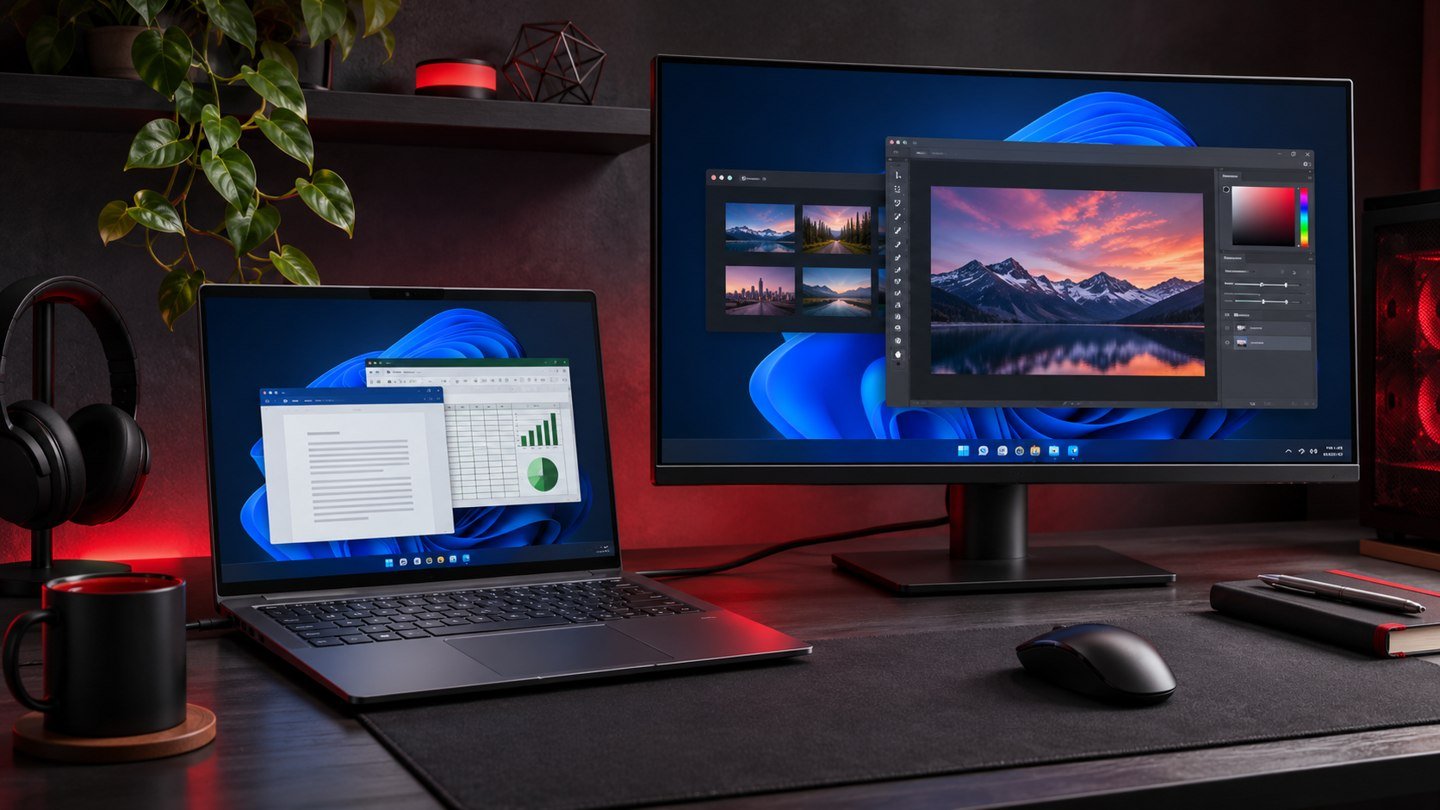
Windows 11 can remember where app windows were placed when a monitor disconnects. Start in Settings > System > Display > Multiple displays and enable the option to remember window locations based on monitor connection. Then disconnect and reconnect the same display while a few ordinary windows are open. This controlled test tells you whether Windows is restoring the positions of existing windows. You can investigate application launch behavior or a dock that identifies its monitors differently once that basic test works.
Confirm the external display is configured as an extension
Connect the laptop to the dock or monitor you normally use. Open Settings > System > Display and select Identify to match the numbered diagrams with the actual screens. Make sure the desktop is extended if you want different windows on each display. In a duplicated setup, the screens show the same desktop and there is no second independent work area where you can park a window. Use Windows + P to check the current projection mode if you are unsure.
Drag the display diagrams into the arrangement that matches your desk. If your external display is above the laptop or off to one side, match that direction and check that the pointer can move between the screens where you expect. You can also choose the main display if you want a consistent starting point for the desktop and apps that respect it. For more on the display controls, see Microsoft’s multiple monitors guide.
Set the undocking options
Expand Multiple displays in Display settings. Turn on Remember window locations based on monitor connection. Review the separate option to minimize windows when a monitor disconnects. It influences what happens when you leave the dock, while the remembered-position option helps when the monitor returns. Enable or disable minimization according to whether you prefer the laptop display to stay clear or want to get to those windows while working away from the desk. Test both options using the same app windows if the difference is unclear.
Choose a browser window and another app with a small document open. Place one window on the external display and one on the internal display. Leave both running. Disconnect the external display or dock and wait until the laptop display finishes rearranging. Look at the taskbar before assuming an app closed, because a minimized window may still be running. Reconnect the same cable to the same port and wait until the monitor is detected. Compare the current placement to where you left both windows.
Distinguish monitor placement from app startup behavior
Repeat the test with your usual apps. Some apps have several independent windows, and a tool palette or pop-up can behave differently from the main window. Test each part before changing system settings. If the two original test windows return correctly but one particular app always lands on the laptop display, look for settings inside that app or a difference in how it opens a new window. A program that starts fresh following a reboot can choose its own size and position. A successful unplug and reconnect test only proves what happened with those existing windows.
If you switch among multiple working arrangements during the day, use a small number of repeatable layouts. For example, keep communication on the laptop and editing on one half of the external screen. Snap groups can make it easier to bring a set of snapped windows back to the foreground when you switch between tasks. See our Windows 11 Snap Layouts guide and Microsoft’s Snap documentation for the controls. Try the undocking test with ordinary windows first, then see how your snapped arrangement behaves.
Isolate docks and displays that reconnect differently
If the windows land correctly one day and move the next, check whether the monitor arrangement changed. Look at Identify after reconnecting, confirm the same screens are detected and compare the orientation and positions. A different port or dock can present the display differently. With multiple monitors on one dock, one panel can also become available before the other. Give both displays time to appear before moving windows by hand and then review the placement.
Compare the same monitor connected directly to the laptop and through the dock if both are supported. This single comparison can help isolate problems that occur only with the dock, cable or display adapter. Keep the same apps and placement for both tests. If the display itself goes black or drops intermittently, fix that connection first. A window can move when Windows believes the monitor disappeared, even if you did not intentionally undock. Start with the manufacturer’s supported cables, ports and firmware for your setup.
Try a cold start and a sleep-and-resume test separately. Write down which one caused the movement. If it happens only after sleep, note whether the monitor was awake when you resumed. If it happens only at sign-in, check whether apps launched before the external screen appeared. Knowing when the arrangement changes can help you reproduce it without spending time moving every window on every reconnect.
Recover a window that is hard to reach
Select the app from the taskbar or use Alt + Tab. With both screens connected, Windows + Shift + Left Arrow or Right Arrow can move the active window to another display. If the destination only has one screen and the window remains elusive, look for a minimized taskbar preview. For a conventional app window, you can also try Alt + Space to access its window menu and use the Move command if offered. The menu depends on the active app and its state. Restore a maximized window before trying to move it manually.
If you alternate between two locations, test each one while the laptop is set up as you normally use it. A presentation screen at work and a wide display at home may each need differently sized windows. Keep a consistent primary display where possible and identify which apps you need to be accessible immediately when you disconnect. If text appears too small on a particular setup, our guide to making text bigger in Windows 11 explains the text size control independently of window position.
Frequently asked questions
Can I use a different arrangement at home and at work?
Test each monitor setup independently after enabling the remember-location option. The result can depend on how the displays connect and whether Windows recognizes each arrangement. Use the same port and cable path for repeatable results.
Does this restore apps after a restart?
The display setting helps with window locations when monitors reconnect. App restoration after a restart depends on Windows session settings and the application. Test a restart separately if reopening your workspace is the goal.
Why are the windows still missing after reconnecting?
Check whether all the displays were detected and whether any windows are minimized. Select the app first and try moving its active window to the other monitor. A blinking or intermittent display connection can also trigger unexpected rearrangement.
Will changing the main display fix every app?
The main display is a useful baseline for some programs and desktop elements. Applications can choose their own opening display. Compare how an existing window behaves on reconnect with how the same app starts from scratch.