
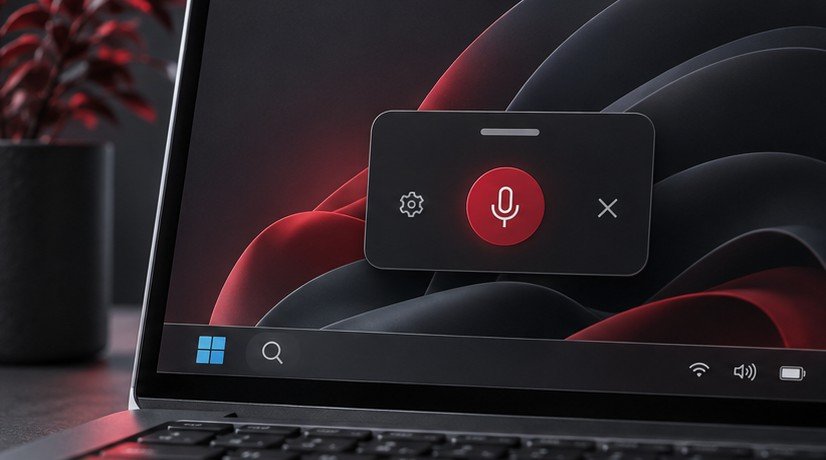
Windows 11 voice typing lets you dictate into an editable text field with Windows + H. Click where the text should appear, open the voice typing panel and speak after it indicates that it is listening. Begin in a blank local document so you can check which microphone is active and how the results look before using the feature in a message or form. The built-in feature uses online speech recognition, so check the internet connection and test with a supported language when the panel opens but cannot transcribe.
Start in a blank document
Open a plain text editor and click inside the document. Press Windows + H. If the voice typing panel appears, wait for its listening indication and dictate a short sentence that contains a name or a number. Stop listening before reading the result. The first test should make it easy to spot where the words landed and which parts were recognized. Microsoft describes the controls, available languages and punctuation features in its Windows voice typing guide.
If you see a message asking you to select a text field, click in the editable part of the document again. The keyboard shortcut opens a dictation session for a text entry location. It will not insert words into a page that is only being displayed. Try an ordinary editor before drawing conclusions from a specialized web app. If dictation works in the editor, return to the other program and test its text field with a few words before relying on it for a long passage.
Pick the microphone that hears you clearly
Go to Settings > System > Sound and inspect the Input section. Choose the microphone you plan to use and test its level with your usual speaking position. If the voice typing panel offers a microphone preference, check that selection too. A connected headset and a built-in microphone may both be listed. Try speaking near each one and look for a response from the intended input. This is especially useful when a dock or monitor adds another audio device to the list.
If the level does not move, check the microphone’s mute control and connection. Test it using a regular recording app. A quiet or distorted recording suggests the problem is present before dictation. Move closer, lower a loud fan if possible, or compare with another input at the same desk. Our guide to using a Pixel as a USB webcam explains how to test a separate microphone alongside a camera. The audio input you prefer in a meeting can also be a sensible baseline for dictation.
Repeat a short phrase using the selected microphone after reconnecting a headset or dock. Windows may select a different device when audio hardware changes. If the input is still ambiguous, make a short recording at your normal distance and listen to it. Identifying the source by sound can be easier than distinguishing similarly named devices in Settings.
Set the language and test punctuation
Check that the selected input language is supported for voice typing. If you use more than one keyboard language, inspect the active language indicator before you start. Dictating a full sentence gives the recognizer more context than speaking single unfamiliar words. Try the language you normally use first and compare a second language in its own test. A mixed-language sentence can make it harder to tell whether a problem comes from the selected language or from differences in pronunciation and vocabulary.
Open the panel settings to see if automatic punctuation is available. Test with two clear sentences and a pause between them. Compare the result with the way you want the text to read. Review Microsoft’s documented spoken punctuation commands for the language you use. If automatic punctuation is distracting for a draft, try manually entering a little punctuation and compare the amount of cleanup required. A workflow for quickly recording ideas may benefit from a different setting than one you use for carefully formatted instructions.
Dictate in short passages and check the result
Write a paragraph in two or three passes. Speak the first part, stop and review what appeared. Use the keyboard or mouse for precise corrections and start again at the next insertion point. Check names, unit labels, numbers and domains against the original wherever a small transcription error would change the meaning. Dictation is particularly useful for a first draft, where you can focus on getting the ideas down and return to exact wording later.
Before dictating into a messaging app, test whether the focus stays in the intended field while you edit. If the insertion point moves when a suggestion is accepted, click back where you want the next phrase to appear. When the destination is important or cramped, dictate into a larger draft first, proofread there and then paste the finished text. Our guide to making text bigger in Windows 11 explains how to enlarge text if checking the transcript is the harder part.
Diagnose a panel that opens but does not transcribe
Check the internet connection because Windows voice typing relies on online recognition. Confirm the microphone test shows activity and that system privacy settings allow microphone access for the relevant feature. Then retest in the blank document while the panel is visibly listening. If the document works and another app fails, check whether the other field accepts normal keyboard entry and whether the cursor is actually in that field. A chat window with focus on a button can display a panel without giving the text an insertion point.
If words appear but accuracy drops at certain times, compare where you are sitting and what else is making noise. A fan or nearby speaker can interfere in a way that is hard to notice until you replay a recording. Try a short baseline phrase, then retry it with one change to the audio setup. If recognition works in one language and performs poorly in another, check the active input language and the vendor’s support list before adjusting hardware again.
For a long draft, save the document before starting a new dictation pass. This gives you a stable copy if the app closes or an unexpected focus change interrupts the text. When finished, compare the final document with the notes you meant to include.
Frequently asked questions
Do I need a special microphone?
Try a microphone the computer already recognizes. Test the sound at your normal position and compare the result with another input if the voice is faint or background sounds dominate.
Why did the words appear in the wrong place?
Click inside the destination field and confirm where the caret is before starting. After correcting an earlier phrase, move the caret to the end of the draft or another intended insertion point.
Can I test voice typing without sending a message?
Use a blank document and speak a short sample. Check the resulting text and delete the sample or close the draft when you are done. Then try a short phrase in the intended app without submitting it.
Is voice typing the same as controlling Windows with speech?
Voice typing is for entering text into a field. If you need to navigate the desktop or run commands by speaking, check Windows accessibility controls for the separate Voice Access feature and verify its requirements.


