When a docked Steam Deck shows no picture on a monitor or TV, check the display input, cable and dock before changing game graphics settings. Begin with the Deck undocked so you know that it still starts and displays its own interface. Then reconnect one display using a cable and input that work with another source if you have one. The aim is to determine whether the external screen is missing entirely, refusing a particular mode, or losing the connection only when a game starts.
Check the simplest video path
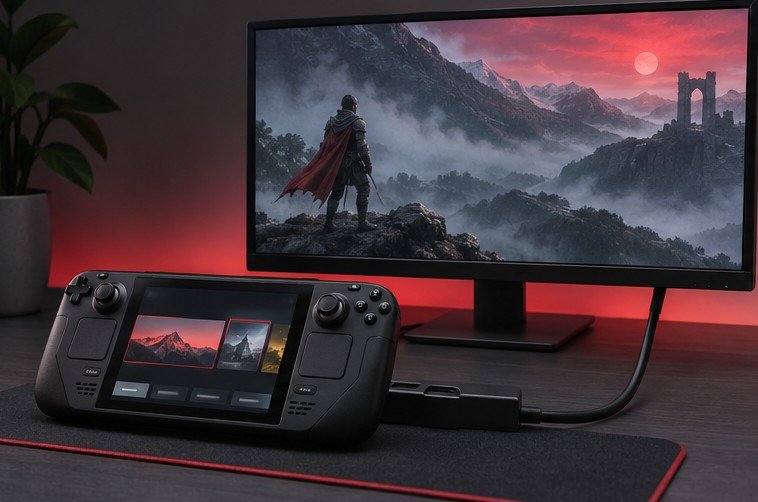
Connect one external screen to the dock and choose the exact input on the screen. A TV can have several HDMI inputs that look identical in a menu. Read the label beside the port or use the display’s input information. Seat both ends of the video cable and connect the Deck to the dock. Remove extra displays and adapters during this test. Valve provides a model-specific troubleshooting sequence in its Steam Deck docking support article.
Check the cable with another source where possible. A known working console or laptop can establish that the display input and video cable work together at a basic mode. It does not prove that the cable works at every resolution and refresh rate. If the same screen reports no input for both devices, investigate the input and cable first. If the other device works on that path, return to the Deck and narrow the question to the source or dock.
Confirm that the Deck and dock have settled after reconnecting
Power the Deck down normally if you need to reset the whole setup. Check that cables and the power adapter are connected as required by the dock’s documentation. Follow the reset order for your dock model. Reconnect one display and then the Deck. Give the screen time to negotiate before pulling a cable again. A TV can briefly show a black screen while it decides whether it can display a new mode. Repeatedly unplugging during that interval makes it difficult to tell which moment produced a change.
If the dock offers other functions, check those separately. Connect a simple USB peripheral supported by both the Deck and dock. Working USB does not guarantee working video, but it helps narrow the symptoms. Charging also tells you only part of the story. A dock can supply power without having a working path to the display. Write down whether the Deck charges, whether the accessory responds, and what the screen reports. Those three observations give you more than a general statement that docking failed.
Use a conservative display mode for testing
If a picture appears at the system interface and disappears after a game opens, check the game’s display mode and rendering settings. Try a conventional resolution and refresh rate supported by the screen, such as 1080p at 60 Hz when both sides offer it. If the picture works at the simpler mode, increase resolution or refresh rate one step at a time. A display may advertise several modes while a specific dock, adapter or cable limits what the complete chain can carry. Record the highest setting that remains stable through a normal session.
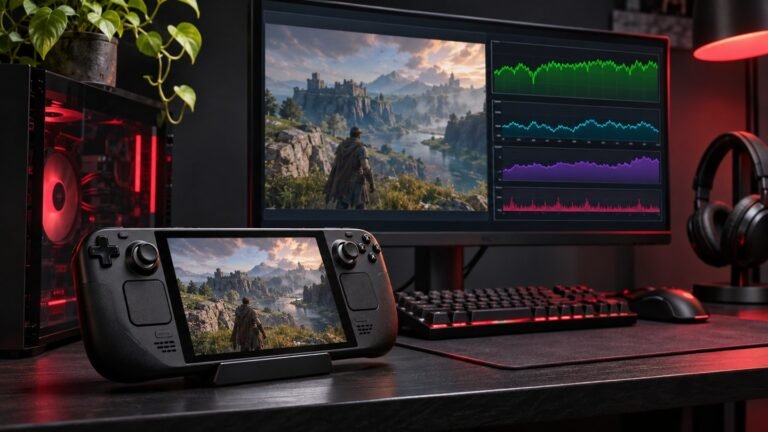
Check Gaming Mode and Desktop Mode separately if you can navigate to them. A display configuration that works on the desktop can still differ from how an individual game renders. If multiple monitors are attached, test each independently before expecting the dock to drive them together. Keep the internal screen available while establishing the external mode where practical. Our Steam Deck performance overlay guide covers how to judge game performance once a picture is stable, especially after switching from the handheld screen to a larger or faster display.
Test a substitute cable, dock or display
Change one device in the setup at a time. Try a different HDMI or DisplayPort cable of the appropriate type, then another compatible display if available. You can also connect another compatible USB-C video source to the dock. If the other source has the same issue on that dock, the dock or the downstream equipment becomes a stronger lead. If the Deck works using a different supported dock or USB-C display path, compare what changes between those paths. For help matching the USB-C cable to the task, see our USB-C cable guide.
If a setup works while the Deck is actively used but drops when it wakes from sleep, make that its own test case. Start from a working display, put the Deck to sleep, and then wake it while watching what the external screen reports. Try the same procedure with the display already awake. If you can reproduce a problem only after wake, include those exact conditions in a support request. Cable swaps alone may be difficult to interpret when the issue depends on a sequence of events.
Verify the setup under ordinary use
After recovering the signal, launch a game you play often and test a scene at your intended settings. Switch to the system interface and back. Open a second title if you use a mixture of windowed and fullscreen games. If you use TV audio, confirm that audio and picture remain stable through a mode change. If the TV has a game input mode you intend to use, test the combination in that mode before considering the setup done.
Write down the port, cable, refresh rate and dock arrangement that worked. When you move to another room, start with that known baseline and make a separate note for the second screen. If an issue returns after a software update, retest the baseline before adding more hardware. Compare whether the problem starts at boot, in a game, or on resume. Those details can help support reproduce a fault that is otherwise easy to miss.
For a TV with multiple input modes, make a note of the selected HDMI port and any mode the television applies to that port. Some screens use different modes on different inputs. If you change the port, compare the same resolution and refresh rate again before attributing the result to the port alone. If a soundbar or receiver normally sits between the dock and the screen, bypass it temporarily to check the direct connection.
Frequently asked questions
Why is the Deck charging but the TV says no signal?
Power and video pass through different functions of the connection. Check the selected TV input, use a known working cable and screen, and follow the dock maker’s reset steps before changing game options.
Is a higher refresh rate always available when docked?
The display, dock, cable and active mode all affect the choices shown. Start with a mode the complete setup supports and test more demanding settings separately.
What should I try if it works in menus and fails in a game?
Check the game’s resolution and display mode. Return to a conservative setting and try the same action again. If only one title fails, compare another game before assuming every connection needs to change.
What should I include when contacting support?
Include the Deck and dock model, the display and cable types, the mode tested, and whether video disappears on launch, wake or initial connection. Mention which components you tested with another device and what changed.