The Steam Deck performance overlay helps you find out why a game feels uneven and whether a frame limit or graphics change improves it. Start by measuring a repeatable stretch of gameplay, then change one setting and run the same stretch again. Look at the frame-time graph as well as the frame rate. Once you find a combination that plays well on your hardware, save it as a per-game profile if that option is available in your SteamOS performance controls.
Set up an overlay you can read while playing
In Gaming Mode, open a game and press the Quick Access button marked with three dots. Open the performance panel and increase the performance overlay level until it shows the detail you need. A simple level is enough to watch frame rate. For diagnosis, choose a level with a frame-time graph and enough CPU and GPU information to compare two runs. The exact layout and controls can differ with the SteamOS version and hardware. Valve describes changes to frame timing and performance controls in its Steam Deck update notes.
Leave the overlay on just long enough to see what happens, then reduce it for the next ordinary session. A dense graph occupies space and draws your attention away from the game. If you find it difficult to read while steering or aiming, pick a slower route for the measurements or pause afterward to write down what you observed. For a reproducible issue that you want to share, our Steam gameplay clipping guide covers how to capture context as well as the moment of the slowdown.
Pick a repeatable scene and record a baseline
Use a familiar save or route that includes the kind of problem you are trying to fix. For a racing game, play one section with similar traffic and weather. For a game with a large world, walk from one landmark to another and look in roughly the same direction. A menu or static room is good for confirming that a cap was applied. A demanding stretch of play is more useful for deciding whether the game can hold that cap. Compare undocked runs with other undocked runs when handheld performance is the goal.
Keep the graphics options, display resolution and power conditions fixed for that first comparison. Let any obvious background downloads finish. Record the frame rate range and note where the graph spikes. If you also want better battery runtime, note the power reading if the selected overlay shows one. Treat it as a reading under those conditions, since brightness, a connected accessory or a busy loading screen can change the result. Use longer observations before drawing conclusions about overall battery life.
Use frame times to explain uneven motion
Frame time is the time associated with an individual frame. At a steady 60 frames per second, frames are roughly 16.7 milliseconds apart. At steady 40 FPS they are about 25 milliseconds apart, and at 30 FPS about 33.3 milliseconds apart. A graph with frequent large spikes can feel uneven even if the reported average looks acceptable. Look for where the spikes happen, such as entering a new area or turning to show a complex scene. A repeated spike at the same point is easier to investigate than an isolated one you cannot reproduce.
Try a frame limit the game can hold through the demanding part of the route. The options you see can depend on the display and refresh settings. For a controller-driven game, a stable lower target may suit your play style. In a game where quick input response matters, explicitly compare how aiming or movement feels at both targets. Verify by playing for a few minutes with the graph off. An improvement that only looks better in the overlay may be too small to justify the tradeoff you made elsewhere.
Change a graphics setting or limit at a time
If the game consistently misses your target, try one change inside the game. Lower the render resolution or use the game’s supported scaling option if you suspect rendering load. Test the same route and check visual clarity as well as smoothness. If lowering resolution does little, you can try a different setting with the resolution restored. A single resource percentage is a clue. The change measured under load gives you a better idea of whether the setting affected the actual bottleneck.
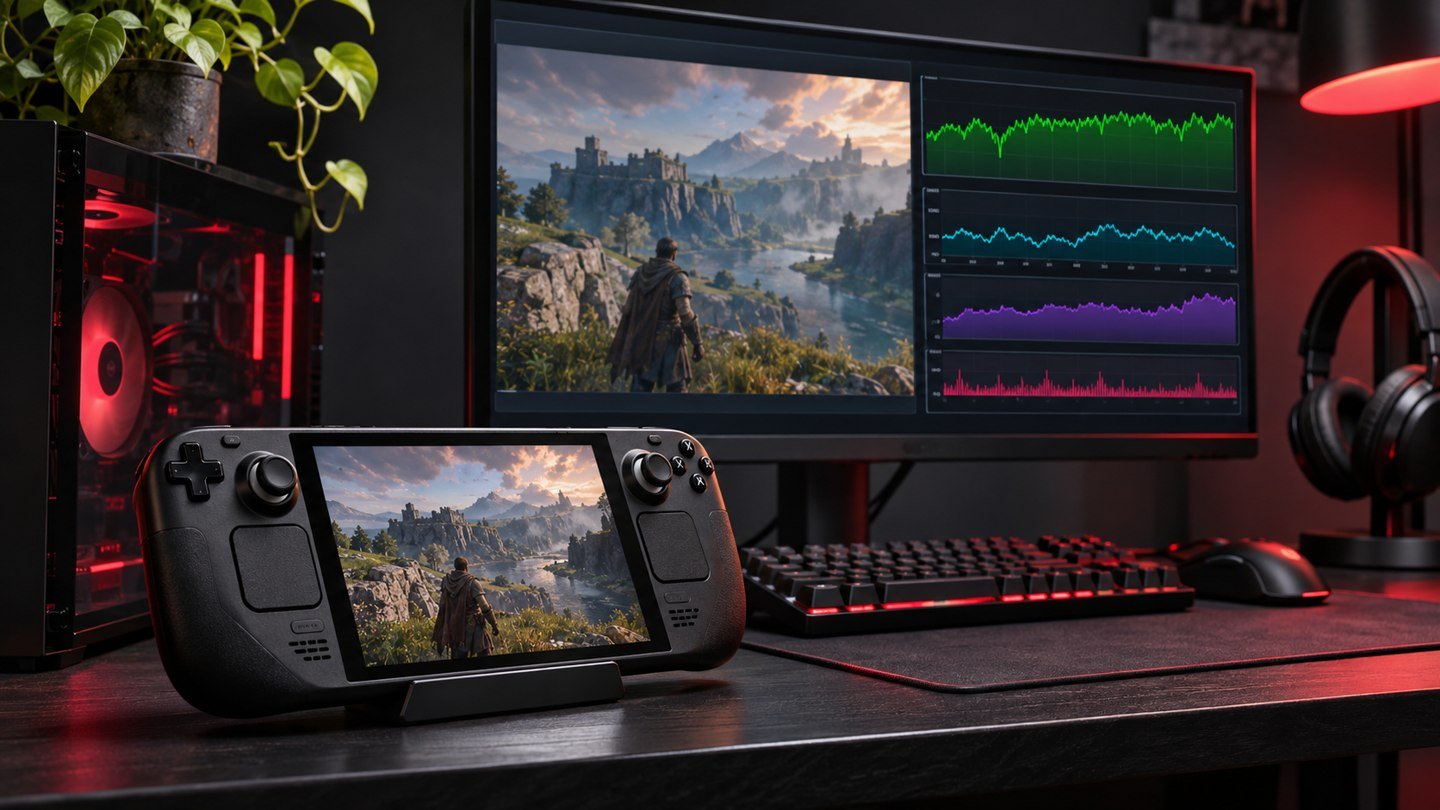
Some games offer their own frame limit. SteamOS may offer one as well. Start with one limiter active so you can understand what controls the result. If your game is already running at the display’s expected cadence, a second cap can complicate comparisons. Test each option individually if you want to choose between a game’s own limiter and the SteamOS setting. To compare a title across handheld and desktop setups, keep the settings and recording context straight. The two systems may use entirely different display modes.
Store the result and verify it after relaunch
When the settings feel right, enable or select the per-game profile in the performance panel if it is available. Make the intended SteamOS changes under that profile and confirm the game still uses its expected in-game graphics settings. Leave the game and return to it. Check the active profile, frame cap and a short section of play. If a global change affects another title, open that second game to see what settings it picked up. This is particularly useful if you alternate between a light game and a demanding one.
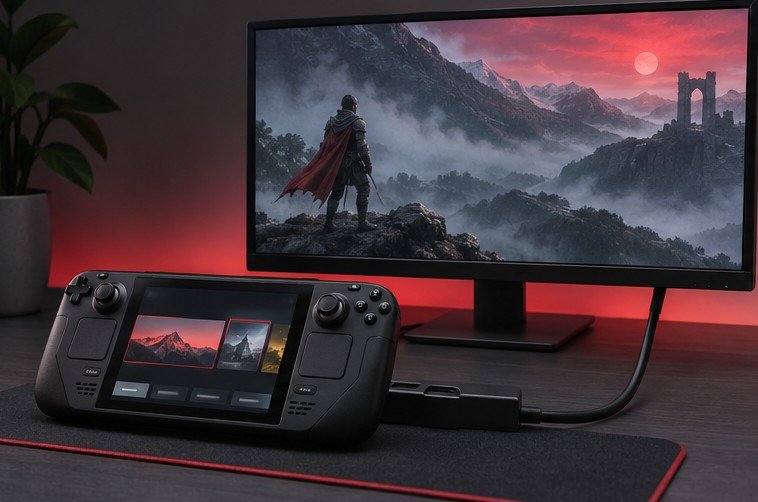
Keep a note of the setting that mattered most and the scene you used to evaluate it. A game update can change performance, and a handheld that later runs through an external monitor may offer different refresh rates. If the old settings no longer feel right, reproduce the original route before adjusting several controls. If you are running the game from a separate host PC instead, see our Steam Remote Play setup guide for the network and host conditions that affect that workflow.
For a battery comparison, repeat a longer section at the same screen brightness and with similar wireless conditions. One snapshot of wattage during gameplay can be misleading if one run spends more time loading or paused. Compare charge used over a similar length of actual play before deciding which profile you want to keep for a trip.
Frequently asked questions
Why can a game stutter even when the FPS number looks high?
An average can hide frames that take much longer than their neighbors. Check the frame-time graph during the action that felt uneven. Compare the same movement or route after changing one setting.
Should every game use the same cap?
Pick a target supported by your display and reliable in the game’s demanding scenes. A setting that suits a fast action game may be unnecessary in a slower one. Evaluate responsiveness and runtime according to how you use each title.
Can I turn the overlay off without losing the profile?
The overlay setting controls what you see during play. Review the rest of the performance panel after reducing it to verify the active frame settings and profile. Relaunch the game if you want to confirm the saved behavior.
Why did the numbers change after I connected a monitor?
A connected display can use a different resolution or refresh rate. Check the active display mode and run a separate comparison under the conditions you plan to use. Keep handheld measurements as their own baseline.