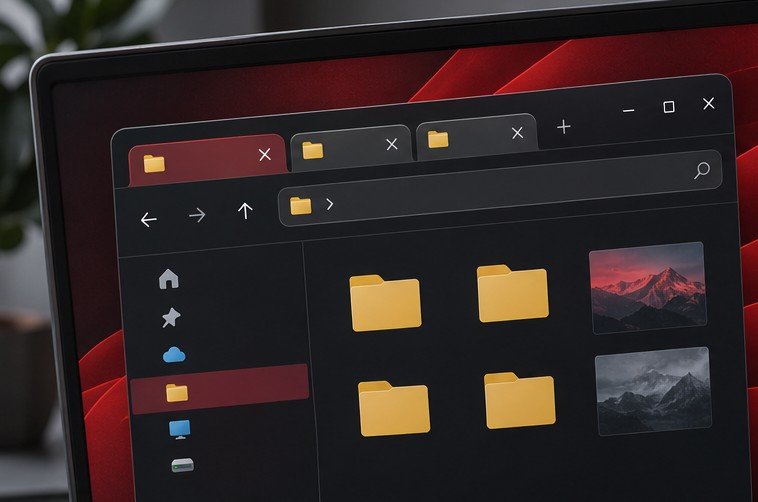
File Explorer tabs let you keep several folders in one window. Open a folder for the source of a transfer and another for the destination, then switch between them without losing your place. The feature is especially useful on a laptop screen where two full Explorer windows leave little room for a document or browser. For jobs where you need both lists visible at once, use separate windows and snap them side by side. The right layout depends on whether you need to move between folders or compare their contents simultaneously.
Open and switch between tabs
Open File Explorer with Windows + E. Use the plus button beside the existing tab or press Ctrl + T to open another tab. Navigate the new tab to the folder you want. Click the tab names to move between folders, or try Ctrl + Tab and Ctrl + Shift + Tab to cycle through them. Ctrl + W closes the current tab, so check which tab is selected before you use it. Microsoft lists these and related controls in its Windows keyboard shortcuts reference.
Take a moment to notice the difference between a tab and a navigation step. Going back in the active tab returns to a location you previously visited in that tab. Switching tabs selects another open view. If you use the keyboard, check the title and address bar after switching. Two tabs can both show a folder called Reports even if one comes from a local project and the other comes from a network location. That distinction matters before you paste, rename or remove files.
Build a source and destination layout
Suppose you need to copy photos from a removable drive to a project folder. Open the removable drive in the leftmost tab and use another tab for the project. In the destination, create the folder you intend to use first and open it. Look at the complete path before selecting the source files. Keeping the source on the left and destination on the right is a simple habit when you are working quickly. If both folders use the same short name, the complete path is the better check.
Select a few files in the source and press Ctrl + C. Switch to the destination, click inside the file list if focus is still in the address or search field, and press Ctrl + V. Give the copy time to finish. Compare the names and open a sample in the destination. Once the first small transfer behaves as expected, repeat the procedure with the remaining files. Use our Windows Backup migration guide if the copied material is part of a move to a replacement PC and you also need to account for files stored elsewhere.
Copying creates another file at the destination. When you cut and paste, you are asking Explorer to move the item. If there are two drives, a move can involve copying the data and then removing the source. For valuable files or an unfamiliar destination, copy first and verify the result before choosing whether to remove an original. This also makes it easier to recover from selecting a folder with a similar name or pasting into the wrong tab. Keep the original open until the destination has been checked.
Use a separate window for a visual comparison
When comparing two folders line by line, open a second Explorer window. Ctrl + N can open another window from Explorer, and Windows + E provides a separate entry point. Put one window on each half of the screen with the system’s window controls. Our Snap Layouts guide shows how to arrange them. Set both folders to Details view and sort by the same column. Names, sizes and modified times are easier to compare when the columns line up.
Separate windows also help when a workflow involves several places with similar folder names. Keep one window for the project source and use tabs in the other for delivery destinations. Read the path whenever the consequence of choosing the wrong folder matters. You can keep the address bar in view while a file is selected. Avoid relying on window order alone if you also switch virtual desktops or dock and undock throughout the day. Recheck the arrangement after the screen configuration changes.
Recover when a tab is confusing or the destination seems missing
If a tab appears empty, check whether it shows a search result, a folder or a disconnected device. Click in the address bar to see which location is active. A search filtered to the wrong term can look like an empty folder. Dismissing the search and opening the folder directly is a quick way to test. If an external disk was disconnected, reconnect it and revisit the path. The assigned drive letter can change when the computer has several removable volumes, so confirm the drive by its contents or label.
When a transfer prompts you about duplicate files, read the filenames and compare the dates or open the originals before replacing an existing copy. A faster keyboard workflow is useful only while the selected files and destination are clear. For a larger job, transfer into a fresh subfolder so you can review the results without mixing them into a folder that already contains several versions. After opening a few copies, decide which files should be moved into the final location.
Keep a tab from becoming another open task
Use one tab for each folder you need during the current job. Close a tab once the folder has served its purpose. Long sequences of similarly named tabs can be slower to scan than opening a folder directly from Explorer Home or pasting a known path. If you use the same destinations frequently, pin the folder through File Explorer’s available Quick access controls. Test that the shortcut points to the intended location if you have both local and synchronized copies.
Try a workflow for a single afternoon before changing how you organize the rest of your desktop. For instance, read reference files in one tab, keep notes in a separate app, and deliver a copy from another tab. Watch for where you repeatedly lose your place. If you need to see file sizes in two folders simultaneously, switch to the two-window arrangement. If you only need to bounce between working locations, keep the tabs and close the extra windows.
Frequently asked questions
Can a tab show a different drive?
Yes. Open the drive in that tab and use another tab for a different folder or drive. Before copying a large set of files, verify which drive the destination belongs to and check its free space.
How can I tell which folder is active?
Look at the selected tab and the address bar. The address bar is especially useful if two folders have the same final name. Inspect the full path before an operation that moves or replaces an existing file.
Does closing the tab remove the files?
Closing a tab closes that view. You can open the same folder again. File operations such as Delete or Cut are independent of how many tabs are open.
What if keyboard shortcuts go to the wrong app?
Bring the Explorer window to the foreground and use the shortcut again. On a crowded desktop, inspect the active window first. It takes less time than recovering from a shortcut issued in the wrong application.