
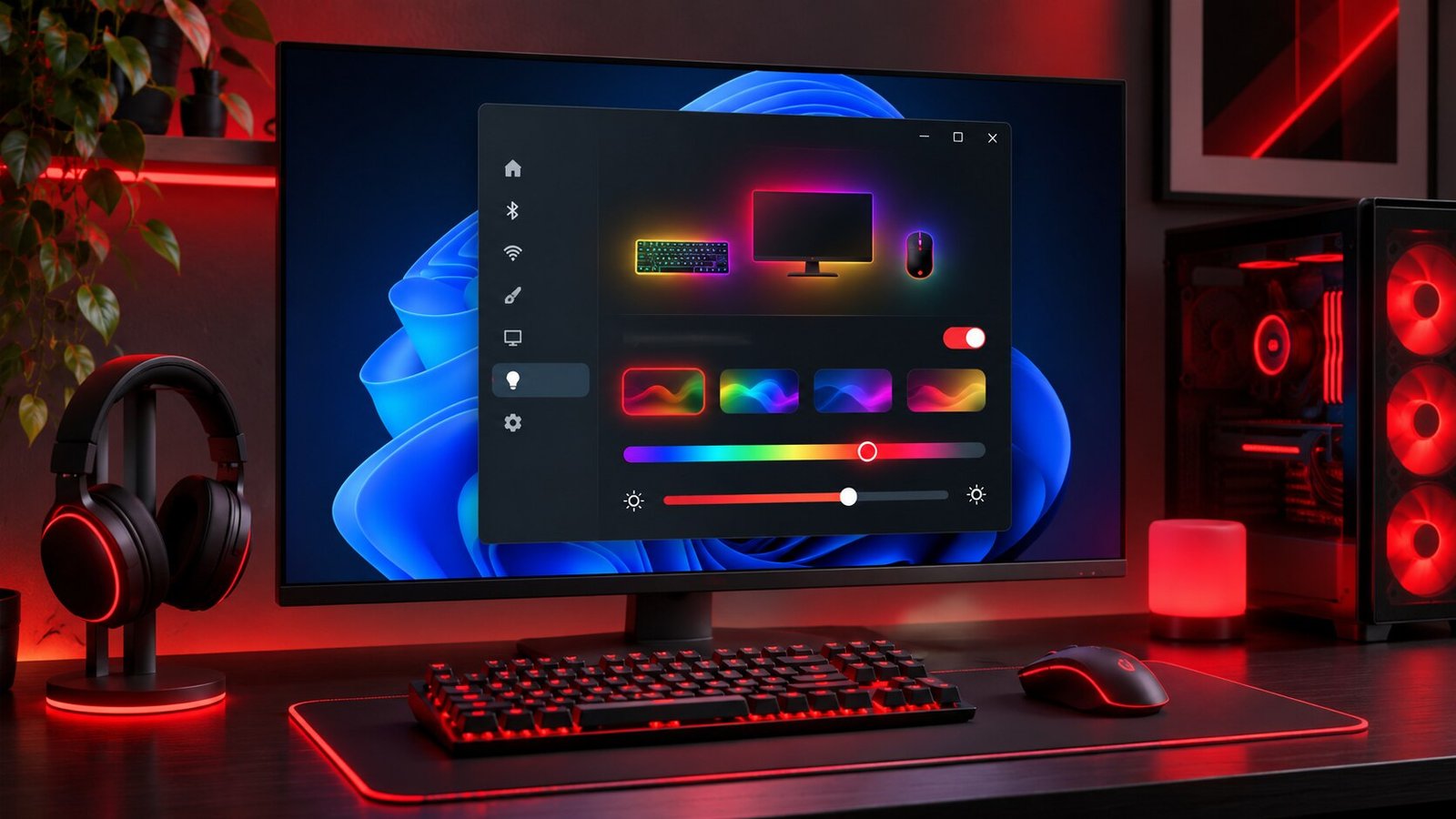
Windows 11 Dynamic Lighting gives compatible RGB devices a shared place for basic lighting controls. If your keyboard and mouse support it, you can set their brightness, choose an effect, or apply a common color from Settings. Start by getting one device to respond to a simple setting. Then add your other peripherals and decide which apps should be allowed to take over. That approach makes it easier to tell whether a mismatch comes from hardware support, software priority or a setting unique to one device.
Find your compatible devices
Open Settings > Personalization > Dynamic Lighting. Look for cards for the keyboard, mouse or other supported device you expect to control. Dynamic Lighting works with supported hardware, so a peripheral having RGB on its box tells you little about whether it will show on this page. Microsoft describes the underlying HID LampArray support in its Dynamic Lighting documentation. Check the manufacturer’s support page for the exact model and connection type if Windows never shows a card for it.
Connect one peripheral directly for the first test if you can. This helps you identify its card by unplugging and reconnecting it, which is especially useful if you have two similar keyboards on the same desk. Leave your normal pointing device connected if disconnecting the keyboard would make Settings difficult to navigate. If you also want the interface to be easier to read during setup, our guide to making text bigger in Windows 11 describes the system text size control.
Apply a single color first
Enable Dynamic Lighting for your devices on the Settings page. Start with a solid color and enough brightness to see the change clearly. Pick a color that differs from whatever is already showing. Then try a second distinctly different color to make sure your first result was a response to Windows and not a coincidence. A steady color is easier to assess than a pulse or gradient, particularly if the light is faint on one device.
Start from the shared controls if you want compatible peripherals to use the same effect. Select an individual device card when you need to tune that device alone. Test a keyboard at the desk where you actually use it. Keycap material, room lighting, the angle of the display and the layout of the LEDs can all affect how bright it seems. A mouse with a single small light may need a different setting to look balanced beside a backlit keyboard.
If your Windows build shows an option to match the Windows accent color, try it after the manual color works. Then change your accent color once and check what happens. This is useful for a desktop that already uses a consistent theme. If you want a fixed color that survives theme changes, select the lighting color explicitly. Save a note of your preferred color and brightness if you plan to experiment with several effects.
Manage app control and priority
Game integrations and vendor utilities can request control of compatible lighting. On the Dynamic Lighting page, review the foreground app option and background light controls. A game meant to change your lighting while you play can benefit from foreground control. If your priority is a consistent desk color as you switch between an editor and a game, try the setting that gives your desired controller precedence and test both apps.
Review the order of background lighting controllers if more than one utility appears there. Change one setting at a time. Return to the desktop, launch the app you suspect, and check when the light changes. Repeat the test once with the app closed. An effect that appears only while a program is in use points to a different cause than an effect that returns every time a vendor utility starts in the background.
A vendor utility may control features you still use, such as button assignments, macros or firmware updates. Leave it installed while checking whether it offers a separate lighting setting or integration switch. Try pausing just that feature, then return to Windows Settings and repeat the two-color test. For an unrelated conflict between a game and its controller software, see our Steam Input troubleshooting guide.
Troubleshoot missing or inconsistent lighting
If a device never appears, check the model and connection before troubleshooting effects. Try the manufacturer-supported connection method and a direct port if available. A wired mode, wireless dongle and Bluetooth mode can expose different device features. Avoid assuming compatibility carries across every mode. If a manufacturer offers firmware updates, read what the release notes cover before deciding whether the update is likely to address lighting support.
If the card appears but ignores changes, confirm that Dynamic Lighting is on and test a steady color with other lighting apps closed. Reopen one controller at a time to find the point where Windows stops winning control. If changes work on one device and fail on another, focus on the second card, its lighting settings and how that device is connected. If the same color looks different on both devices even though both reliably change with Windows, adjust each by eye. Differences in LEDs and materials can shift the visible shade.
If the problem only happens after a restart, check when it starts. An unexpected color before signing in can come from a device’s built-in profile. A change several seconds after sign-in can coincide with a utility or background controller starting. After a sleep and wake cycle, give Windows time to reconnect the peripheral before deciding the change failed. Write down the point in the sequence where the behavior appears so you can reproduce it without changing several controls at once.
If you are setting up a shared desk or recording video, test the lighting under the same conditions you expect to use it. Some animated effects are much more distracting in a dim room than they look in daylight. A simple color at low brightness is a useful baseline for a shared workspace. Compare it with your preferred effect during an ordinary work session and check that you can still read the key legends comfortably.
Frequently asked questions
Does any RGB keyboard work with Dynamic Lighting?
Support depends on the specific hardware and connection mode. Look for the device in Settings and check the manufacturer’s information for that model. RGB capability alone does not establish support.
Can I use a different color for each peripheral?
Use the device cards on the Dynamic Lighting page to check the controls available for each compatible device. Set the shared look first if you want a baseline, then change the individual device that needs a different color or brightness.
Why does my lighting change when I open a game?
The game or a lighting utility may take over while the game is active. Check the foreground app setting and background controller order, then compare the result with the game open and closed. That comparison helps distinguish a takeover from an ordinary device setting.
Will my Windows theme color always match across devices?
Compatible devices may follow the same requested accent color, but the visible result can vary. Try a plain solid color first and compare the devices side by side in normal room light. If you need them to look closer, tune each device where its settings allow it.


