
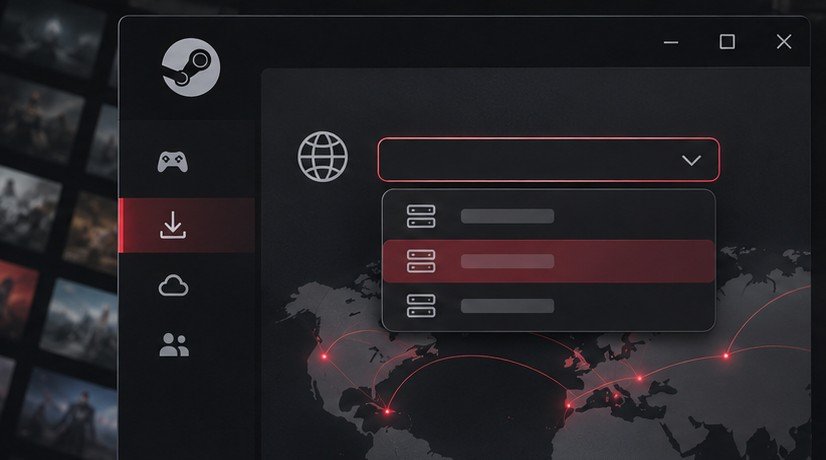
Steam’s download region determines which group of content servers the client is configured to use. If a game download is unusually slow or frequently stalls, you can test another nearby region from Steam > Settings > Downloads. Change only the region, then watch a representative stretch of the same download. Pay attention to Steam’s network and disk activity together. An installation can look stalled when Steam is busy writing or patching files even though the network is idle. Changing regions is most informative when you first identify which part of the download is slow.
Record the download conditions first
Open Downloads in Steam and select the job you want to observe. Write down the game, current download region, approximate network rate and the drive receiving the installation. Check whether the job is downloading new data, unpacking content or patching an existing game. Keep the current value of any bandwidth limit so you can make a fair comparison. Valve describes the region control in its Steam server troubleshooting guide.
Watch the display over a few minutes if there is enough work left. A live graph often changes while a title downloads. One rapid burst can be followed by a pause while the client writes to disk. If you are comparing rates, use matching units. A network plan may show megabits per second, while a download client may show megabytes per second. Eight bits make one byte, so a displayed network figure and a displayed file rate can be different even when they describe similar throughput. Protocol overhead and other traffic can also reduce the useful rate.
Choose a second region and repeat the observation
Go to Steam > Settings > Downloads and find Download Region. Note the original option and select a nearby alternative. Apply the setting and restart Steam if prompted. Return to Downloads and continue the same job where possible. Wait until the transfer reaches an active section before comparing it with the baseline. Look for a sustained change in rate or fewer pauses, rather than judging the first moment after resuming.
Try only one alternate region at first. A distant region can have a different network route, but a long list of region changes quickly mixes together changes in server conditions and changes in the download stage. Choose an alternative near your usual region if one is available. If the result remains poor, restore the original setting and investigate the client or network. If a nearby alternative works much better, keep a note of both regions and recheck later before attributing every future slowdown to the original server group.
Avoid running a speed test at the same time as the download comparison. The speed test introduces more traffic and can change the result you are trying to measure. Pause Steam first if you need an independent internet baseline. Then resume under similar household conditions. Record whether another computer is downloading a game, backing up files or streaming high-resolution video. Those activities can change the available bandwidth between the two observations.
Separate network stalls from disk work
Watch Steam’s network and disk indicators. If the network drops while Steam shows sustained disk activity, let the local work finish and see whether the network resumes. Updates can patch a large installed file after receiving a relatively small download. The process may take longer on a busy or slower drive. Confirm that the installation destination and system drive have the space the update needs. Our guide to Windows 11 Cleanup Recommendations helps you review what you can clear when lack of space is part of the problem.
If both indicators fall to zero for long periods, check the job’s status and any error shown. Check whether Steam paused the download for a schedule or a game session. If the job reports a write error, read that specific message before starting another region test. If every title behaves the same over Wi-Fi but behaves normally over Ethernet, the local wireless path is worth investigating. Change the link and the region in separate tests so you know which setting produced the difference.
A local copy can also change what you see. If another device on your network already has the game, Steam may be able to use files from it. Check the active source before comparing the region. Our guide to Steam local network game transfers explains how to identify that path. A local transfer and a content-server download use different parts of your setup. Keep separate notes if you test both.
Decide when the region change was useful
Consider keeping the change if the new region consistently improves the same kind of transfer under similar conditions. If you only have one small job to test, treat the result as preliminary and review the next large download. A connection problem that shows up at the same hour every day might depend on demand beyond the region setting. Compare conditions on another day before locking in a conclusion. Use the region that proves convenient in ordinary use, and keep the original value so you can restore it easily.
For a household where downloads interrupt game play or calls, you may get more predictable results by limiting download traffic or choosing when a large update runs. Check whether the limiting problem was peak bandwidth or latency under load. If the new region is faster but the household still experiences interruptions, confirm the download’s effect at the times you actually use the connection. The most useful outcome may be an update that finishes reliably without affecting the rest of the network.
When asking for help, provide the region you tried, the game, whether other titles behaved the same and whether disk activity continued during the stall. If a problem happened only when installing on one drive, include that detail. A short account of what you changed and what happened is more useful than a single screenshot showing a low number with no context. If the error appears only when launching after the download, consult our Steam Remote Play guide only when the launch involves a separate host connection, since that introduces another network path to test.
If the second region performs better, repeat the test during another download at roughly the same hour. Give the comparison enough time to include an uninterrupted transfer interval. Keep the install drive and any bandwidth limit constant throughout the test.
Frequently asked questions
Should I always choose the nearest region?
Start with a nearby region and compare how it performs. Availability and routing can vary. Judge similar parts of the same download over enough time to see a sustained difference.
Does changing the region change my Steam store country?
Download Region is a client setting for downloaded content. Use that setting for transfer troubleshooting. Account and store country settings are separate.
Why is Steam showing disk usage but no network usage?
The client can be working on local data, such as unpacking or patching. Watch for the next network burst and check for a disk error or space issue if progress does not return.
What if switching regions does nothing?
Check whether a speed limit, disk operation, local Wi-Fi problem or competing traffic explains the result. Restore the original region and repeat one controlled test with the suspected factor changed.