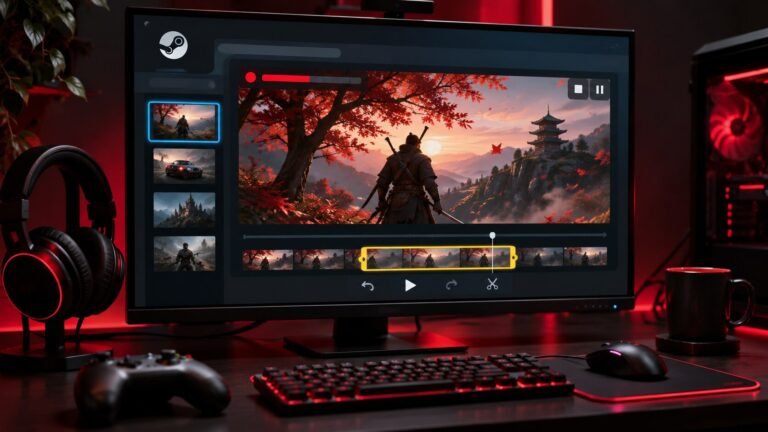
Press F12 in a Steam game with the overlay enabled to take a screenshot with the default shortcut. Open Steam’s screenshots view to find the capture, then check the game, time and image before exporting or sharing it. Change the shortcut if F12 already performs an important action in the game.
Check the shortcut and overlay first
Launch a game you can pause or leave safely. Find the Steam overlay controls in the client and check whether the overlay is enabled both globally and for the individual game. Valve explains how the overlay and capture shortcut work in its Steam screenshot documentation. On some keyboards, F12 shares a media function, so check whether you need to hold a function key. Try the shortcut on a menu where a key press cannot accidentally confirm a purchase, close a match, or discard progress.
Check for the notification or sound that normally follows a capture. A notification can be hidden or brief, so use the screenshots view to confirm whether a file was saved. Open the latest capture and verify that it belongs to the right game. If the image already exists, do not keep pressing the key while looking for proof. A capture list that updates after the game closes can look different from the overlay inside the game. Compare the timestamp and the scene you recognize.
Choose a useful capture rather than filling the library
For a bug report, capture enough context to show the issue and any setting that affects it. If a button or menu is involved, make sure it remains visible. For a visual comparison, use the same scene, camera angle and lighting in both captures. Change a single graphics option and compare the resulting files outside the game. Write down the setting values before switching them again. Visual changes can be hard to interpret if the second screenshot took place in a different part of the level.
Review what the game displays beyond the intended subject. A friend list, chat message or overlay can contain details you do not want to share. For an illustration, capture from a clean profile or hide irrelevant interface elements when the game supports it. For troubleshooting, keep useful context and redact only what should remain private. Export a separate copy for editing so the original stays available for comparison. Our screen recording guide describes how to check a moving capture when a single frame cannot show the problem.
Find and export the screenshot
Open Steam’s screenshots or recordings and screenshots view from the client. Filter by game if the list contains more than one title. Select the capture and inspect its preview. Use the available show-on-disk or export action to locate a local copy when you want to attach it to a message or edit it. Interface labels can vary with client updates. Looking up the individual item through Steam is safer than guessing a path based on an older installation.
Copy the file to a folder you can recognize and give the copy a meaningful name. Include the game, setting and purpose when the screenshots belong to a comparison. Open the exported file directly to verify that it is readable and that the full image arrived. If you use more than one computer, check which one actually made the capture. A local file on a handheld or another PC is not automatically available in every client. Use a trusted file transfer method when you need a separate copy.
Diagnose screenshots that do not appear
If the shortcut does nothing, first test whether the overlay opens in that game. Check the shortcut in Steam and look for a game command using the same key. Try an alternative binding, then repeat one capture. If the overlay works in a second game but not the first, check the first title’s support and launch conditions. Keep other overlays and recording applications in mind, but change them one at a time so you can identify the difference. For a controller-driven setup, test keyboard input separately from any mapped capture command. Our Steam Input guide explains how to check mappings without replacing a working layout.
If a screenshot exists but the picture is black or incomplete, check whether the problem happens in a different game or display mode. Return to a working display configuration and compare a small sample. A capture brought in from another tool can also differ from one made by Steam. When sending evidence to a developer, note which capture method you used and whether the game was fullscreen or windowed. If the issue occurs only through a streaming client, compare a capture on the host after checking our Remote Play guide.
Share only the image you meant to share
Use the client’s sharing controls if you want the screenshot on Steam, and review the visibility option before completing the upload. If you only need to send one person an image, check whether an exported file provides a simpler route. Do not assume that an online screenshot shares the same visibility as a game profile or a saved file. View the resulting item from the appropriate account or sharing view when you need to confirm who can access it.
For support, include the relevant settings in text as well as the image. A picture can help explain a visual problem, while the written game version and display mode let someone search or reproduce it. If the screenshot must show small text, avoid reducing it until you checked a copy at its final size. Keep one unedited reference until the support request is resolved. A video or two well-labeled screenshots can be more useful than a large folder of nearly identical images.
Keep a usable local archive
If screenshots matter beyond a quick message, retain copies in a known folder with your other project material. Run a small test after moving a Steam installation or replacing a drive. Our Steam library migration guide explains why different Steam paths may contain different data. Check the actual screenshot location separately rather than assuming that moving a game also moved all existing captures.
Review the archive periodically. Keep the originals you still need and verify that any edited copies show the intended changes. If changing computers, open several images on the destination before removing an old copy. For a long troubleshooting session, write one sentence about what each image demonstrates. A label such as after selecting the second display is easier to understand months later than a timestamp alone. Label images at the time you take them so you can still connect them with the exact setting or action shown.
Frequently asked questions
Where are Steam screenshots stored?
Select the capture in Steam and use the available local file action. This avoids assuming a particular folder or library path.
Is F12 required?
F12 is the default keyboard shortcut. Check the current setting and choose another key if it conflicts with your game.
Can I keep a screenshot without uploading it?
Yes. Verify the local file and retain or copy it where you need it. Use the client’s upload controls only when you intend to share it online.